Seedream 4.5 Prompts for Cutaway Diagrams in YouTube Explainers
Create cutaway visuals that help viewers understand what is happening inside an object or process. These Seedream 4.5 prompts focus on clear shapes, controlled revisions, and editor-added labels rather than decorative detail.
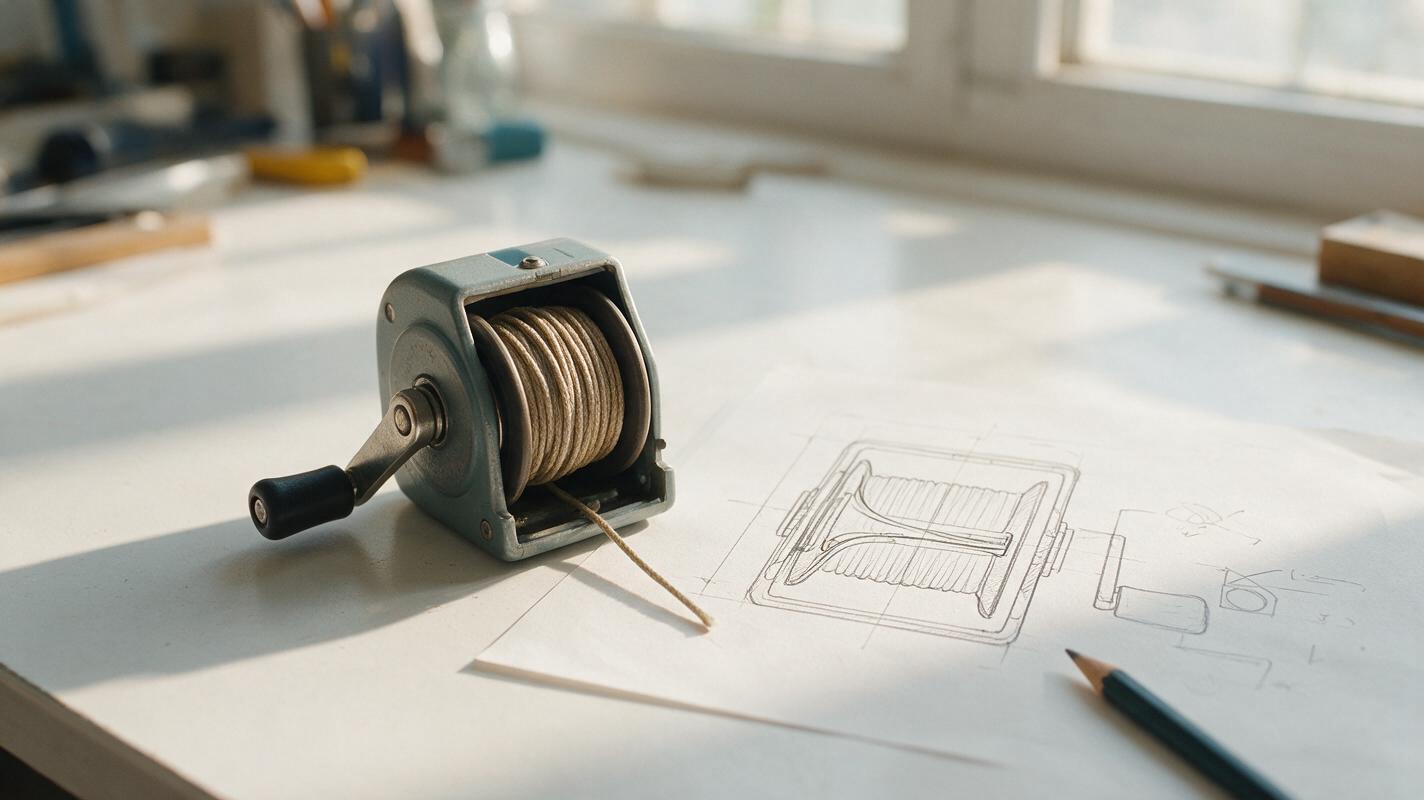
Table of contents
Show the part viewers cannot see
A close-up of a machine can show what it looks like, but not necessarily why it works. For a faceless YouTube explainer, a cutaway diagram can reveal the hidden movement or layers at the exact moment your narration describes them. The challenge is making the picture simple enough to understand in seconds—and accurate enough not to invent a mechanism.
Seedream 4.5 is useful for drafting these illustrated stills. Treat its output as a visual draft, not an engineering drawing: establish the structure from a reliable reference, generate an uncluttered composition, and add arrows and labels in your editor after checking the result.
Build the cutaway around one claim
Before opening an ai image generator, finish this sentence: “The viewer should understand that…” If the answer contains three separate explanations, you probably need three images or a short sequence—not one crowded diagram.
Collect a reference you are permitted to use for the object’s shape and internal arrangement. A manufacturer diagram, your own photograph of a disassembled object, or a source you have independently checked can guide the illustration. If no trustworthy reference exists, use a clearly fictional demonstration object rather than presenting a guessed interior as fact.
- Keep: the parts necessary to explain the narrated action.
- Remove: decorative components, tiny labels, and background props that compete with the mechanism.
- Reserve: open space for titles, arrows, or highlights added during editing.
A cutaway is successful when a viewer can locate the important part before the voiceover names it.
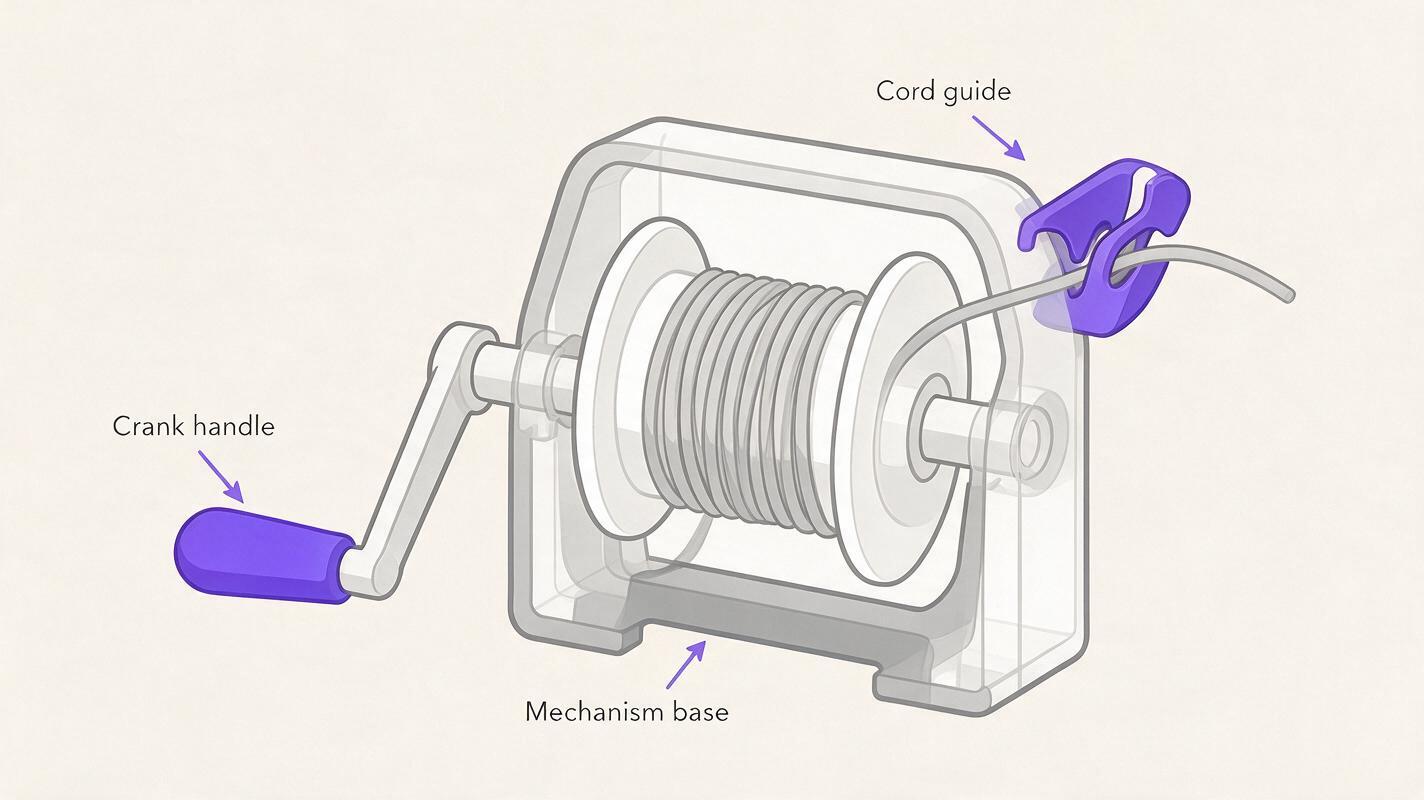
A hand-cranked spool that makes motion obvious
For a video about winding and unwinding, a fictional hand-cranked spool is a safer demonstration than a guessed cutaway of a branded device. Ask for a single exposed drum, a visible handle, and one continuous cord. The generated still should establish their relationship; your editor can animate a short arrow in the direction you are actually explaining.
Illustrated cutaway of a simple fictional hand-cranked cord spool for an educational YouTube video. Show one cylindrical drum connected to one external crank handle. One continuous cord wraps around the drum and exits through a single guide opening. Three-quarter view, large readable shapes, neutral background, limited blue and warm orange palette. Leave empty space above the drum for an editor-added label. No text, arrows, extra gears, additional cords, hands, or brand markings.Inspect the result before using it: can you trace the cord from the drum to its exit without a break? Is the handle visibly connected to the drum? Regenerate if the model adds a second winding path or a mechanism your narration does not mention. For a second still, reuse the approved image as a reference if your chosen interface supports it, and request only a new crank position. Keeping the same base drawing in your editor is more reliable than expecting two independent generations to match.
A wall cross-section that separates layers
Layered subjects need a different visual treatment. Suppose your narration describes the order of materials in a wall sample. Give Seedream 4.5 the verified order from your source and ask it to show that order without inventing hidden cavities or fixtures. The example below uses a fictional teaching sample; replace its layers with checked information before using it to explain a real building.
Clean educational cutaway of a fictional wall sample, viewed at a slight angle so each layer is visible. From left to right: smooth interior panel, a thick textured insulating layer, a rigid outer panel. Show exactly three continuous layers, clearly separated, with no studs, pipes, wiring, fasteners, or additional materials. Plain background and generous blank margin on the right for editor-added labels. Restrained textbook illustration, consistent scale, no text or arrows.Check the output against the stated order. A beautiful picture with a swapped or duplicated layer is not usable. If the layer boundaries remain muddled, simplify the prompt to a straight-on section or draw the layers yourself; generation is not mandatory when a basic diagram communicates the idea more accurately.

A marble run that reveals the path
When the narration is about a route rather than an internal component, use a cutaway that lets the eye follow one object from entrance to exit. A fictional cardboard marble run makes the point without implying that you have documented a real product.
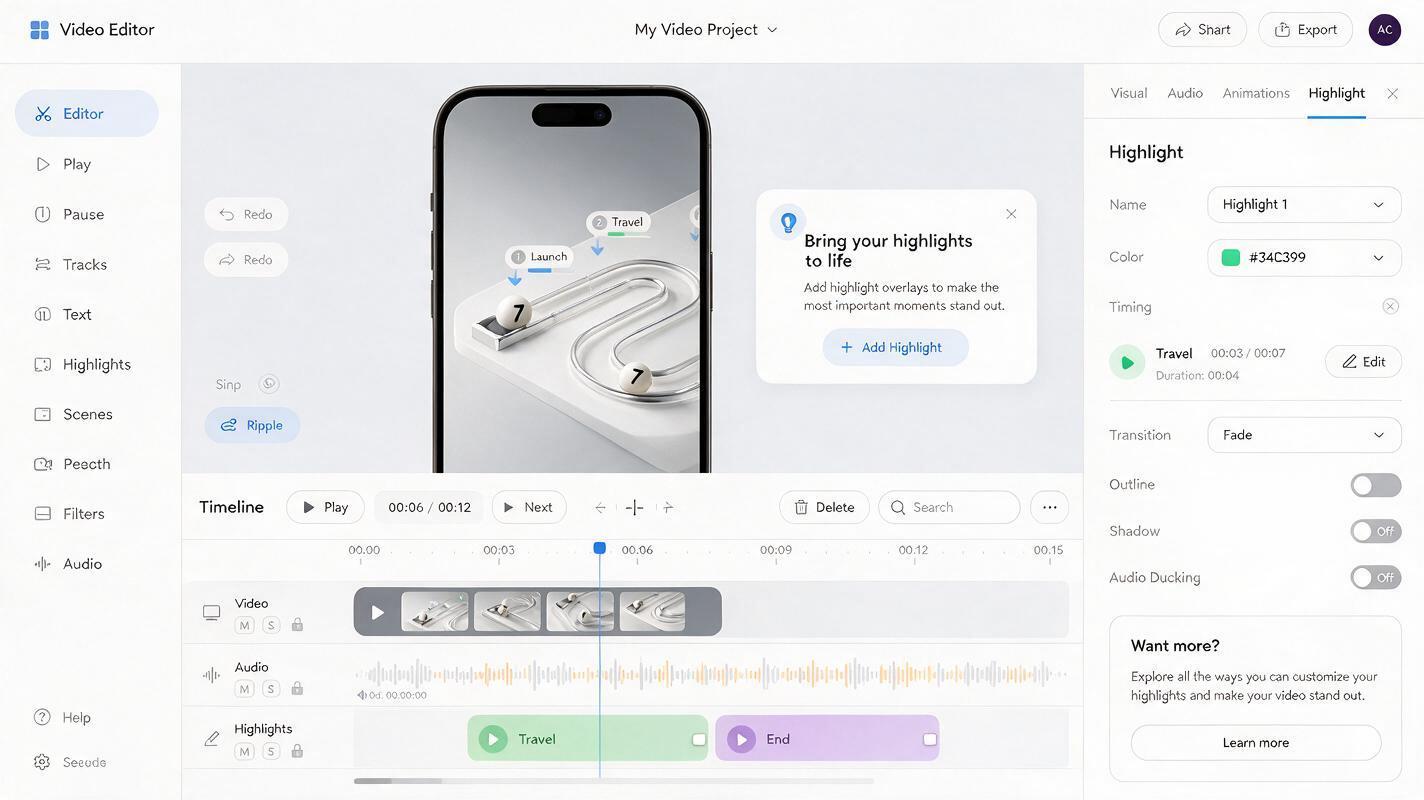
Simple cutaway illustration of a fictional tabletop cardboard marble run for a faceless video explainer. Show one marble at the top entrance and a single continuous descending track inside an open-sided box, ending at a visible exit tray. Three wide track segments connected in sequence; make every connection easy to follow. Front three-quarter view, uncluttered pale background, bold track edges, no additional marbles, impossible jumps, text, arrows, people, or logos. Leave clear space to the left for narration captions.Follow the route with your finger at thumbnail size. If you cannot tell how the marble reaches the next segment, viewers will not be able to either. Keep the cleanest still and reveal the route with editor-added highlights timed to the voiceover. This often communicates motion more clearly than generating a video in which the track or marble changes shape.
Make the still work on a phone screen
Place the approved cutaway in your video timeline and preview it at the size a viewer might see on a phone. Crop toward the relevant part, but do not crop away the entrance or exit that makes the explanation intelligible. Add no more than a few short labels at once, using your editor’s text tools rather than relying on generated lettering.
For an opening visual hook, show the intact object briefly, then cut to the matching cutaway as the narration asks what happens inside. For a longer explanation, hold the still while highlighting one component at a time. Avoid moving arrows that imply a direction or sequence you have not verified.
If the first result is too busy, revise the prompt by removing parts—not by adding more adjectives. Keep the same viewing angle and color scheme while changing only the feature that failed. You can test this prompt yourself with a simple demonstration object before attempting a more technical subject.
Final checklist
- The diagram answers one specific question from the narration.
- Any real mechanism or material order has been checked against a reliable reference.
- Connections, paths, and layers remain legible at phone-screen size.
- Generated text, invented components, and ambiguous arrows have been removed.
- Labels and timed highlights are added in the editor, where they can be corrected.
Keywords
seedream 4.5 prompts, cutaway diagrams, youtube explainer visuals, faceless youtube videos, ai diagram prompts, explainer video illustrations