Seedream 4.5 Prompts to Remove Flyaway Hair From Headshots
Flyaway hairs can distract from a polished headshot, but broad AI edits often soften the hairstyle or change the face. These Seedream 4.5 prompts target isolated strands while preserving natural hair texture, and show when a conventional retouch is the safer choice.
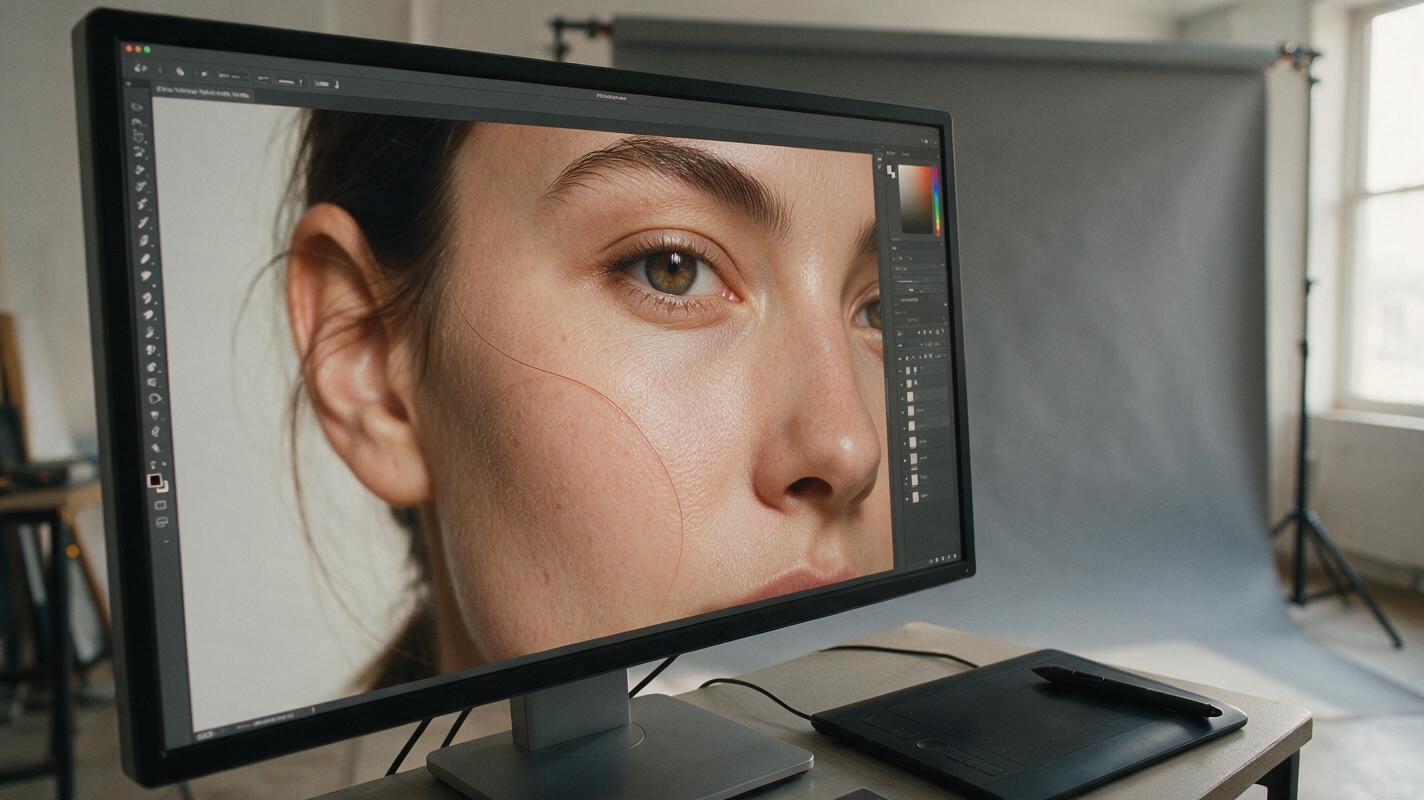
Table of contents
Clean up stray hairs without changing the person
A single hair crossing a cheek or a few bright strands against a studio backdrop can pull attention from an otherwise finished headshot. The goal is not perfectly smooth hair: it is to remove specific distractions while keeping the photographed hairstyle, hairline, face and skin texture intact.
Seedream 4.5 can help with a tightly defined image edit, especially when a strand crosses a textured area that is tedious to reconstruct by hand. For a hair against a plain background, a healing or clone tool may be faster and more predictable. Keep the original photograph as your master, and treat any generated result as a patch to inspect—not an automatic replacement for the portrait.
Decide which hairs actually need to go
Review the headshot at its intended delivery size before zooming in. A hair that disappears in a website thumbnail may be part of the subject’s natural texture rather than a problem. Mark only strands that interrupt a clear visual boundary or draw the eye away from the expression:
- Good candidates: one isolated hair across an eye or cheek, a bright strand cutting across a dark jacket, or a loose hair extending far into a clean background.
- Usually keep: soft baby hairs along the forehead, curls that define the silhouette, and wisps that make the hairstyle look natural.
- Retouch manually first: strands against a simple, even backdrop. A small healing or clone edit gives you more control than regenerating a larger area.
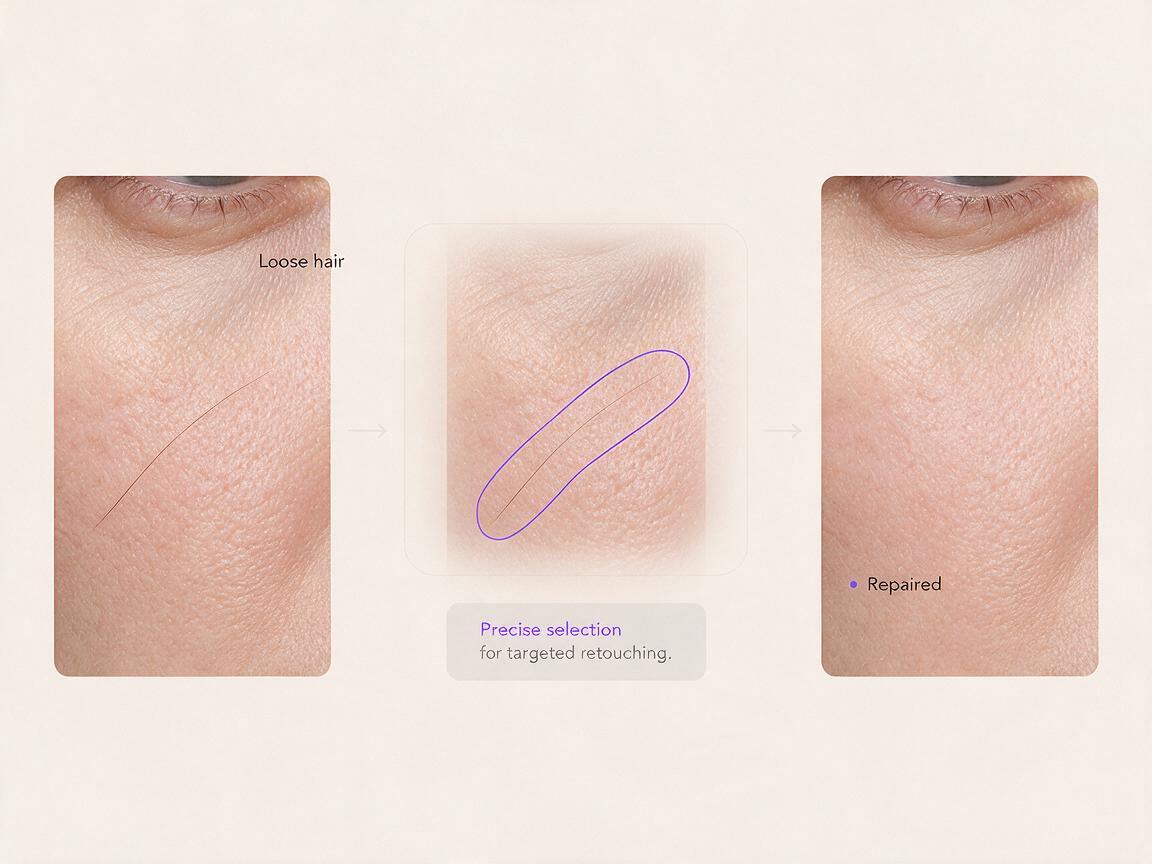
Make a duplicate of the finished color-corrected portrait. If your editor supports a selection or mask, confine it to the distracting strand and a narrow margin around it. Do not include the whole face just because the strand touches the skin.
Prompt for a strand crossing the face
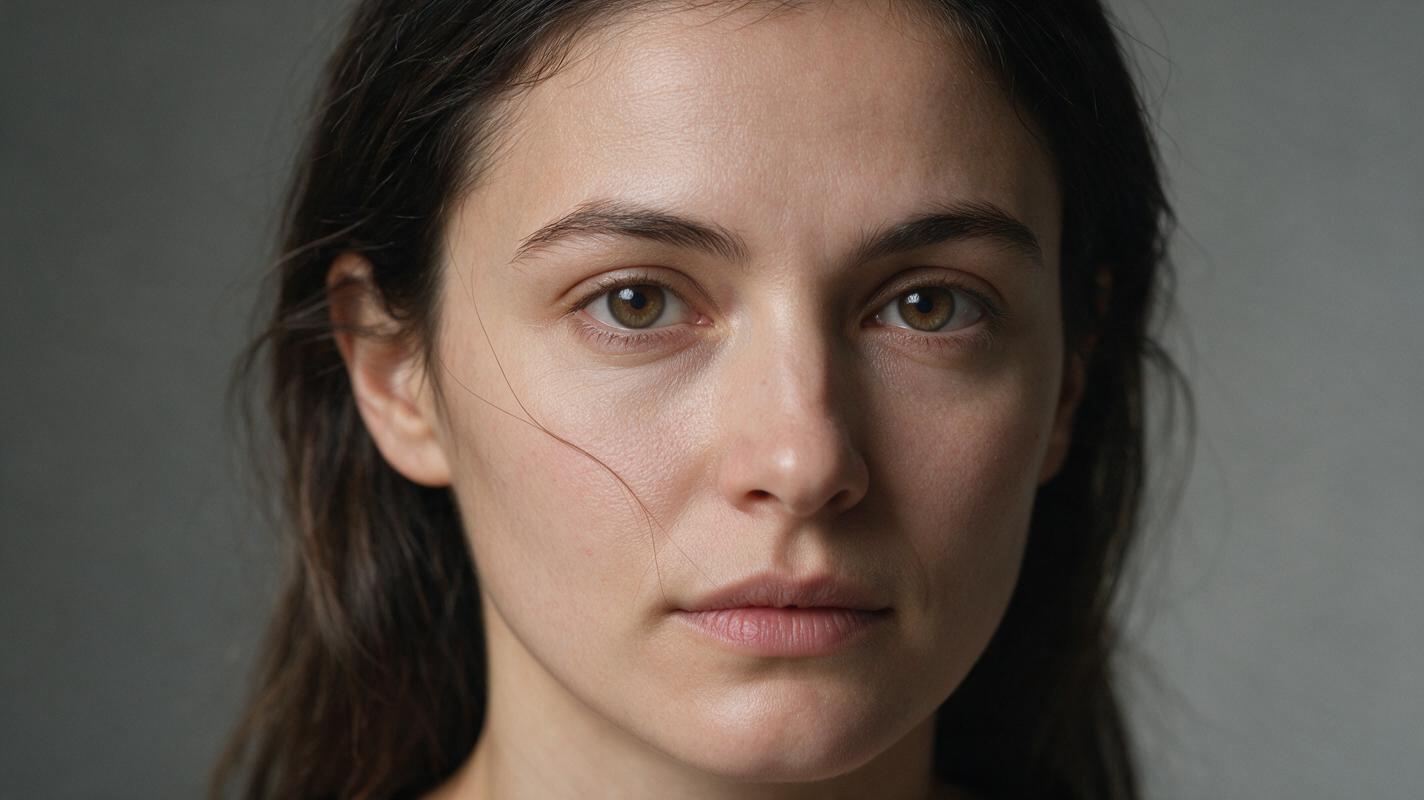
A hair over skin is the most demanding case: the edit must reconstruct what lies underneath without inventing an eyelid, changing a freckle or smoothing away pores. In ai image generator, use Seedream 4.5 with the original headshot as the image reference and select the smallest practical edit region. If the available interface does not offer localized editing, compare its output to the original and composite only the usable repair in your photo editor.
Remove only the single loose hair crossing the subject's left cheek, from below the eye to the jaw. Reconstruct the underlying skin from the immediately surrounding area. Preserve the subject's facial features, freckles, pores, expression, makeup, lighting and color exactly. Do not alter the hairline, eyelashes, eyebrow or any other hairs. Keep the original photograph's framing and background.Replace “left cheek” and the strand’s endpoints with what is visible in your frame. For a hair crossing an eye, first look for an adjacent photograph from the same sitting that shows the unobstructed eye. A real donor frame is preferable to asking a model to guess its detail. If you cannot verify the eye, do not present a generated reconstruction as an unaltered photographic record.
Prompt for wisps against the background
Several flyaways beyond the hairstyle can be addressed together if they occupy one small region and the background is consistent. Specify what must remain: the outer contour of the hairstyle, fine edge hairs and the photographed backdrop’s grain or gradient.
Remove the three isolated flyaway strands extending beyond the hairstyle into the gray studio background above the subject's right shoulder. Preserve the natural silhouette, curls and fine edge hairs. Match the existing background's subtle tonal gradient and photographic texture. Do not change the subject, clothing, lighting, crop or any hair inside the main hairstyle.If the backdrop has a visible gradient, inspect the repair at normal viewing size and at full resolution. A seemingly clean patch may contain a flat tonal rectangle. Reduce the mask to the individual strands, or return to manual retouching if the generated background no longer matches.
Keep the repair smaller than the retouch
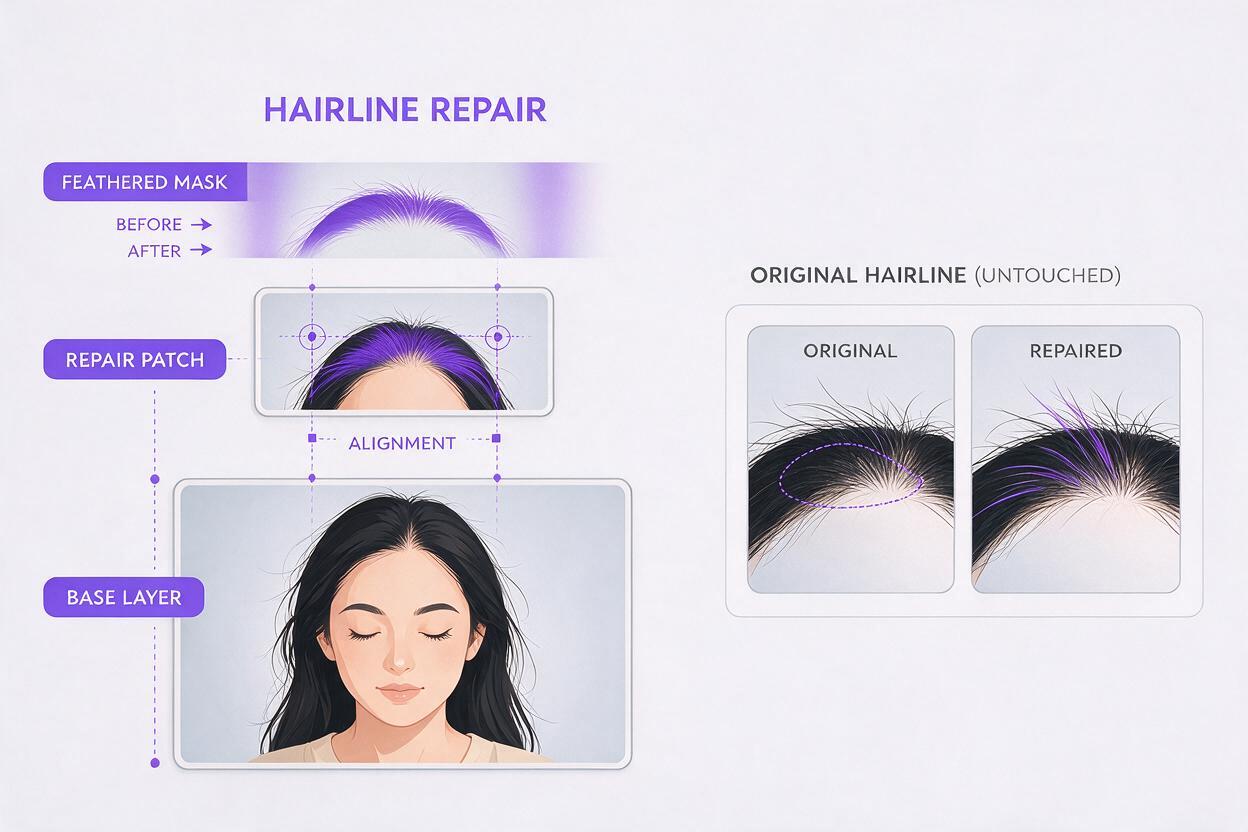
The safest delivery method is often to place the generated result above the original photograph, align the two images, and mask in only the corrected pixels. This protects everything outside the repair, even if the model quietly changed a collar seam or facial detail.
| What you see | Likely cause | Better next move |
|---|---|---|
| Skin looks waxy beneath the removed hair | The edit region includes too much cheek | Use a narrower mask; restore original skin wherever the strand did not cross it |
| Hairline looks cut out | The prompt treated natural edge hairs as flyaways | Specify the isolated strands and restore the original silhouette |
| Background has a smooth patch | Generated texture differs from the photograph | Blend a smaller repair or use the clone tool instead |
| Eye or eyebrow shape changed | The model reconstructed identifying detail | Reject the result and use an accurate donor frame or manual retouch |
Check the composite at 100% for seams, repeated texture and broken strands. Then zoom out: if the hairstyle suddenly looks unusually tidy, you probably removed too much. For a series of team headshots, judge each portrait on its own rather than forcing every person to have the same amount of edge detail.
Retouching boundary: Removing a transient hair is different from changing a person’s hairline, hair density or facial features. Agree on the scope of appearance edits with the client before delivering a substantially altered portrait.
Final checklist
- The distracting strand is gone, but natural edge hairs remain.
- Skin, eyes, brows and hairline match the original photograph.
- Background tone and texture remain continuous around the repair.
- Only the approved correction is composited into the final file.
- The result still looks like the same person at normal viewing size.
Have a suitable headshot ready? test this prompt yourself on a duplicate, then compare the repair with the original before delivering it.