Single Product Photo to a Shopify Video Loop Without Product Drift
A single product photo can anchor a short Shopify video loop, but direct animation may change labels, buttons, or other details. This guide uses a stationary product layer and restrained background motion to make a useful product-page visual without presenting generated movement as a real demonstration.
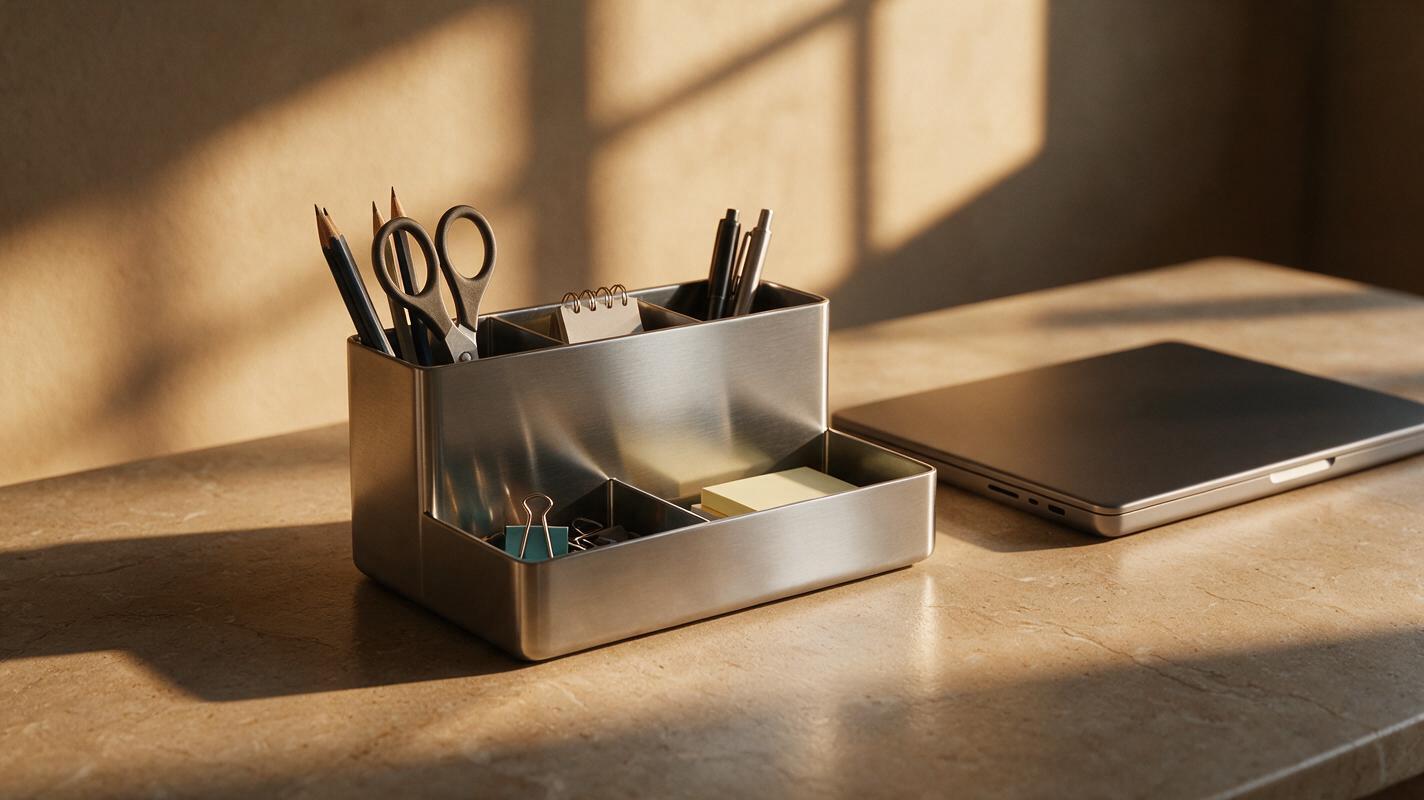
Table of contents
Make the scene move, not the product
A Shopify product-page loop can make a still photo more noticeable, but it should not quietly redesign the item a shopper will receive. When an entire product image is animated, labels may shift, ports may appear or disappear, and reflections can make a stationary object seem to bend. A safer approach is to keep the photographed product still while a restrained background moves behind it.
This works best for a short atmospheric loop: a desk lamp casting a gentle glow behind a notebook, soft window shadows near a ceramic planter, or a curtain moving behind a packaged product. It is not a substitute for footage that proves how a lid opens, how a garment fits, or how a device operates.
Choose a photograph that can hold the frame
Start with a sharp photograph of the actual sellable variant. Use a view that shows the features shoppers need to recognize, with enough empty space around the item for a believable setting. A three-quarter view often gives a scene depth, but a front view is better when the label must remain legible. Avoid relying on a tiny catalog thumbnail: enlarging it for video can make the product look soft even when the background is crisp.
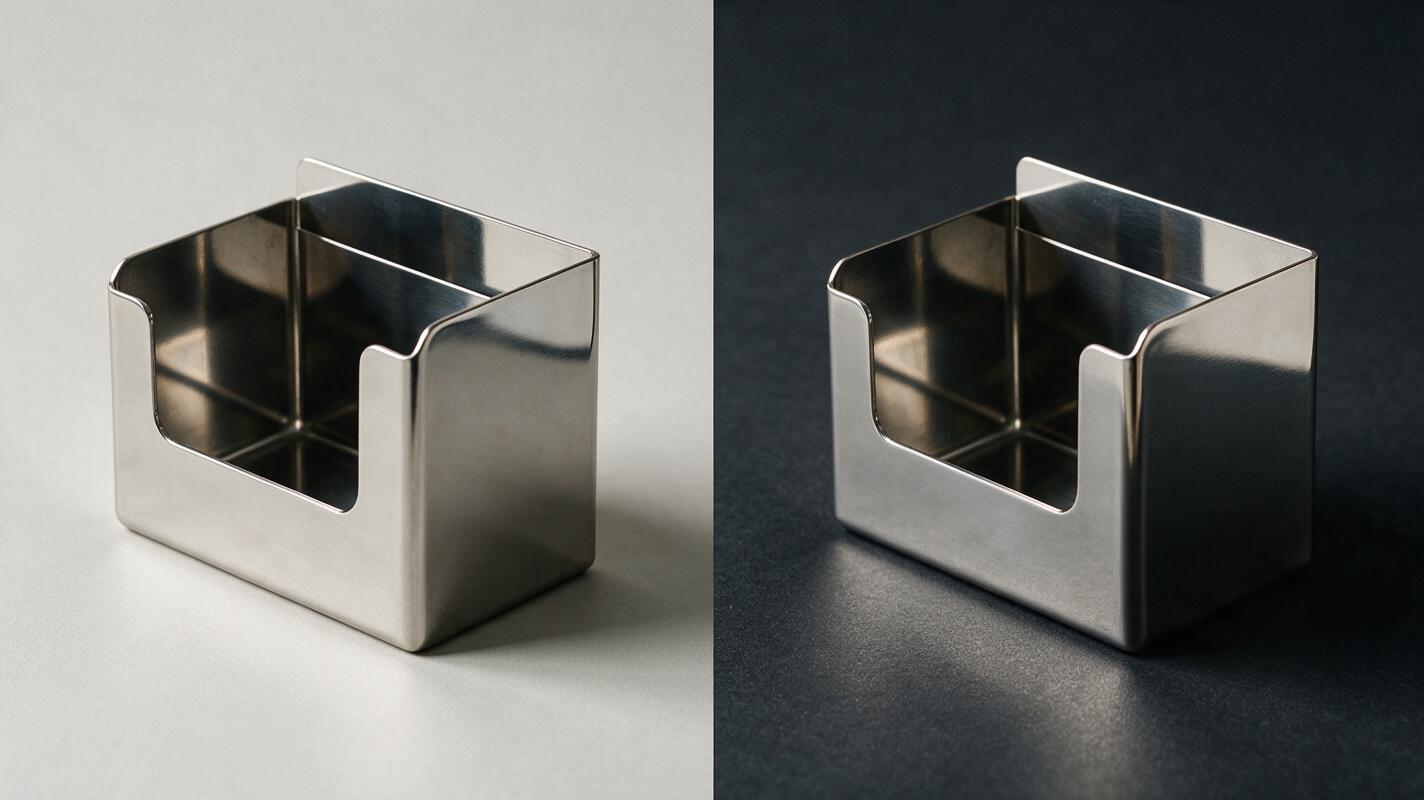
Keep an untouched copy of the source photo. Prepare a separate product layer with its edges intact, including handles, straps, or thin cables. Inspect it against both a light and a dark temporary background; a cutout that looks fine on white may reveal a pale halo against a darker video. The purpose is to protect the actual product pixels, not to ask a model to redraw them.
Decide where the loop will appear before composing it. A wide product-page module, a square gallery tile, and a vertical social placement leave different amounts of room around the item. Keep the product comfortably inside the intended crop, then preview the result at phone width rather than judging only a large desktop canvas.
Build an empty scene around the product
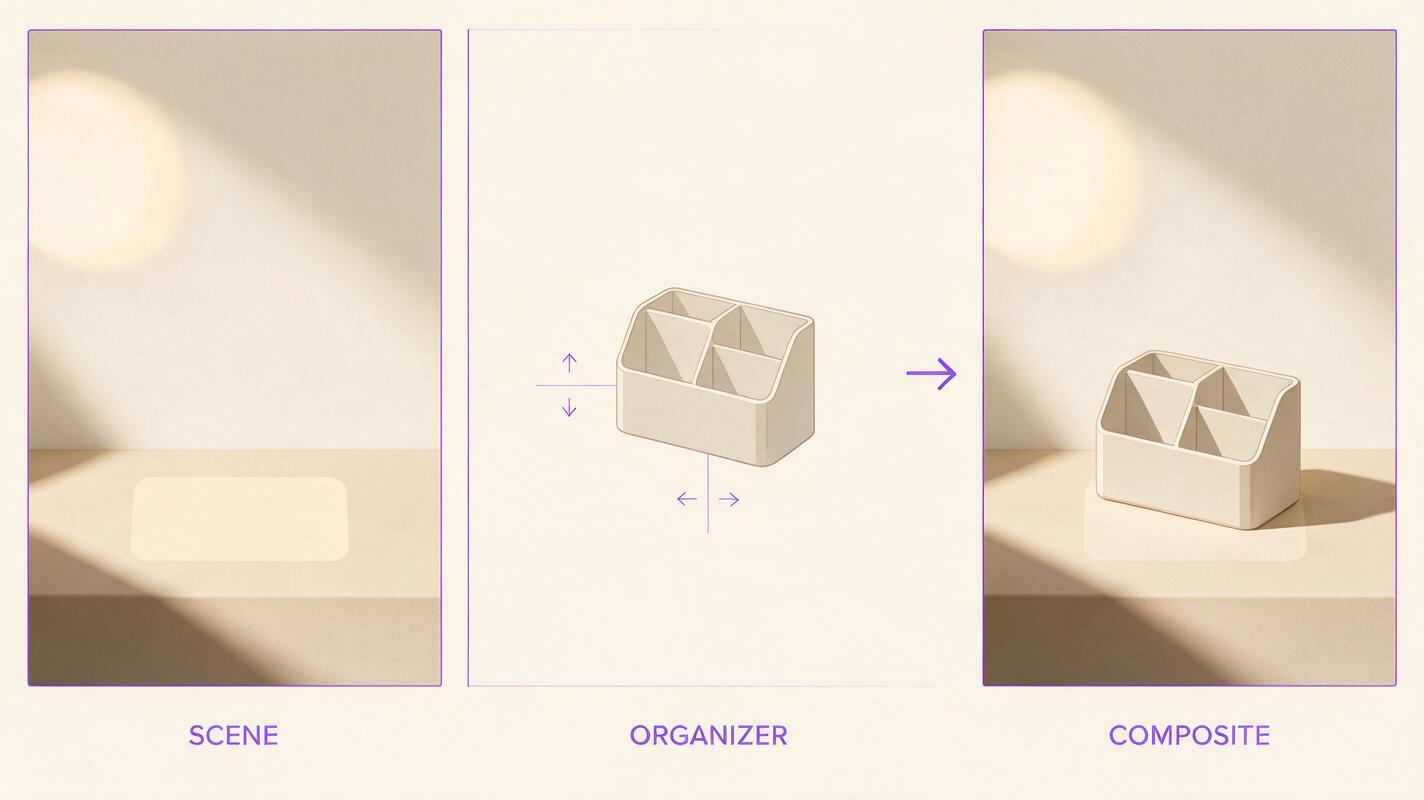
Make a background plate with a clear area reserved for the product. You can photograph a real surface or use ai image generator with Seedream 4.5 to explore an empty setting. Do not include a generated imitation of the item: even a convincing duplicate can introduce a different shape, finish, or accessory.
For example, a seller with a photographed stainless-steel desk organizer could request a simple tabletop and a softly lit wall. Specify the product's position and the direction of light so the background can accommodate the real photograph:
Empty editorial product-photo setting, warm neutral desk surface and softly lit wall. Leave a clear open area in the center-right for a photographed desk organizer to be added later. Soft daylight from the left, subtle contact-shadow area beneath the reserved position. No organizer, no packaging, no text, no logos, no hands, no extra products.Place the product over the resulting still scene and check the composite before generating motion. Match its apparent camera angle and scale to the surface. If the original photograph has strong light from the right but the scene is lit from the left, choose another plate or adjust the background; adding more animation will not fix contradictory lighting.
Animate only what could naturally move
Use the approved empty scene as the motion source. With image to video, Seedance can be used to explore subtle background movement; review each result rather than assuming the prompt will hold the composition perfectly. Composite the untouched product layer over the selected clip afterward. Keep a deliberate still area directly behind the product so changing background details do not show through transparent parts or create restless edges.
Pick one modest motion idea per clip. These prompts describe backgrounds, not product demonstrations:
Soft window-shadow movement
Animate this empty tabletop setting with a faint window shadow moving slowly across the back wall. Locked camera, unchanged tabletop, steady exposure, no objects entering the reserved center-right product area. Gentle motion suitable for a short repeating loop. No product, no text, no hands.This suits home goods and stationery when the source photo already has compatible daylight. Check that the moving shadow does not pass across a product that remains separately lit and stationary; that would make the composite look disconnected.
Subtle curtain movement
In this empty room scene, let a distant curtain shift very slightly in a soft breeze. Keep the camera fixed and the foreground display surface still. Preserve open space where a photographed product will be composited. No new objects, no people, no text, no product.A curtain provides movement away from the product edge. Reject versions where the model moves the table, changes the room layout, or pulls visual attention away from the item.
Restrained light variation
Animate the existing empty studio background with a very slow, subtle change in reflected light on the rear wall only. Locked camera and stable foreground surface. Maintain the reserved product area and original scene layout. No flashing, new props, product, logos, or text.This can work for packaged items when a moving curtain or prop would feel out of place. Keep changes gentle enough that the loop does not resemble a product finish changing color.
Check the join before calling it a loop
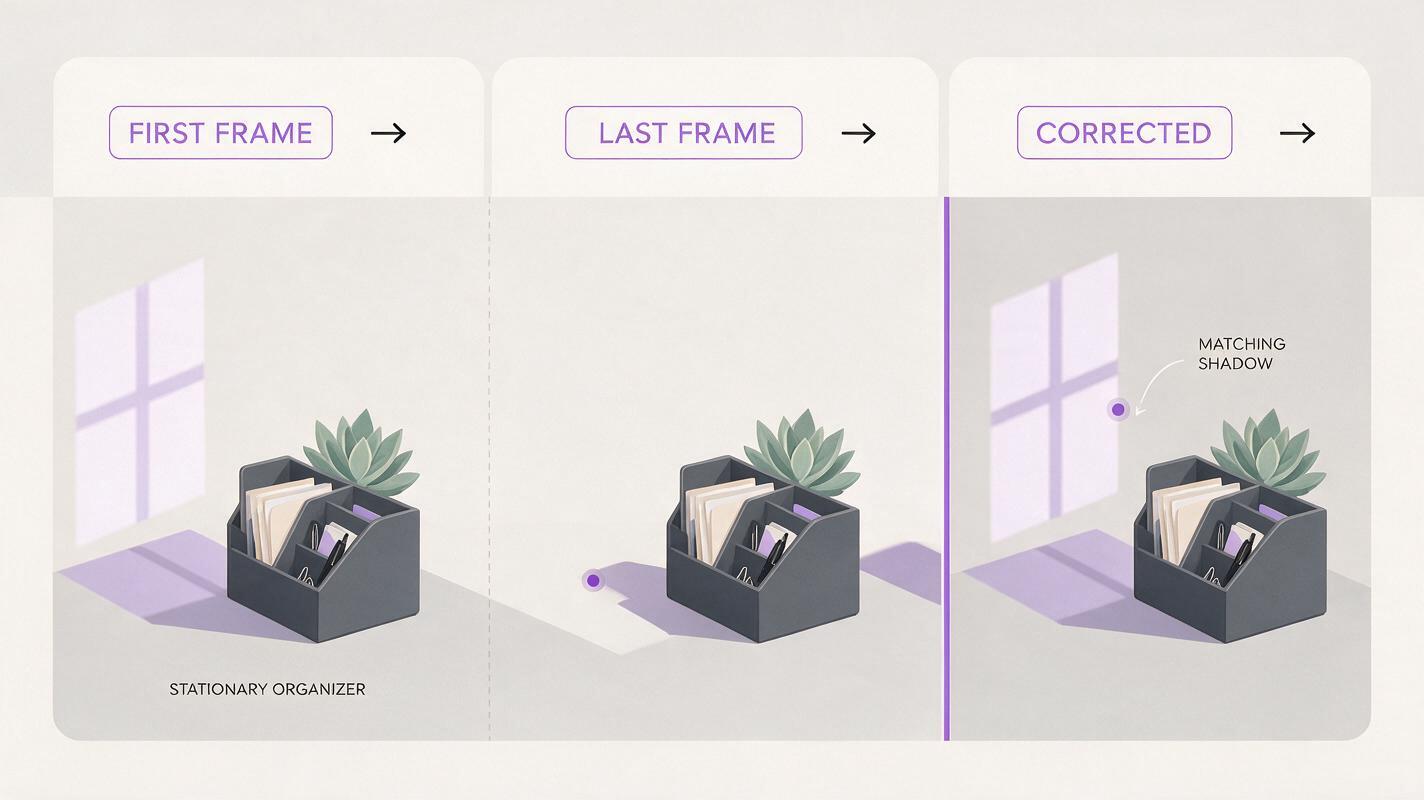
A short clip is not automatically seamless. Put the final frame beside the first frame and look for a jump in shadow position, brightness, or background objects. If the difference is obvious, trim to a calmer portion or use a brief dissolve where appropriate. A forward-and-reverse edit can smooth some background motion, but it may look unnatural when the scene contains recognizable one-way movement.
Then composite the photographed product over the edited background. Add a stable contact shadow only if the source photo and surface support it; avoid a generated shadow that pulses independently of the item. Watch the export at normal speed and at a small mobile size. In particular, check:
- Product fidelity: The label, shape, color, ports, and included accessories match the original photograph throughout.
- Edge stability: No halo flickers around thin or reflective parts.
- Crop safety: The product stays visible in the actual Shopify placement.
- Loop quality: The cut does not create a noticeable flash or jump.
- Page behavior: File size and playback settings suit the theme; test the published page on a phone rather than assuming autoplay or looping will behave identically everywhere.
Keep the principal listing photos available beside the video. A quiet loop may add atmosphere, but shoppers still need clear static views of what is included and what the product looks like without moving light.
Know when to film instead
Use real footage when the movement itself is evidence. A video showing a zipper closing, a bottle dispensing, or an appliance turning on should depict the actual item performing that action. Background animation cannot verify a mechanism or a result. If you only have one still photo, make an atmospheric loop and label it through its placement and context—not as a functional demo.
For a first test, choose one accurate product photo and one empty setting. test this prompt yourself with gentle background motion, then keep only a version whose product details and loop join pass inspection.
Final checklist
- Use a photograph of the actual product and variant as the fixed foreground.
- Generate or photograph an empty background with space for that foreground.
- Animate one subtle background element, not the product or its features.
- Inspect the first-to-last-frame transition and the mobile crop.
- Film a real demonstration whenever motion needs to prove a claim.
Keywords
shopify product video, product image to video, ai product video, product photo animation, seamless video loop, product listing video