Square Product Photo to Vertical Ad Without Changing the Product
A square product photo often leaves too little room for a vertical ad’s headline and call to action. This guide shows ecommerce sellers how to expand the surrounding scene while keeping the photographed product, label, and proportions intact.
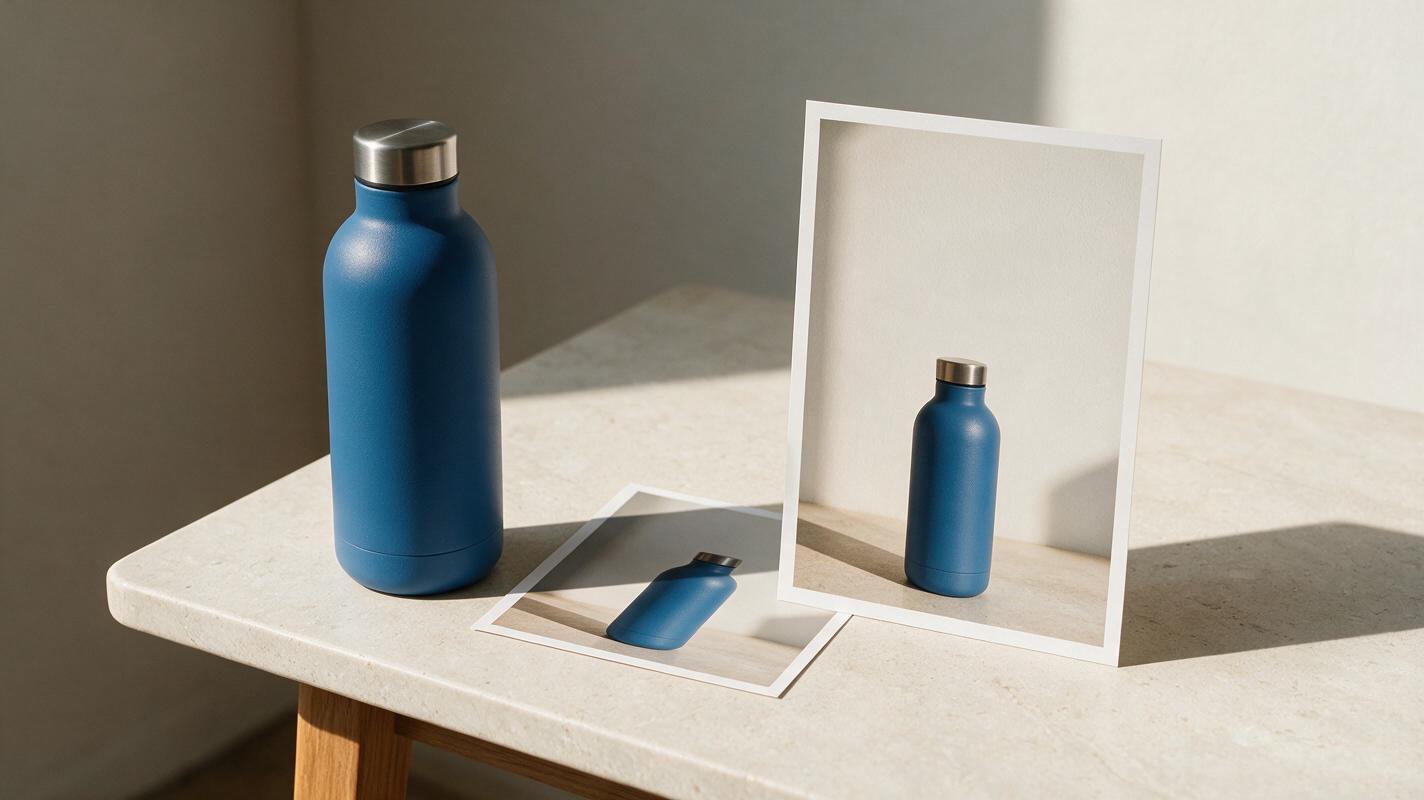
Table of contents
Give a square product photo room to become a vertical ad
Your best product photograph may be square, but a vertical ad needs space for a headline, offer, and call to action. Stretching the photo distorts the item; cropping it can cut off the cap, handle, or packaging. The safer approach is to keep the photographed product intact and create new space around it.
For a Shopify or TikTok Shop creative, that means treating AI as a scene extender, not a replacement product photographer. The original pixels of the sellable item remain your source of truth. This method works especially well when the product already looks sharp but the frame feels cramped.
Decide what must stay photographic
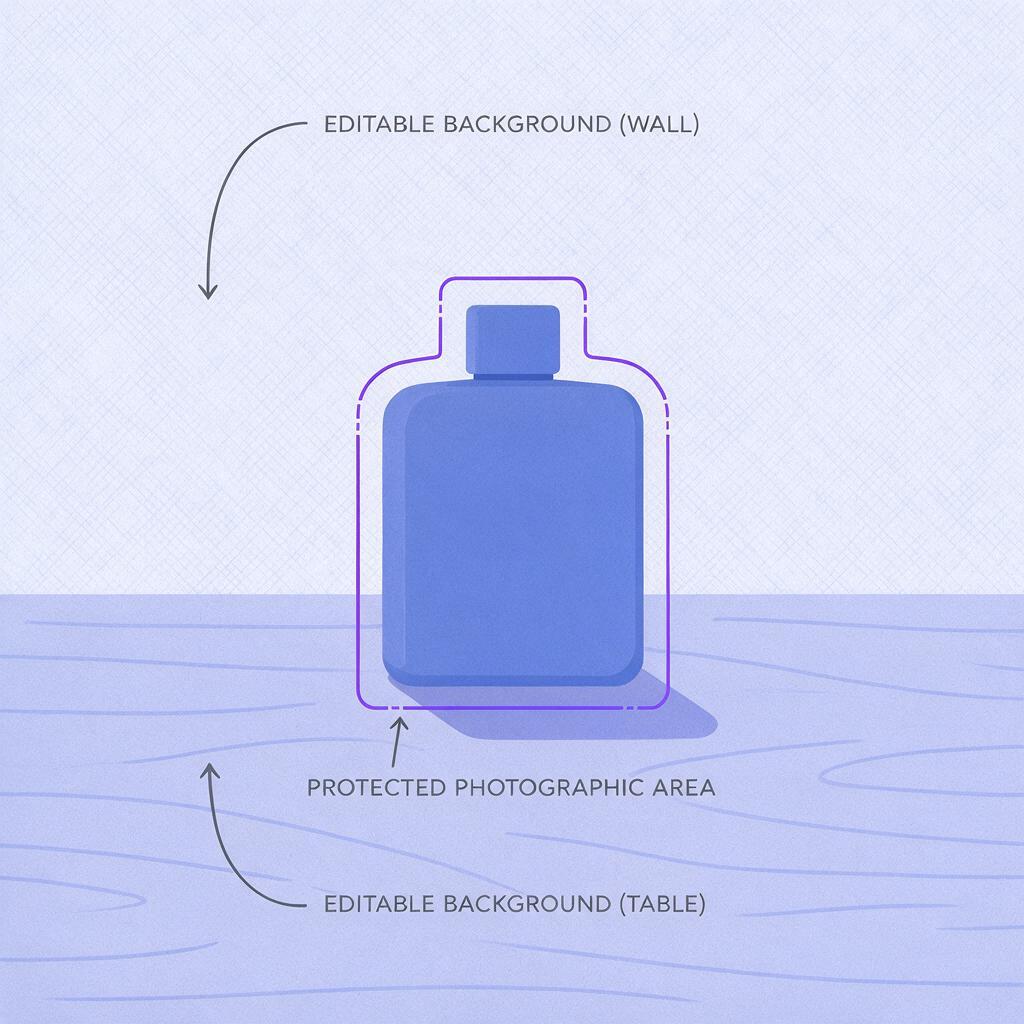
Start with a high-resolution product photo and identify a protected area containing the entire item, its label, any visible accessories, and its contact shadow. If you have an editable cutout or layer mask, keep those pixels on a separate layer. If you do not, make one before expanding the canvas.
Consider a square photo of a matte-blue insulated bottle on a tabletop. Its cap shape, printed mark, finish, and proportions should remain exactly as photographed. The empty wall behind it and unused tabletop beside it can change. A newly generated bottle, however convincing, could show a different lid or misleading finish.
Practical rule: Generate the space around the product. Do not ask AI to redraw the product to fit the new frame.
Choose a frame that leaves useful ad space
Set the destination canvas before generating anything. A 4:5 layout can suit a portrait feed placement; a 9:16 layout gives more vertical room for a full-screen creative. Check the current specifications and interface overlays for the placement where you will publish, because visible safe areas can change.
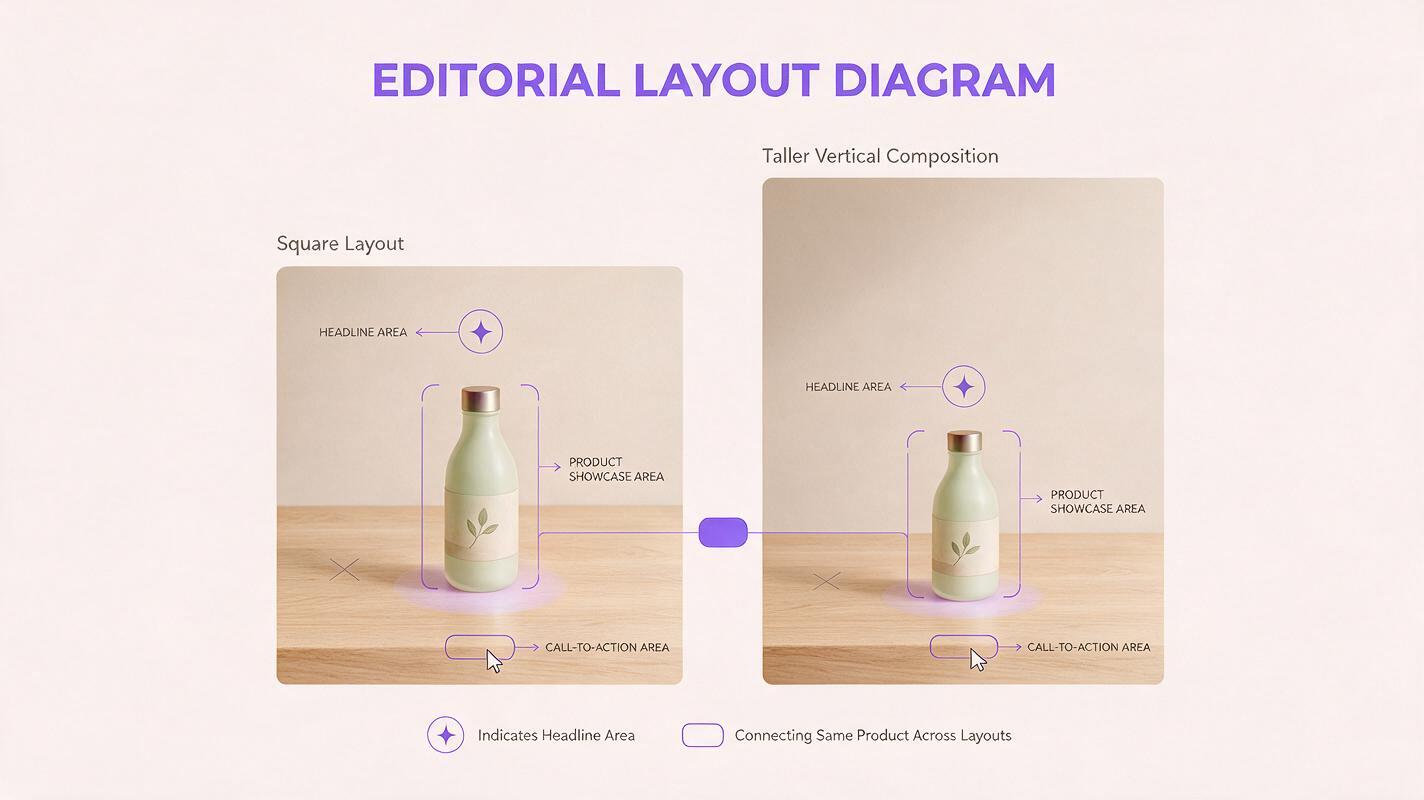
Position the original photo within the taller canvas and sketch three zones: a clear area for the headline, the protected product area, and space for the call to action. The product should remain large enough to recognize on a phone. If extending the background would make it tiny, use a closer crop or a different original photo rather than generating an oversized substitute.
For the bottle example, keep the original tabletop and bottle in the lower middle of the frame. Extend the wall upward for copy and add only enough tabletop at the sides to make the wider composition believable. Match the direction of light already visible in the photograph.
Generate only the missing background
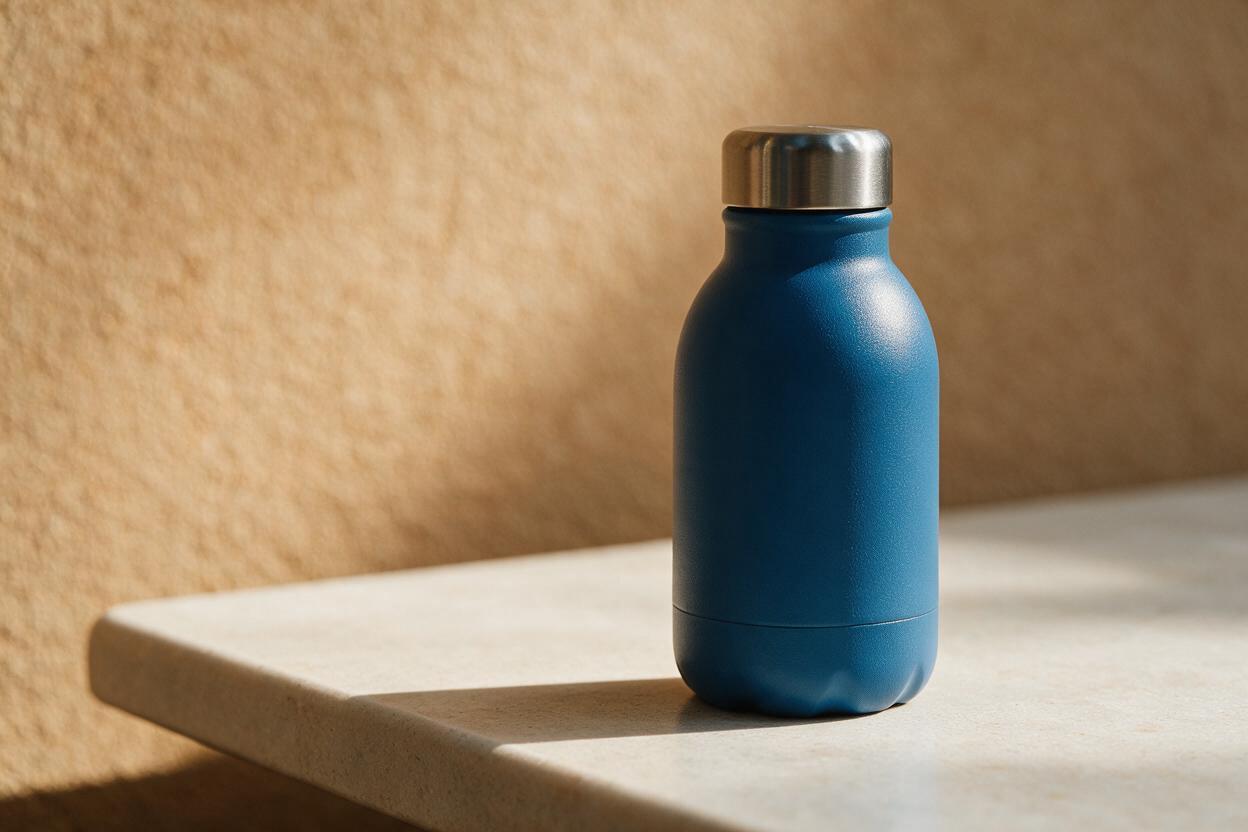
Where canvas expansion or masked editing is available, supply the original image as the reference and select only the blank outer area for generation. Nano Banana Pro is a model to test for this image-creation task. You can also create a matching empty scene with an ai image generator and composite the untouched product photograph over it. Do not assume any generator will preserve a label perfectly just because the prompt asks it to.
Use a prompt that describes the existing scene and limits what may appear in the extension:
Expand the background of this square product photograph into a vertical ad composition. Extend the existing warm off-white wall upward and the light stone tabletop naturally to the sides. Match the photograph's soft daylight from the left, camera angle, color temperature, perspective, and subtle surface texture. Leave calm, uncluttered space above the photographed product for a headline. Add no products, hands, text, logos, props, duplicate bottles, or new packaging. The photographed bottle and its original shadow must remain unchanged.If the result modifies the item, tighten the mask so it excludes the product and its shadow. If the tool still redraws protected pixels, generate an empty background extension instead, then place the original product layer back on top. A prompt alone is not a reliable preservation method.
Fix the seam before adding text
Inspect the join between the original photograph and generated area at full resolution. The most common giveaways are a tabletop edge that changes height, mismatched grain, an abrupt color shift, or a shadow that seems to come from two directions.
- Perspective mismatch: Regenerate the empty extension using the visible tabletop edge as a reference. Do not rotate or reshape the product to compensate.
- Lighting mismatch: Adjust the generated background’s tone locally. Preserve the photographed highlights on reflective surfaces.
- Duplicate or invented objects: Remove them from the prompt and generation mask; a second cap or bottle is not harmless decoration.
- Weak product contact: Keep the original contact shadow where possible. If you must blend its outer edge, edit the shadow layer rather than painting a new shadow across the product.
Add the headline and call to action in your design editor after the image is finished. This keeps spelling, price, promotional terms, and brand typography under your control. Avoid placing essential copy close to the top or bottom of a full-screen creative until you have checked the actual placement preview.
Export a version for each placement
One expanded background can support several crops, but review each crop separately. A 4:5 version may need the bottle slightly higher in the composition; a 9:16 version may need more clear space above it. Reposition the original photo layer or adjust the crop—never stretch the bottle to fill the frame.
Before publishing, compare the finished ad with the source photo side by side. Check the cap, silhouette, label, visible color, included components, and any surface reflections. Confirm that every written claim and offer is accurate. Keep the original square photo and editable layers so you can make another placement without regenerating the product.
Ready to build a taller scene around a product photo? test this prompt yourself with a copy of your image, then inspect the result before using it in an ad.
Final checklist
- The finished creative contains the original photographed product, not an AI-redrawn substitute.
- The generated area matches the photo’s light, perspective, and surface texture.
- No invented accessories, packaging details, or duplicate products appear.
- Headline and offer were added and checked in a design editor.
- Each export has been reviewed in its intended placement.
Keywords
product photo outpainting, square photo to vertical ad, AI product photography, product image expansion, Shopify ad creative, TikTok Shop creative