Veo Prompts for Cinematic Action Scene Previs (5-Shot Sequence Template)
This guide shares 5 ready-to-use Veo prompts for generating coherent, cinematic action scene previs sequences from script beats. It includes a reusable base prompt template to lock in setting, lighting, and screen direction across shots, plus troubleshooting tips for common AI action previs artifacts. Filmmakers can use these prompts to create pitch-ready action previs in minutes instead of days.
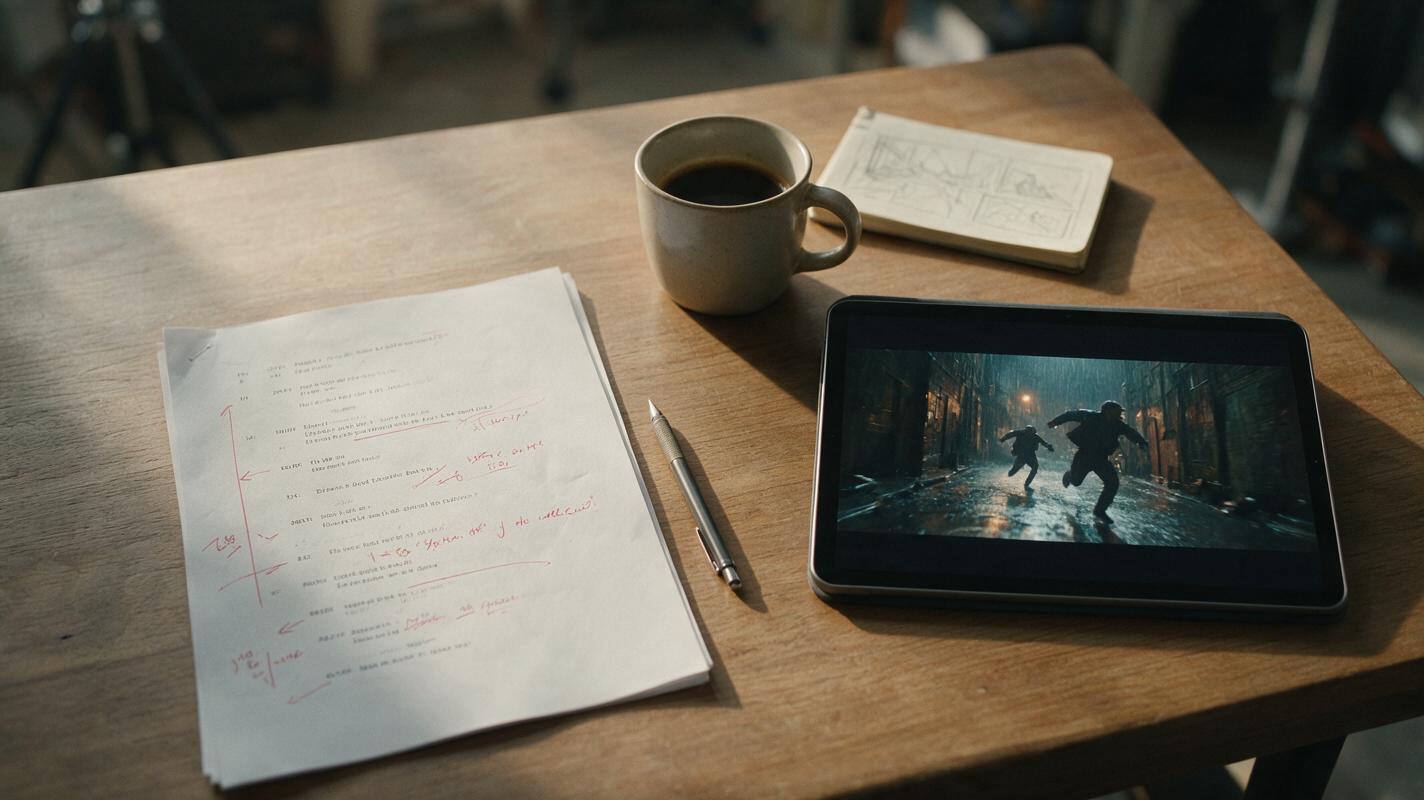
Table of contents
Why AI action previs usually falls short
Action scenes are the most labor-intensive part of previsualization, and most AI video tools produce shaky, disjointed clips that don’t follow standard cinematic action grammar.
Traditional previs can take days or cost thousands of dollars, which is out of reach for many indie filmmakers and early-stage pitch decks. Most text to video tools struggle with action sequences because they default to chaotic motion to convey “excitement” instead of intentional camera language. Shots don’t match geographically, characters drift in appearance, and there’s no logical flow between wide, medium, and close-up coverage.
Veo’s extended video length, reference frame support, and fine-grained camera controls make it one of the best tools for generating coherent action previs—if you structure your prompts to enforce cinematic rules instead of letting the model improvise.
The base prompt template for consistent Veo action sequences
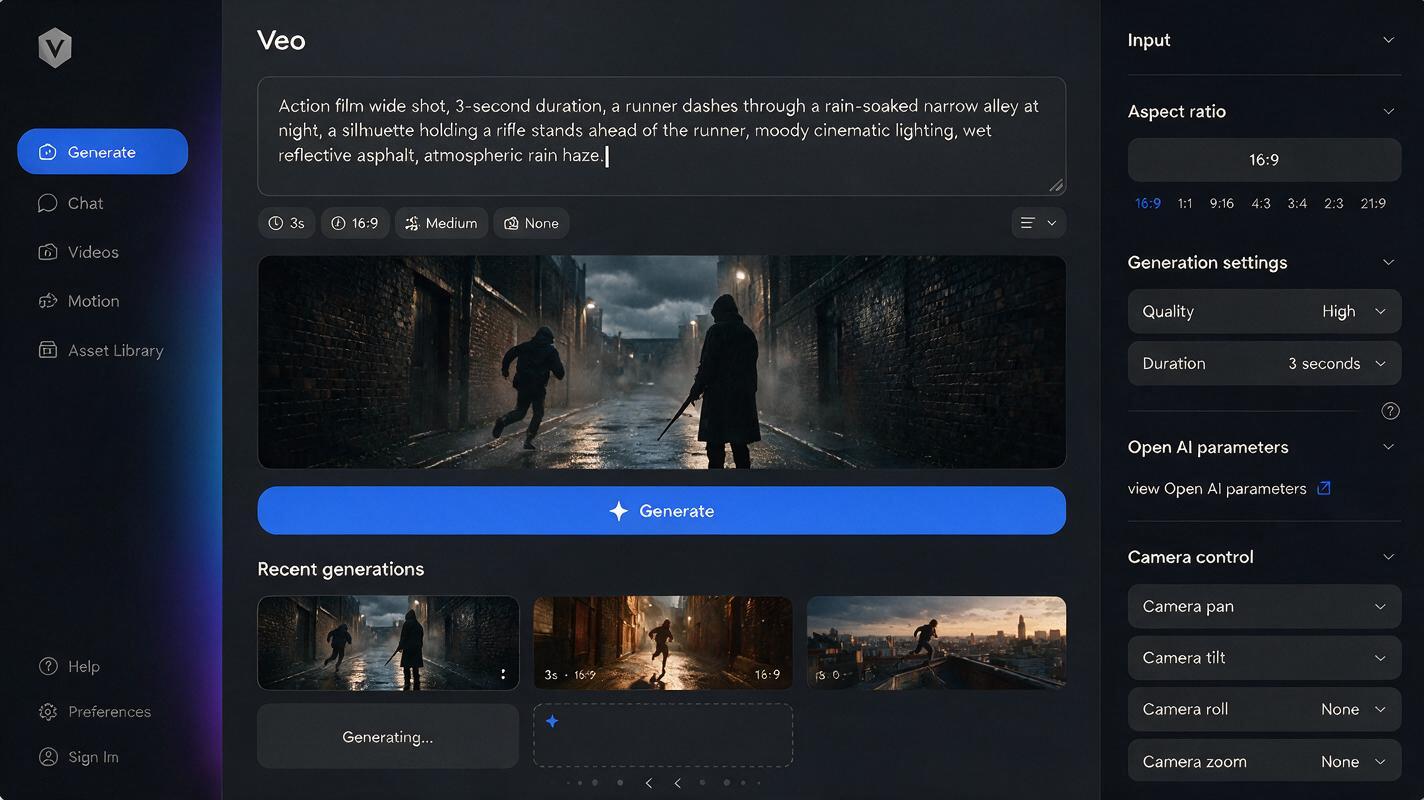
The key to a coherent 5-shot action sequence is a shared base prompt that locks in all the fixed details: setting, lighting, lens, film stock, character descriptions, and core camera rules. You’ll paste this base at the start of every shot prompt, then add the shot-specific details on top.
Here’s the reusable base template, tuned for Veo’s cinematic mode:
Cinematic action previs, 2.39:1 scope aspect ratio, 24fps, Arri Alexa Mini, 35mm lens, natural film grain, soft contrast.
Setting: Rain-soaked downtown back alley at 2AM, neon pink and blue sign reflections on wet asphalt, overflowing dumpster on the left, fire escape on the right.
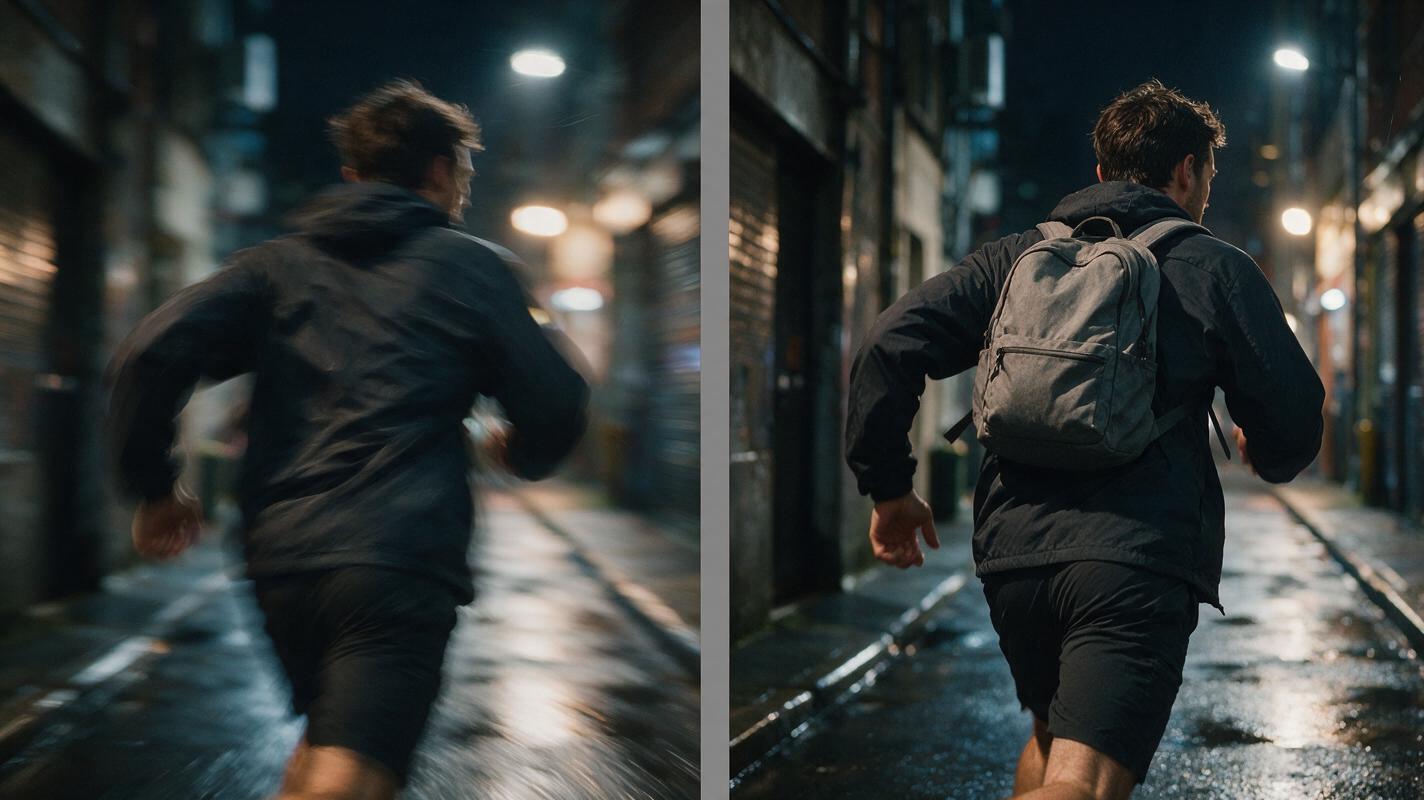
Protagonist: 28-year-old non-binary courier, black waterproof jacket, gray backpack, scuffed white sneakers, out of breath.
Antagonist: 40-year-old male enforcer, black leather coat, shaved head, holding a flashlight, steady pace.
Camera rule: All shots follow screen direction — protagonist runs left to right, antagonist follows 20 feet behind left to right. No shaky cam, no whip pans unless specified.
Swap out the setting, characters, and lighting to match your script, but keep the aspect ratio, camera type, and screen direction rule intact to maintain consistency across shots.
Test this prompt yourself with your own action scene details to see how Veo handles controlled motion vs random action.
5 Veo prompts for a standard chase action sequence
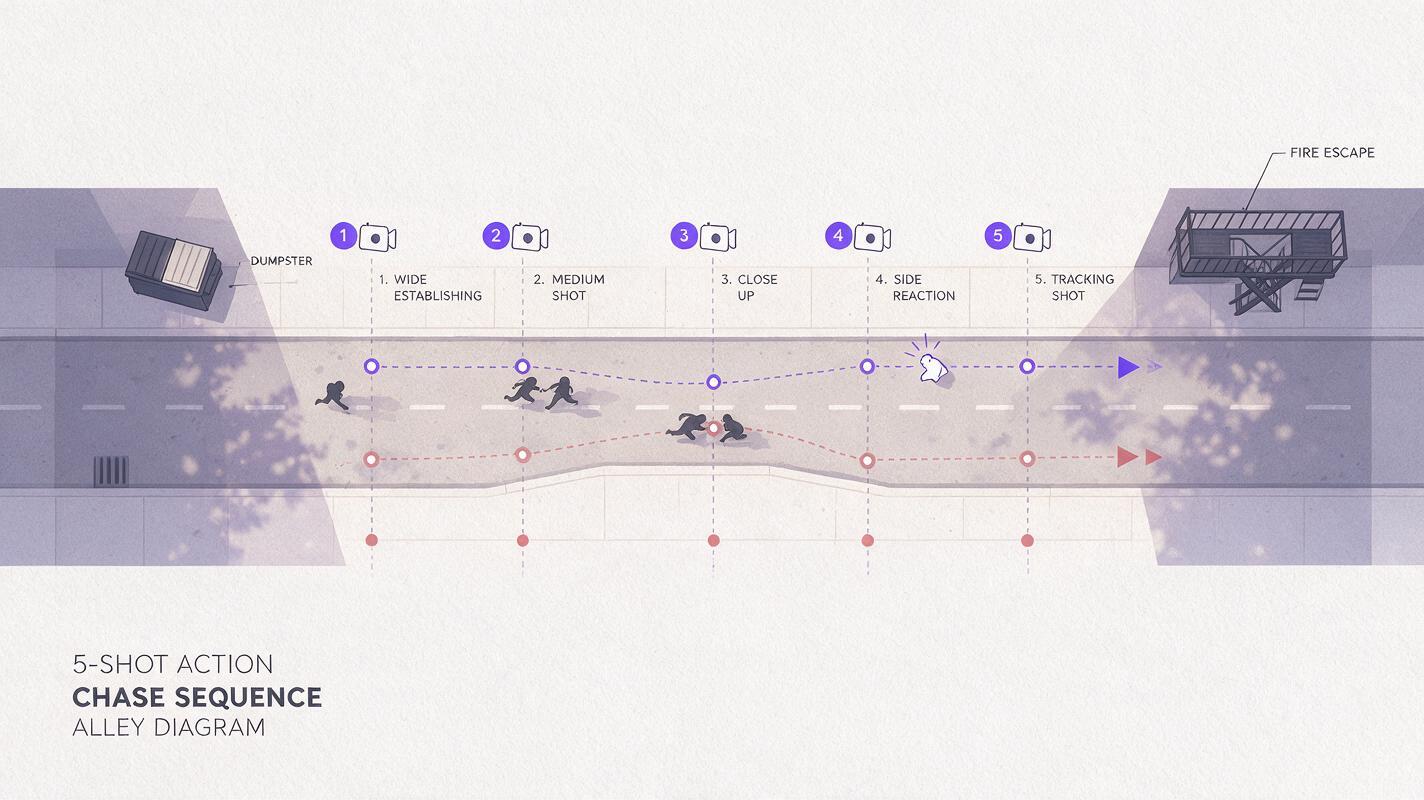
This set of 5 shots follows classic action coverage flow: establish the space, introduce the chase, raise tension with a close-up, show the antagonist’s perspective, then land the beat that leads into the next scene. Each prompt builds on the base template above.
Shot 1: Wide establishing chase
[BASE PROMPT]
Wide shot, static camera at alley entrance, protagonist runs from left edge of frame to right, antagonist enters left edge 3 seconds later, rain falling steadily, neon signs flicker slightly. 10 second duration.
This shot sets the geography for the entire sequence, so make sure to save the first frame as a reference for later shots if Veo supports image reference input.
Shot 2: Medium tracking shot of protagonist
[BASE PROMPT]
Medium tracking shot, camera moves parallel to the protagonist at running pace, waist-up framing, protagonist glances over left shoulder, breath visible in cold air, wet hair stuck to forehead. 8 second duration.
Specifying parallel tracking motion prevents Veo from defaulting to a shaky handheld follow shot that obscures the character’s face and action.
Shot 3: Close-up of obstacle
[BASE PROMPT]
Low angle close-up, static camera, protagonist’s sneakers jump over a puddle in the foreground, splash of water rises in slow motion for 2 seconds, antagonist’s boots hit the same puddle 2 seconds later. 6 second duration.
Insert shots like this raise tension and break up the rhythm of the chase without requiring complex character animation.
Shot 4: Over-the-shoulder antagonist shot
[BASE PROMPT]
Over-the-shoulder shot from antagonist’s left shoulder, flashlight beam pointed at protagonist’s back 20 feet ahead, camera moves forward at walking pace, protagonist’s backpack visible in the center of the flashlight beam. 8 second duration.
This shot shifts perspective to build threat while reinforcing the screen direction and distance between the two characters established in the wide shot.
Shot 5: Wide finale beat
[BASE PROMPT]
Wide shot, static camera at the far end of the alley, protagonist reaches the right edge of frame and climbs over a chain link fence, antagonist stops at the fence and shines flashlight up at the protagonist as they disappear over the top. 12 second duration.
Ending on a wide static shot gives the sequence a clear beat break, making it easy to cut to the next scene in your edit.
How to keep geography consistent across Veo action shots
The biggest failure point of AI action previs is geographic drift: the alley changes length, props move, or characters swap screen direction between shots. Here’s how to fix that:
- Use the first wide shot frame as a reference. If you’re using Veo’s image-to-video or reference frame feature, feed the final frame of Shot 1 as the start frame reference for Shot 5 to keep the alley layout identical.
- Repeat screen direction in every prompt. The base prompt’s screen direction rule isn’t enough—restate left-to-right movement in each shot’s specific prompt to reinforce it.
- Lock key props in the base prompt. Mention specific fixed landmarks (dumpster on left, fire escape on right) in every base prompt so the model doesn’t rearrange the set between shots.
- Stick to the same lens and camera type. Switching from 35mm to 85mm mid-sequence will make the space feel compressed or stretched, even if the set is the same.
Common Veo action previs artifacts and fixes
Even with well-structured prompts, you’ll run into occasional artifacts. Here are the most common ones and how to adjust your prompts to fix them:
| Artifact | Cause | Fix |
|---|---|---|
| Excessive shaky cam | Model associates “action” with handheld shake | Add “no shaky cam, smooth camera movement, stabilized gimbal” to the base prompt |
| Character wardrobe drift | Model forgets small details like backpacks or jackets | Repeat the character’s key clothing item in each shot’s prompt (e.g., “protagonist with gray backpack”) |
| Impossible camera moves | Model generates motion that breaks physics (e.g., camera passing through walls) | Specify camera position explicitly (e.g., “camera at alley entrance, static”) instead of vague “tracking shot” |
| Slow pacing | Default motion is too slow for action | Add “fast pacing, realistic running speed, no slow motion unless specified” to the base prompt |
Key takeaways
- Use a shared base prompt to lock in setting, lighting, characters, and screen direction across all action previs shots.
- Follow classic action coverage flow (wide → medium → insert → antagonist POV → wide finale) to create a coherent sequence.
- Reference the first wide shot’s frame in later shots to prevent geographic drift in Veo.
- Explicitly ban unwanted motion (shaky cam, impossible moves) in your base prompt instead of hoping the model gets it right.
Keywords
veo prompts, action scene previs, cinematic previs, ai video previs, action coverage, text to video, film previsualization