How to Turn Game Key Art Into a Cinematic World Reveal Shot With Veo
This workflow shows game designers and concept artists how to turn static game key art into a smooth cinematic world reveal shot using Veo’s image-to-video generation. It covers input prep, prompt structure for character and style consistency, recommended motion settings, and fixes for common issues like edge warping and face drift. The resulting 10-12 second clips are usable for game trailer teases, pitch decks, and world visualization prototypes.
Table of contents
Cinematic world reveal shots from key art: no 3D required
You have a polished game key art piece with your hero character front and center, but you need a 10-second cinematic pull-back that reveals the full world scale for a trailer tease — and you don’t have time to rig a 3D scene, match camera angles, or hire a cinematic animator. Most AI video tools either warp the character’s face mid-shot, distort the environment’s architecture, or produce jittery camera moves that feel unprofessional. Veo’s high-fidelity video generation handles this specific use case far better than most tools, as long as you prep your input and prompts to lock in consistency.
This workflow produces a 10–12 second smooth pull-back reveal clip that stays true to your key art’s style, character design, and environment detail. The output is usable for social media teases, pitch deck cinematics, prototype trailer cuts, and world visualization presentations — no manual animation required.
Prep your key art for Veo’s input requirements
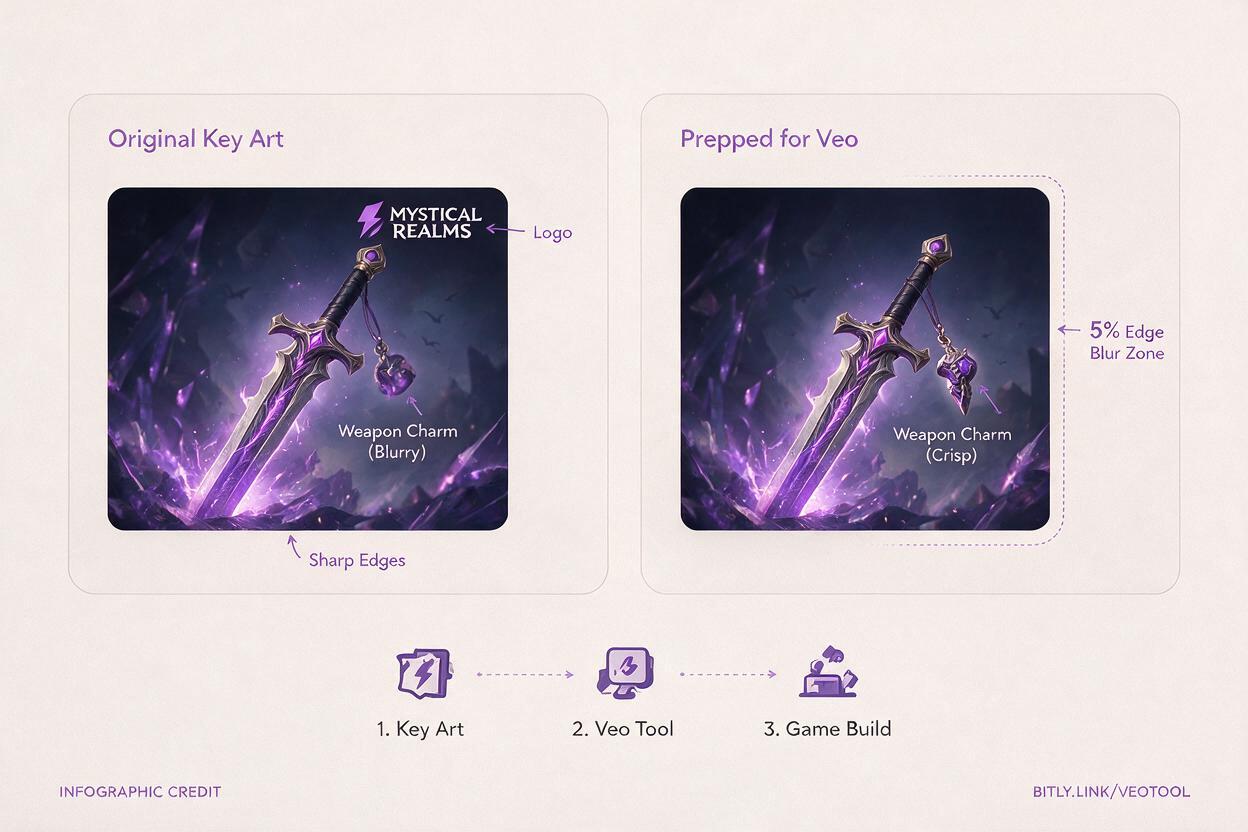
The success of your reveal shot depends almost entirely on how well you prep the input key art. Veo locks onto the details in your reference frame, so messy or low-quality inputs will lead to warped outputs. Spend 5 minutes on these prep steps in your image editor of choice before uploading.
- Remove all text, logos, UI elements, and watermarks from the key art. Veo will attempt to animate static text, leading to distorted, floating letters in the final clip.
- Crisp up small, important details on the hero character (face, weapon engravings, costume accents) with a sharpen filter. Veo struggles to retain tiny, blurry details in motion, so the clearer they are in the input, the better they’ll hold up.
- Apply a 5% Gaussian blur to the outermost 5% of the image edges. This reduces edge warping, which is common when AI video tools generate new content outside the original frame bounds during a pull-back.
- Export as a 16:9 PNG or JPG at 1920x1080 resolution or higher. Veo performs best with standard cinematic aspect ratios and high-resolution source material.
Once your key art is prepped, upload it to Veo’s image to video tool as the starting reference frame. Choose the highest reference weight option available for your first test to prioritize consistency over creative interpretation.
Write a prompt that locks character and style consistency
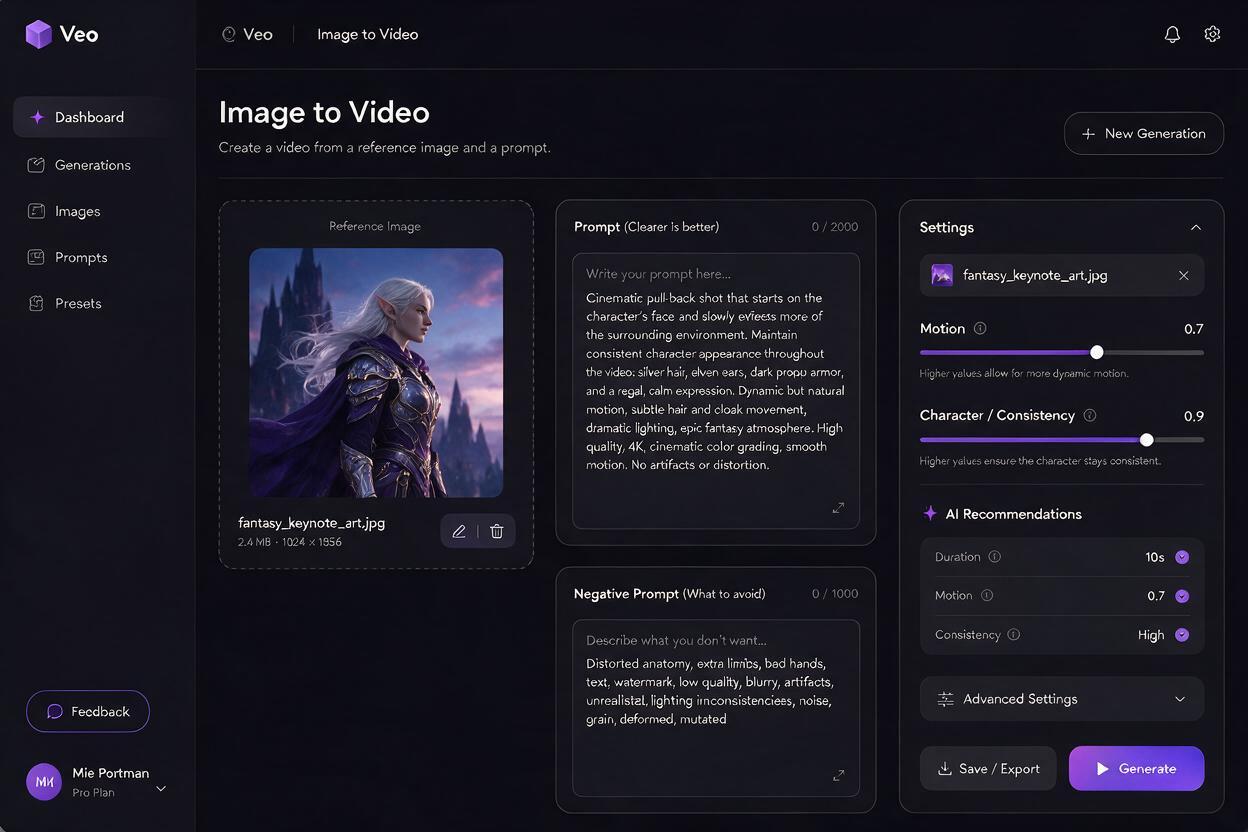
Veo’s default image-to-video prompts often lean into creative interpretation, which is great for experimental work but bad for game cinematics where you need to match existing art exactly. Structure your prompt to cover three non-negotiable layers: character lock, camera move, and style lock.
Use this sample prompt as a starting point, replacing the character and environment details with your own game’s lore:
slow smooth cinematic pull-back shot, 12 seconds, 24fps, dolly out with slight upward tilt. Exact same hero character as reference image: female elf warrior with braided auburn hair, scar across left eyebrow, silver plate armor with green runes, tattered forest green cloak, holding a glowing oak staff, standing in the same pose. Exact same environment as reference: ancient old-growth forest, cascading waterfalls in the distance, elven stone ruins covered in moss, golden hour volumetric light rays filtering through tree canopy. Exact same painterly AAA game concept art style as reference image, cinematic color grading, soft film grain, no artifacts, no distortionPair it with this negative prompt to eliminate common failure points:
character face distortion, costume changes, extra limbs, warped architecture, jittery camera, text, logos, watermarks, blurry details, live-action style, 3d render styleTest this prompt yourself with a cropped version of your key art first to dial in settings before generating a full 12-second clip. Shorter test clips (3-4 seconds) let you iterate faster on consistency without wasting generation time.
Tune motion and camera settings for a smooth reveal
Even with a great prompt, wrong motion settings can turn a polished reveal into a jittery, warped mess. For pull-back world reveal shots, stick to these baseline settings and adjust only if you run into issues:
| Setting | Recommended Value | Why it works |
|---|---|---|
| Motion intensity | Low to medium (30-40%) | High motion causes edge warping and character drift; low/medium keeps the pull-back smooth and controlled |
| Reference weight | High (80-90%) | Forces Veo to stay true to your key art’s style, character design, and environment layout instead of improvising |
| Clip length | 10-12 seconds | Veo maintains consistent quality for up to 12 seconds; longer clips often suffer from gradual style drift |
| Camera direction | Dolly out / pull back (preset) | Preset camera moves are smoother and more stable than custom camera prompt descriptions |
If you want a slower, more dramatic reveal, don’t increase the clip length directly. Instead, generate a 12-second clip and slow it to 16-18 seconds in post using frame interpolation tools. This produces a far smoother result than asking Veo to generate a slower, longer clip from scratch.
Fix common reveal shot issues
Even with perfect prep and settings, you may run into small issues with your first few generations. Here are the most common problems and their fastest fixes:
Character face or costume drift
This happens when Veo prioritizes motion over reference consistency, especially if the character is small in the frame. Fix it by increasing reference weight by 10%, adding 2-3 more specific facial/costume details to your prompt, and cropping your input key art slightly so the character takes up more of the frame. Larger subjects are easier for Veo to lock onto.
Edge warping in the environment
Pull-back shots require Veo to generate new environment content outside the original key art frame, which often leads to warped trees, architecture, or terrain. Fix it by lowering motion intensity by 10%, adding “stable environment, no distortion, consistent perspective” to your prompt, and ensuring you applied the 5% edge blur to your input image.
Jittery or uneven camera movement
Custom camera prompts often produce jittery moves because Veo interprets direction changes mid-clip. Fix it by using a built-in dolly out / pull back preset instead of describing the camera move in text, and avoid adding secondary camera actions (like panning left or tilting down) unless absolutely necessary.
Style shifts to live-action or 3D render
Veo’s training data includes a lot of live-action and 3D content, so it may drift away from 2D concept art styles if the reference weight is too low. Fix it by increasing reference weight, adding “exact same 2D digital concept art style as reference image” to the start of your prompt, and adding style keywords like “painterly, hand-drawn, AAA game concept art”.
Final checklist
- Key art has all text/logos removed, small details sharpened, and a 5% edge blur applied
- Prompt includes explicit character lock, camera move, and style lock sections referencing the input image
- Motion intensity is set to 30-40%, reference weight to 80-90%, and clip length to 10-12 seconds
- You’ve tested a 3-4 second short clip first to verify character and style consistency
- Negative prompt includes distortion, drift, and unwanted style keywords
Keywords
veo, game key art, cinematic reveal, image to video, world visualization, game trailers, concept art