Turn a Video Frame Into a YouTube Thumbnail With Nano Banana Pro
A useful thumbnail frame is often hidden in footage you already shot, but the raw screenshot may be too cluttered or poorly composed to work at small sizes. This guide shows how to use Nano Banana Pro to refine the frame while preserving the real subject, then add readable text and check the result before publishing.
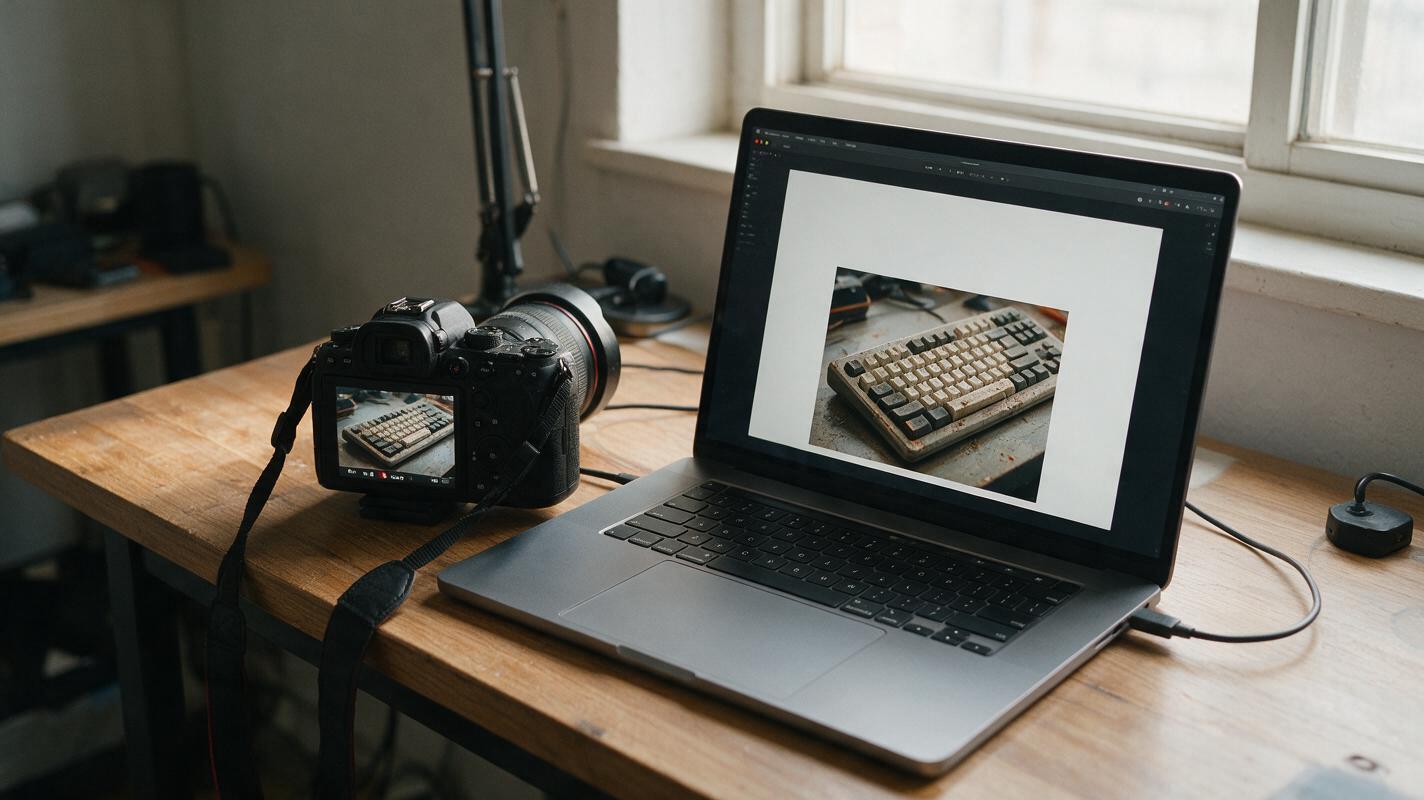
Table of contents
Make a thumbnail from footage you already shot
The best moment in your video may be a terrible thumbnail screenshot: the subject is small, the background is busy, or there is nowhere to put a headline. You do not necessarily need a new image. Select a truthful frame, use nano banana pro to improve its composition, and finish the typography in your editor. The goal is a clearer invitation to watch—not a scene or result your video cannot deliver.
Choose a frame with a real visual promise
Scrub your footage for a moment that shows the subject and the reason to care in one glance. A repair video might show the broken part beside the tool used to fix it. A recipe video might show the finished dish rather than an indistinct mixing bowl. For a faceless channel, an object, gesture, or revealing detail can carry the thumbnail without a face.
Export several candidates rather than committing to the sharpest frame automatically. Look for:
- A recognizable subject: something viewers can identify at phone size.
- A visible point of tension: a problem, comparison, question, or result the video actually covers.
- Useful image information: enough detail around the subject to support a crop or extension.
- No misleading split second: avoid an accidental expression or transient frame that misrepresents the outcome.
If your video contains a genuine before-and-after, consider exporting both frames. Keep their labels and final arrangement for the editor so the comparison remains accurate.
Tell the model what must not change
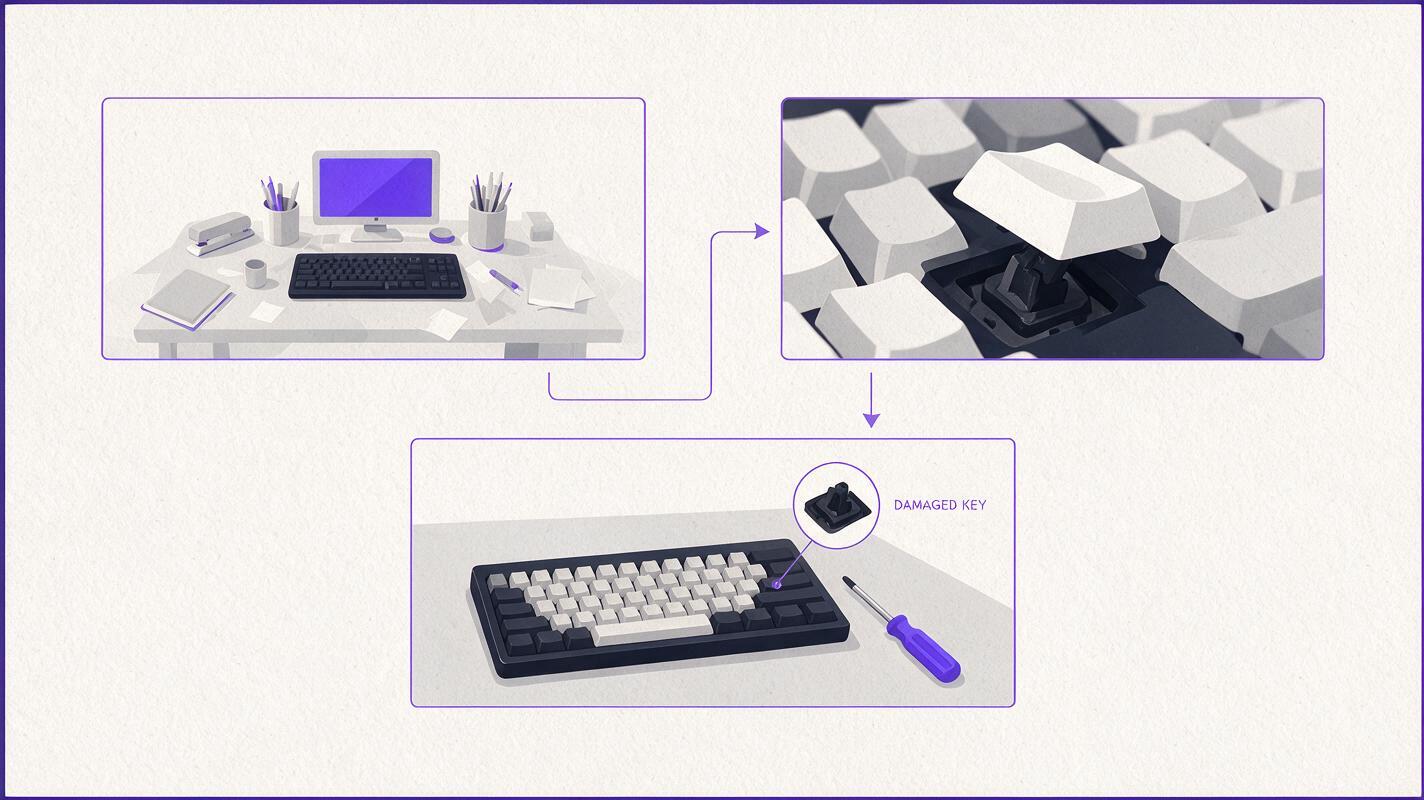
Upload the selected frame as the source image. Ask for a composition edit, not a reinvention. Identify the object or person to preserve, describe the space you need, and name the changes that would make the thumbnail misleading. Use the prompt below as a starting point:
Edit the uploaded frame into a clear YouTube thumbnail image. Keep [main subject] recognizable and in the same condition shown in the source. Preserve its distinctive shape, markings, colors, and any visible real-world details. Reframe the subject larger on the [left/right] side. Simplify distracting background objects and create a calm, uncluttered area on the opposite side for a headline. Keep lighting and perspective believable for the original scene. Do not add text, logos, extra products, damage, or a result that is not present in the source. Output a wide 16:9 composition.For a faceless desk-setup video, replace the placeholders with “the creator’s worn mechanical keyboard” and “left.” For a cooking video, preserve the actual garnish and portion rather than requesting a more elaborate dish. If a product logo, measurement, or label matters, compare it with the source after generation; do not assume small details survived unchanged.
Keep the video as the source of truth. If the edited image suggests a different product, a completed repair that never happens, or ingredients you did not use, choose another result or return to the original frame.
Make room for the headline without generating the headline
Thumbnail text must be legible, spelled correctly, and easy to reposition. Generate the image with deliberate negative space, then add the words in your image editor. This also lets you test several titles against the same visual without regenerating the scene.
A useful revision prompt is:
Keep the source subject and its current placement unchanged. Reduce visual clutter in the right third of the image so a short headline can be added later. Maintain natural background texture and lighting. Do not generate any words, symbols, badges, arrows, or graphic callouts.Negative space does not have to be blank. A softly detailed wall, tabletop, or out-of-focus portion of the original environment can keep the image coherent while allowing high-contrast type. If the generated background looks detached from the subject, reduce the strength of the requested change: ask to remove one distraction instead of rebuilding the entire setting.
Pick a crop that still works on a phone
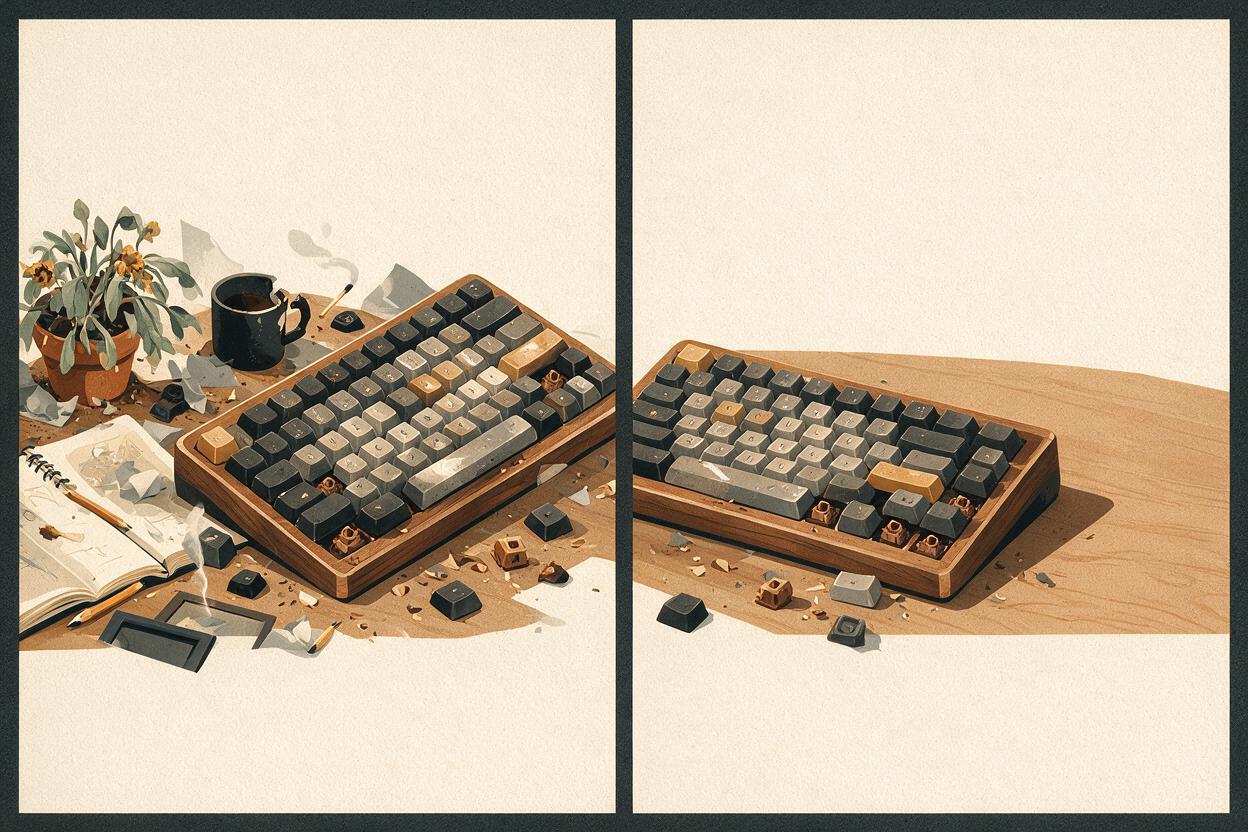
Open your strongest candidates at approximately the size they will appear in a mobile feed. Can you identify the subject before reading the headline? If not, crop tighter or choose a frame with a stronger silhouette. Keep important parts of the subject clear of the headline and any editor-added arrows or circles.
For an object-led thumbnail, try two compositions before polishing either one:
- Subject-first: enlarge the real object and reserve a narrow text area. This suits a specific fix, review, or reveal.
- Contrast-first: leave space for two verified frames or states to sit side by side. This suits a genuine comparison or transformation.
Do not ask the model to invent the “after” half of a comparison. Use a second frame from the finished video and assemble the pair in your editor. The same rule applies to test results, interface screens, prices, and other information viewers may take as evidence.

Fix common thumbnail-editing failures
| What you see | Likely problem | Better next move |
|---|---|---|
| The subject looks like a different object | The prompt gave the model too much freedom to redesign it. | Return to the original frame. Request only a tighter crop or a smaller background cleanup. |
| Hands, cables, or edges look distorted | The edit changed overlapping details around the subject. | Use a frame with a cleaner outline, or preserve the original subject and edit only the surrounding area. |
| Headline space still feels crowded | Too many secondary props compete for attention. | Name one or two removable distractions and specify exactly where the text area should be. |
| The image is dramatic but inaccurate | New damage, effects, or results were introduced. | Reject it. Build emphasis through crop, contrast, and editor-added graphics instead. |
If multiple edits keep changing the important details, stop generating. A clean crop of the original frame is better than a polished thumbnail that misstates the video.
Finish with a truthful thumbnail test
Add a short headline that complements the picture instead of narrating it. If the image already shows a damaged camera, “CAN IT BE FIXED?” adds a question; “BROKEN CAMERA” merely repeats what viewers can see. Check the exact spelling, then view the thumbnail beside its video title at small size.
Finally, compare the thumbnail with the opening of the video. Viewers should quickly encounter the subject or question you promised. The thumbnail can simplify the story, but it should not require an explanation for why the pictured event never appears. When you have a suitable source frame, test this prompt yourself and compare the edited version with an untouched crop before choosing the one that communicates more honestly.
Final checklist
- The main subject comes from the video and remains recognizable.
- Any before-and-after states are drawn from real footage.
- The headline was added and proofread in an editor.
- The subject and text remain clear at phone size.
- The finished thumbnail promises something the video delivers.
Keywords
youtube thumbnail from video, nano banana pro thumbnail, edit video frame for thumbnail, faceless youtube thumbnail, thumbnail image editing, youtube thumbnail prompts