How to Make Album Cover-Matched MV Scene Snippets With Vidu
Independent music artists and MV creators often struggle to translate static album cover art into cohesive animated MV scene concepts without a full production team. This guide teaches how to use Vidu’s dual reference video generation to turn an album cover (style reference) and artist photo (character reference) into 15-second stylized MV scene snippets that match the cover’s aesthetic. It includes reusable prompt templates for different genres, reference tuning tips, and troubleshooting for style and character drift.
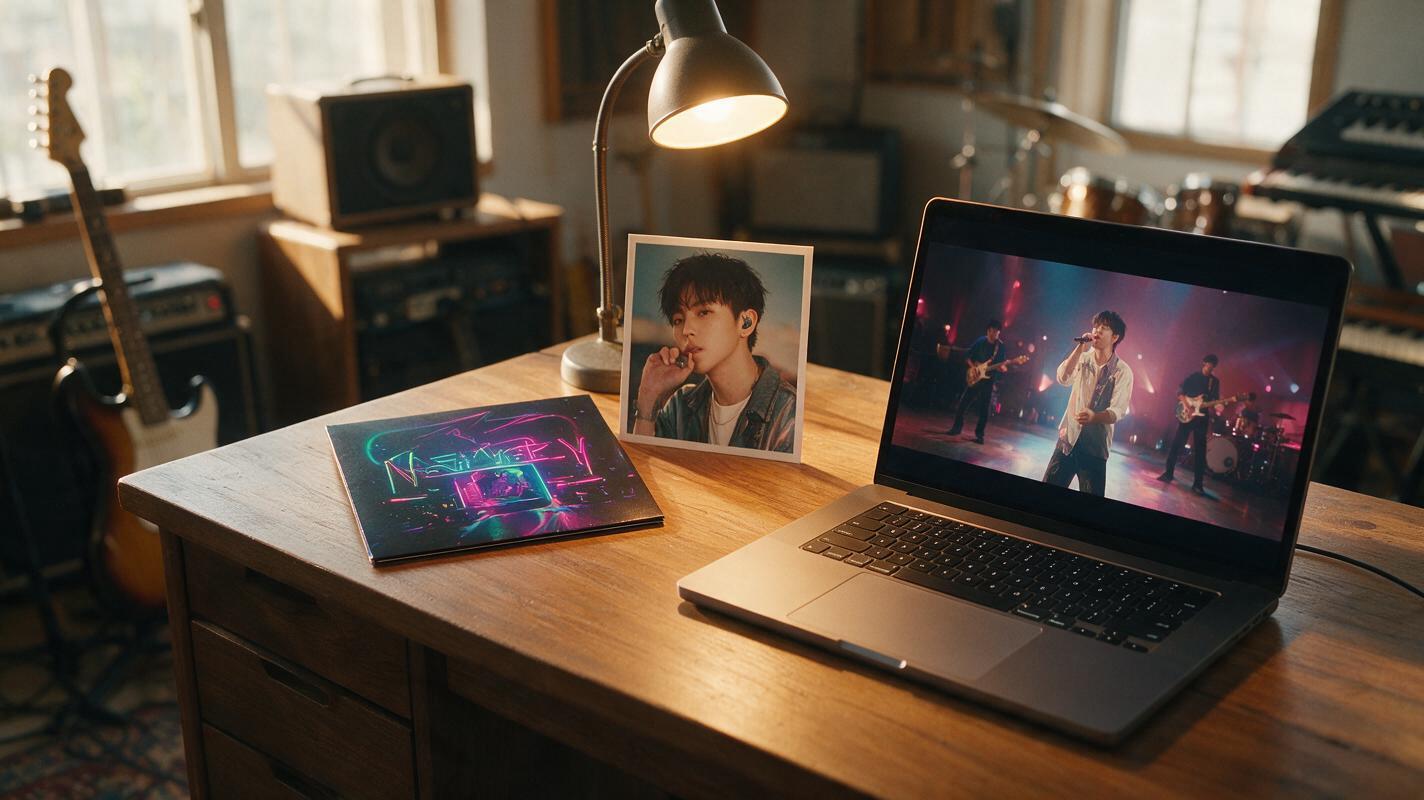
Table of contents
Why MV scene snippets from album cover art matter
If you’ve ever stared at your finished album cover, wondering how to translate that exact mood, color palette, and texture into a moving music video scene without hiring a full production team, you’re not alone. Most independent artists can’t afford to test 3-4 MV style concepts before locking in a director—and static mood boards only go so far when you’re trying to sell a vision.
A reliable ai video generator with dual reference support cuts down this process from weeks to minutes, and Vidu is particularly strong at balancing style consistency from album art and character likeness from artist photos. In this guide, you’ll learn how to turn two static images—your album cover and a portrait of yourself—into a 15-second animated MV scene snippet that you can use for director pitches, social media promos, or pre-save campaigns.
Prep your reference files for consistent results
Before you open Vidu, spend two minutes prepping your reference files to avoid style or character drift. You’ll need two core assets, plus an optional mood note from your song.
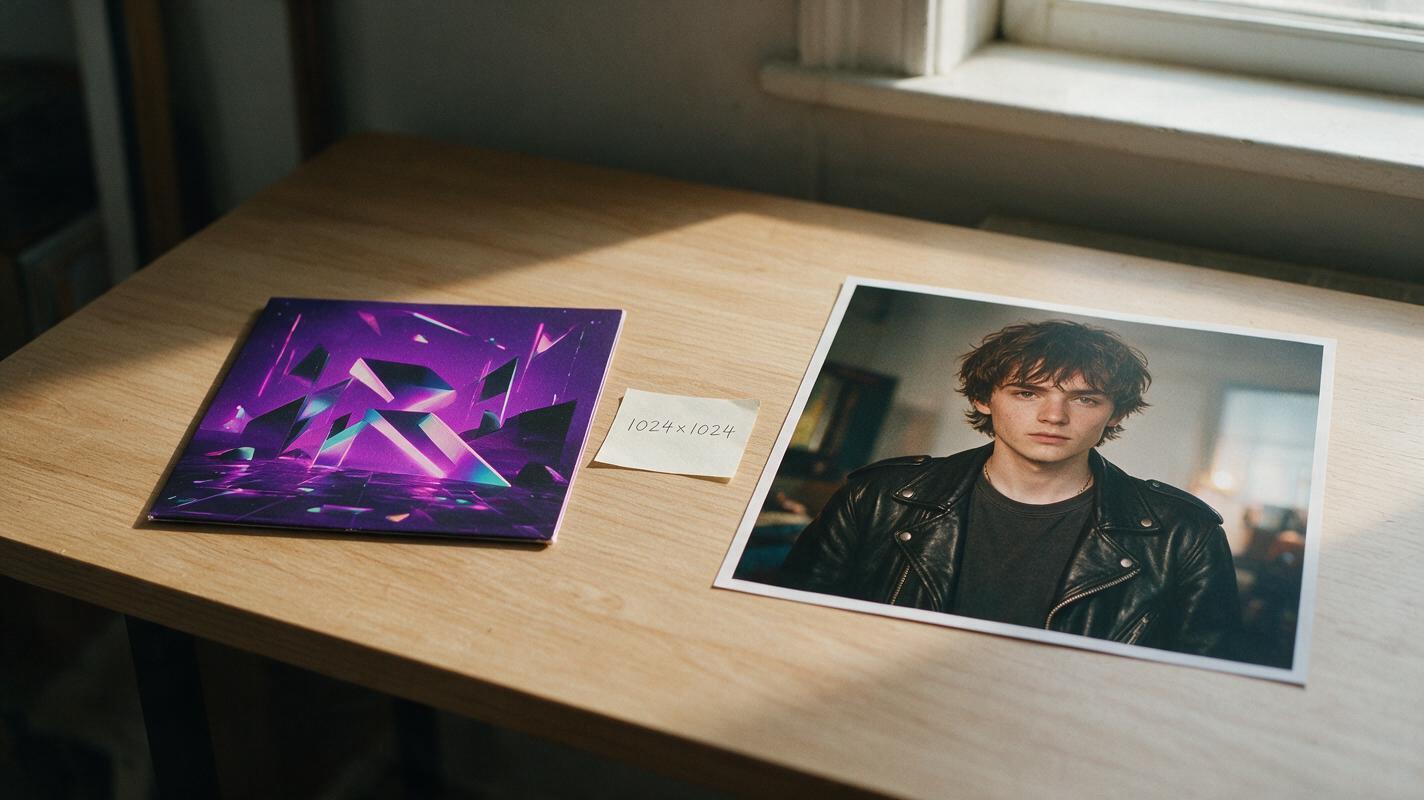
- Album cover (style reference): Use a high-res square version, ideally 1024x1024px. If your cover has prominent text, use a text-free export if possible—video models often render garbled text, which can throw off the style match.
- Artist photo (character reference): Pick a clear, well-lit shot of the artist (full-body or medium shot works best) with a neutral expression. Avoid heavily filtered photos, as they can confuse the character consistency model.
- Song section reference (optional): Note the tempo and mood of the verse or chorus you’re making the snippet for, so you can match motion speed to the track.
Pro tip: If your artist photo has a different aspect ratio than your desired output (e.g., you want 9:16 vertical but your photo is square), crop the photo to match the output aspect ratio first to avoid awkward framing.
Set up Vidu inputs for style + character lock
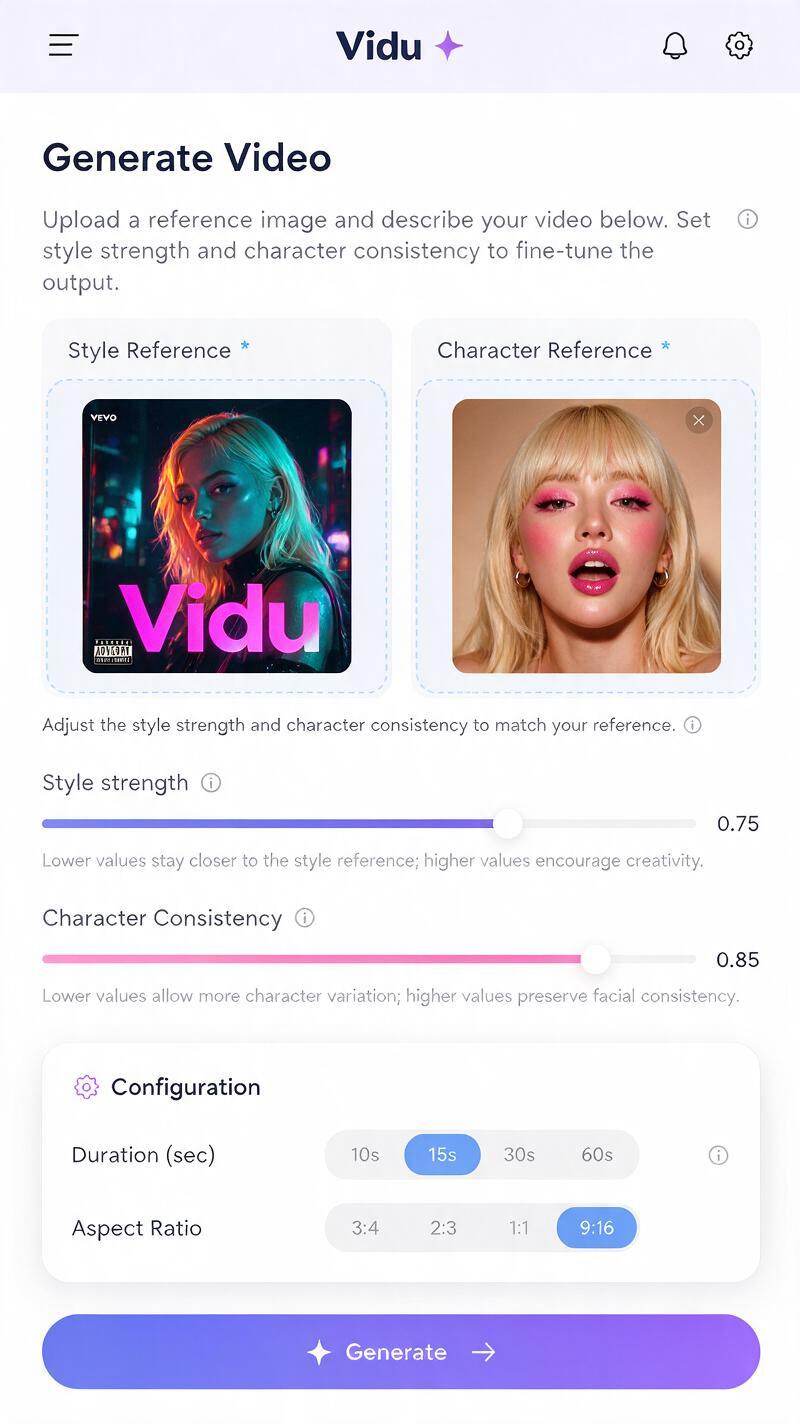
Vidu’s dual reference system lets you lock in both the visual style of your album cover and the likeness of the artist, which is key for making a scene that feels connected to your release. Here’s how to configure the inputs for the best balance:
- Upload your album cover as the style reference, and set the style strength slider to 0.7–0.8. This keeps the color palette, texture, and overall vibe of the cover without overriding the artist’s features.
- Upload your artist photo as the character reference, and set the character consistency slider to 0.8–0.9. This prioritizes the artist’s likeness while still letting them move naturally in the scene.
- Choose a 15-second duration (ideal for a single scene POC) and your preferred aspect ratio: 9:16 for TikTok/Reels promos, 16:9 for MV director pitches.
- Set the motion intensity to medium by default—you can adjust it later if the scene feels too slow or too chaotic.
Once you have your references and settings configured, you can test this prompt yourself with your own assets to see how Vidu handles your unique cover style.
Prompt templates for different MV scene types
The right prompt turns a generic animated clip into a scene that feels like it belongs in your MV. Below are reusable templates tailored to common genres and scene types, designed to work with your cover art style reference. Swap the bracketed details for your own track’s vibe.
Pop/rock performance scene
Dynamic medium shot of [artist name] performing into a microphone on a small stage, camera slowly panning left, matching the [neon purple / grainy film / bold graphic] style and color palette of the reference album cover, cinematic lighting, smooth motion, 24fps, no text, no logosIndie/folk dreamy narrative scene
Artist walking slowly through a [foggy forest / sunlit coastal cliff / empty vintage bookstore], golden hour light, leaves / waves / dust motes floating around them, matching the [soft watercolor / warm film grain / muted pastel] texture and tone of the reference cover, gentle camera drift, dreamlike atmosphere, 24fpsEDM/hip-hop high-energy club scene
Artist performing in a crowded underground club, strobe lights flashing in time with a fast beat, crowd dancing in the blurred background, matching the [bold neon / glitchy digital / gritty street art] style and bright palette of the reference cover, smooth dynamic camera movement, high energy, 30fpsAlways add a line explicitly linking the scene to the reference cover—this reinforces the style match and reduces the chance of Vidu drifting into a generic aesthetic.
Troubleshoot common drift issues
Even with good references, you might run into small inconsistencies on your first generate. Here’s how to fix the three most common issues that come up when making MV snippets from album art:
- Style drift (scene doesn’t match the cover): Increase the style strength slider by 0.1–0.2, and add more specific style details to your prompt (e.g., “screen-printed graphic texture” instead of “graphic style”). If the scene is too dark or too bright, explicitly mention the cover’s lighting in the prompt.
- Character drift (artist doesn’t look like themselves): Bump the character consistency slider to 0.9, and use a clearer, front-facing reference photo. Avoid prompts that ask for extreme angles (e.g., “bird’s eye view”) or fast, blurry movement—these make it harder for the model to preserve likeness.
- Motion jitter (shaky or choppy video): Lower the motion intensity setting, and add “smooth stable camera, no shake” to your prompt. For fast-paced scenes, switch to the 30fps output setting to reduce choppiness.
Ways to use your finished MV scene snippet
A 15-second MV scene snippet is far more versatile than you might think, especially for independent artists with limited promo assets. Here are a few high-impact uses that tie directly back to your release cycle:
- Director pitches: Send the snippet alongside your track and cover art to show MV directors exactly what visual vibe you’re going for, cutting down on back-and-forth and misalignment.
- TikTok sound previews: Cut 3-5 second clips of the most dynamic moments, pair them with a 15-second snippet of your song, and post them as sound previews to build hype before release.
- Lyric reel backgrounds: Overlay semi-transparent lyrics on top of the snippet for Instagram Reels or TikTok lyric videos that feel more polished than generic stock footage.
- Pre-save landing pages: Embed the looping snippet on your pre-save page to give visitors a taste of your release’s visual identity.
Key takeaways
- Use your album cover as a style reference and an artist photo as a character reference in Vidu to create cohesive MV scene snippets that match your release’s aesthetic.
- Set style strength to 0.7–0.8 and character consistency to 0.8–0.9 for the best balance of style match and artist likeness.
- Always explicitly reference your cover’s style in your prompt to reduce style drift and keep the scene tied to your album identity.
- 15-second snippets work for director pitches, social media promos, lyric reels, and pre-save campaigns, making them a high-ROI asset for independent artists.
Keywords
vidu, mv scene snippets, album cover art, ai video generator, music video concepts, artist promo, style consistency