Vidu Prompts for Brand Mascot Reels That Stay Recognizable
Turn an approved brand mascot into short vertical clips without letting its face, colors, or proportions drift between generations. These Vidu prompts cover an entrance, a silent reaction, and a product-side gesture, plus an editing check before posting.
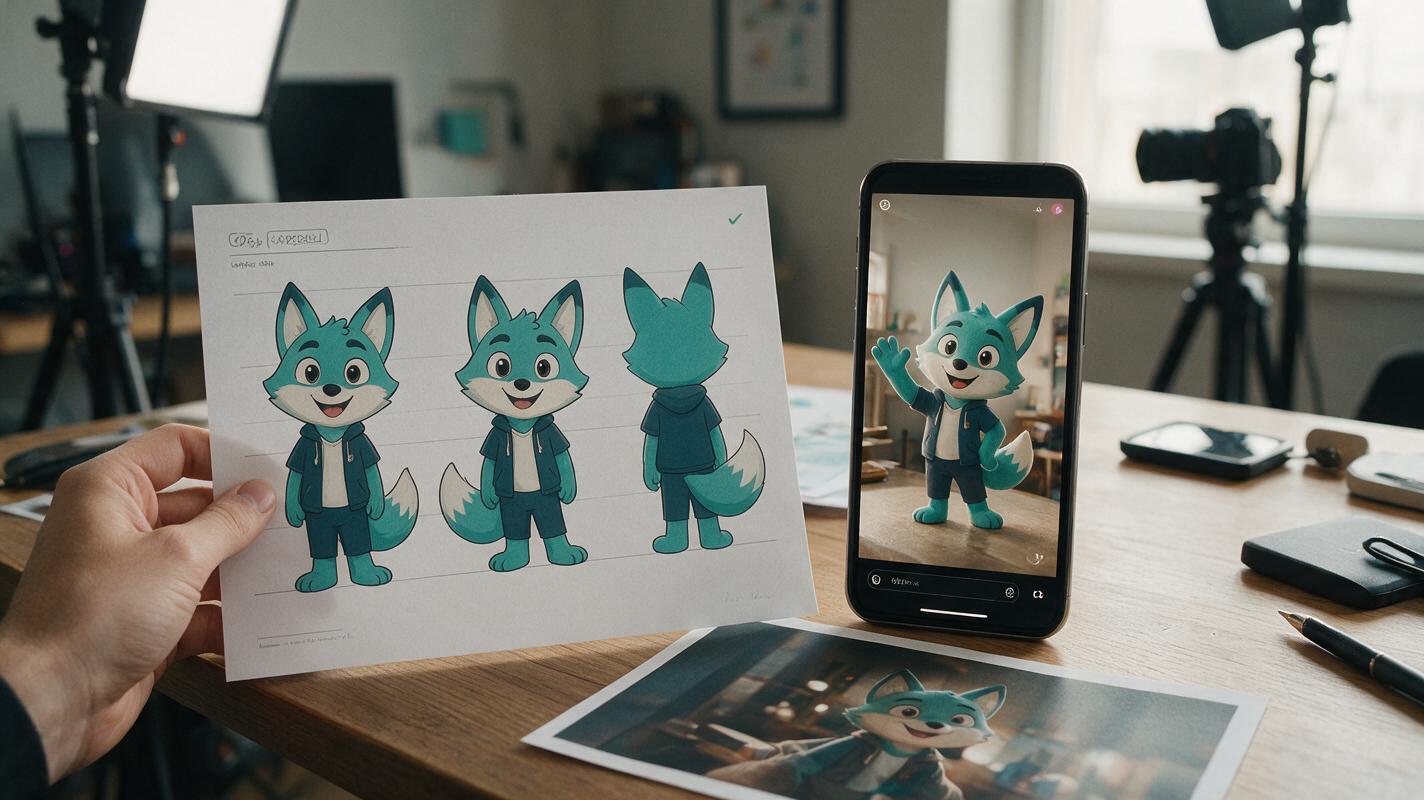
Table of contents
Give your mascot motion without giving it a new identity
A mascot Reel only works if viewers recognize the character immediately. If its ears change shape, its colors shift, or it grows an extra finger, the clip stops looking like your brand. The Vidu prompts below keep the action small and specific: an entrance, a reaction, and a gesture beside a product. Use your approved mascot artwork as the visual source when your available Vidu workflow supports image input, then judge each result against that artwork rather than against how entertaining the animation looks.
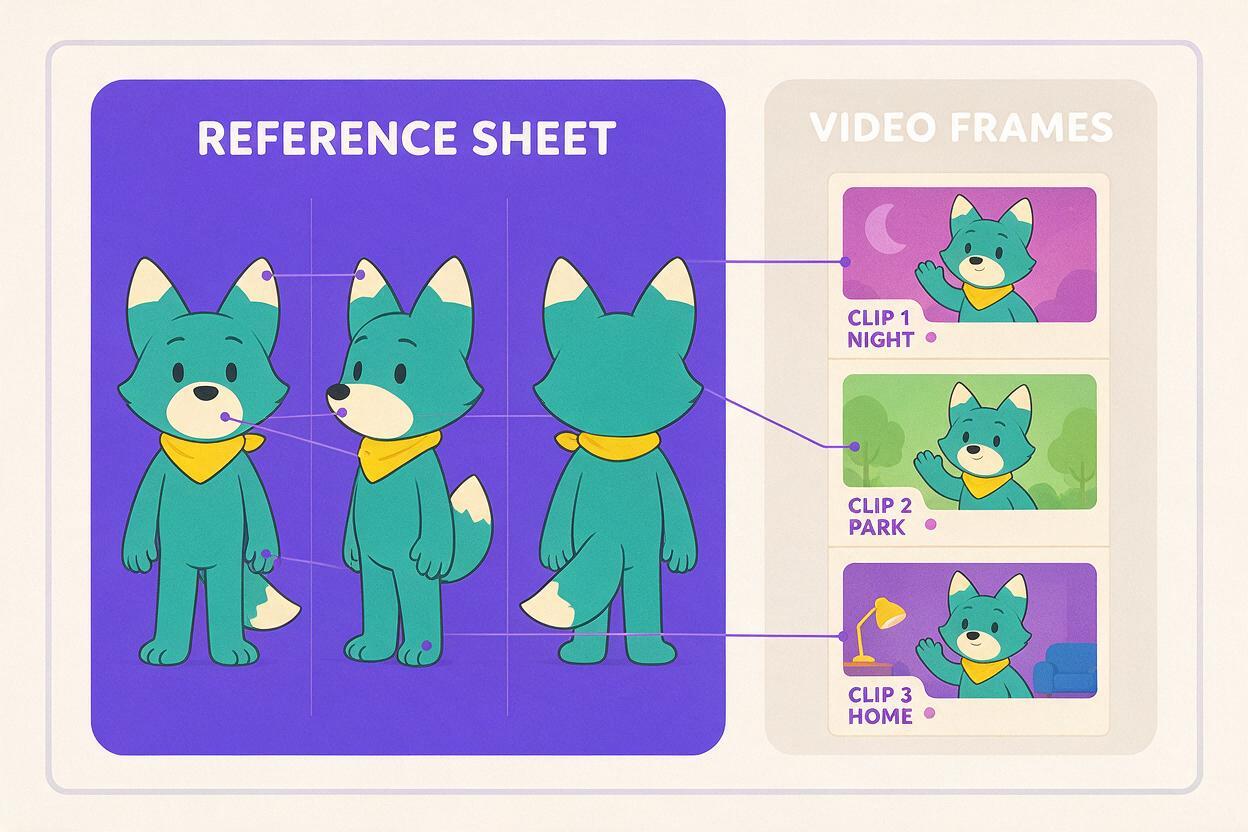
These examples use a fictional teal fox mascot with cream ear tips, a short round muzzle, a yellow neckerchief, and four-fingered paws. Replace those traits with the exact features of your own approved character. Do not use an imitation of someone else’s mascot.
The mascot reference that keeps each clip recognizable
Start with one clean, approved image showing the whole character. A plain background, visible paws, and an unobstructed face make it easier to inspect the result. Keep a second close-up of the face nearby for review, even if you cannot submit both images as references.
If your Vidu workflow accepts a still image, use image to video with that approved character image as the input. If it does not, describe the character’s fixed traits in every prompt and expect to reject more generations for visual drift. A prompt can request consistency; it cannot guarantee it.
- Lock: silhouette, face shape, distinctive markings, outfit, and brand colors.
- Vary: pose, expression, camera distance, and background action.
- Avoid: crowded scenes, rapid spins, hidden hands, and movements that demand a full redesign of the character.
Choose the clearest reference, not the most dramatic one. A complicated pose gives you more details to preserve and more places for motion to go wrong.
Prompt for a simple entrance
An entrance clip can open a Reel before a real product demonstration or announcement. Leave room in the upper part of the frame for a headline you will add later. Ask for one readable movement rather than an elaborate dance.
Use the supplied approved mascot image as the character reference. Create a short vertical clip of the same teal fox stepping into frame from the left, stopping near the center, and giving one small wave. Preserve the round muzzle, cream ear tips, yellow neckerchief, four-fingered paws, original proportions, and exact color placement. Fixed camera, simple softly lit background, clear full-body view. Leave uncluttered space above the character for a headline added in editing. No generated words, logos, costume changes, extra limbs, or additional characters.Best use: a campaign announcement or a transition into a spokesperson’s real footage. If the wave produces unstable fingers, replace it with a head tilt. The simpler motion may communicate the same greeting more reliably.
Prompt for a reaction that plays on mute
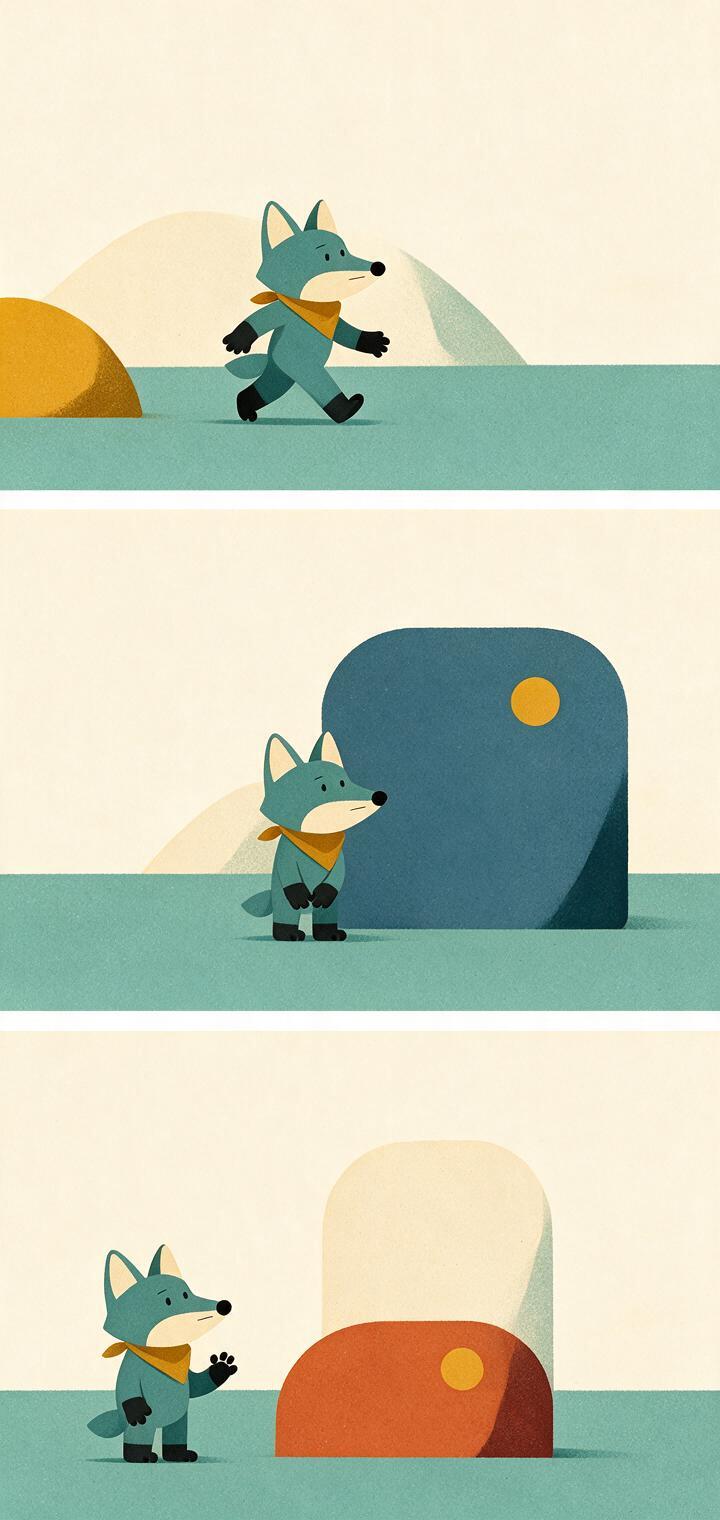
A silent reaction works well between two pieces of existing footage: a customer question and its answer, or a common mistake and a useful fix. Make the emotion legible through posture, not dialogue or tiny facial details.
Use the supplied approved mascot image as the character reference. Create a short vertical reaction clip. The teal fox notices something off-screen, pauses, tilts its head once, then gives a small approving nod. Keep the same face shape, cream ear tips, yellow neckerchief, paw design, proportions, and colors throughout. Medium shot, steady camera, plain background, one continuous action. No speech, captions, new accessories, duplicate characters, or exaggerated facial transformation.Cut the clip after the nod, when the pose has settled. Add the question or answer as editable text in your video editor. That gives the team control over wording, accessibility, and later campaign revisions.
Prompt for a product-side gesture
For a product Reel, let the mascot point toward a space where you will place an approved product photo or real product footage. This avoids asking a video model to recreate packaging, labels, or physical features that must be accurate.
Use the supplied approved mascot image as the character reference. Create a short vertical clip of the teal fox standing on the left side of the frame, looking toward an empty area on the right, and making one gentle presenting gesture toward that space. Preserve its round muzzle, cream ear tips, yellow neckerchief, four-fingered paws, original proportions, and color placement. Stable camera, clean background, no objects in the empty area. Do not generate a product, package, label, logo, text, extra limb, or second mascot.Place the approved product asset on the right during editing. This is especially important for launches: the mascot can be illustrative, but the product shown beside it should match what customers can actually buy. Create your own version by changing the gesture and framing while keeping the character description fixed.
Keep text and product details in the edit
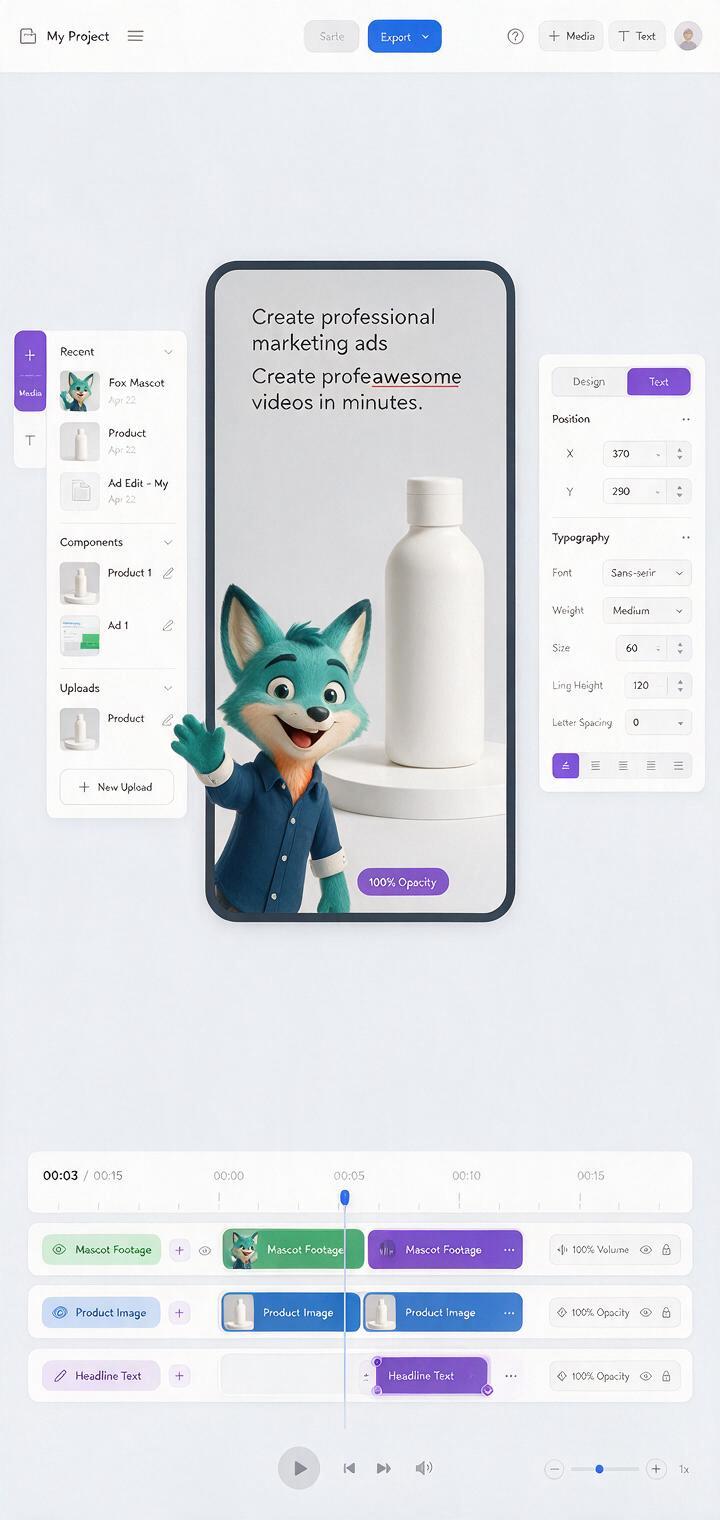
Treat the generated clip as a motion asset, not a finished ad. Assemble it with approved footage, product images, music, and captions in your editing tool. Keep the headline short enough to read on a phone, and check that platform interface elements will not cover the mascot’s face or the call to action.
| Element | Generate with the mascot | Add or verify in editing |
|---|---|---|
| Character movement | Yes, as a short controlled action | Check anatomy and visual consistency |
| Campaign headline | Leave clear space for it | Add approved, editable text |
| Product packaging | Leave a placement area | Use an approved image or real footage |
| Claims and offers | Do not ask the model to invent them | Confirm wording and eligibility before posting |
Choose clips you can actually post
Review the opening frame, the moment of greatest movement, and the final frame at phone size. Compare each with the approved artwork. Look for shifting ear markings, a changing muzzle, neckerchief color drift, extra fingers, and sudden changes in body size. Watch the full clip once without sound: the action should still make sense.
If the character changes midway through a clip, shorten or simplify the motion prompt before generating again. If several results fail in the same way, use a different starting image with a clearer face and silhouette. Do not try to hide a visible identity change under a fast cut; viewers may pause, and a campaign team may reuse the asset elsewhere.
Finally, check that the mascot’s expression suits the message. A playful nod may fit a light tip but undermine a serious customer notice. The most useful output is not necessarily the liveliest one; it is the clip that fits the brand and survives review.
Final checklist
- Start from artwork your team has approved and has the rights to use.
- Repeat the mascot’s fixed visual traits in each prompt.
- Request one simple action per clip and leave space for editable text.
- Use approved assets for products, logos, offers, and claims.
- Inspect the face, markings, paws, and proportions across the entire clip.
- Preview the finished vertical edit on a phone before publishing.
Keywords
vidu mascot prompts, brand mascot reels, animated mascot video, mascot consistency, vertical video prompts, social media video