Vidu Prompts for Language Dialogue Clips With Real Reply Time
Create language-learning dialogue clips that give students enough time to understand a question and answer aloud. This practical Vidu workflow separates visual generation, instructional timing, voiceover, and captions so the finished activity feels like a conversation rather than a rushed video.
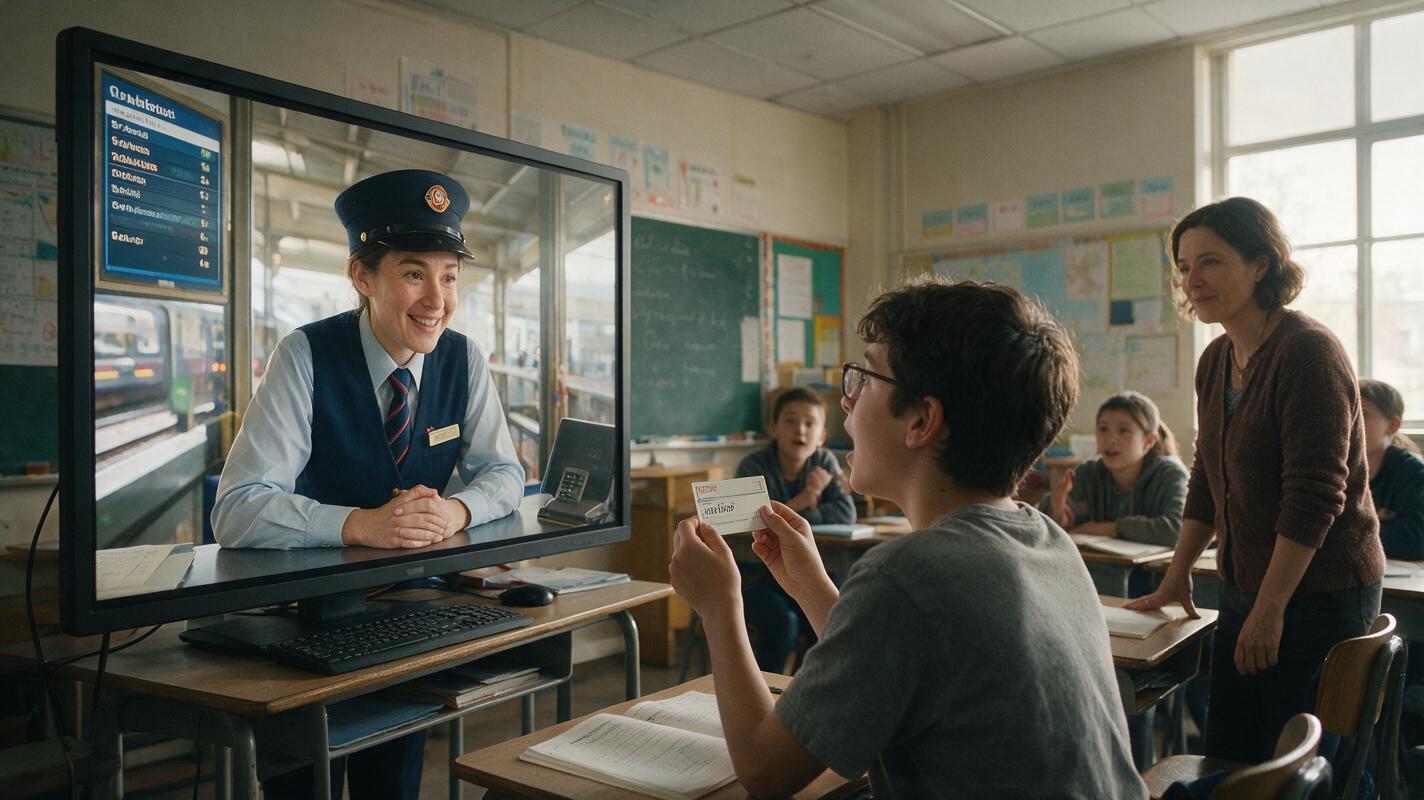
Table of contents
Build reply time into the lesson, not the generation prompt
A useful language-practice clip must stop talking long enough for the learner to answer.
That sounds simple, but generated dialogue videos often rush from one line to the next, add unwanted speech, or fill every pause with character movement. The result may look lively while giving learners no realistic opportunity to retrieve vocabulary, formulate a sentence, and speak aloud.
A more reliable approach is to use Vidu for short visual moments and control the instructional timing during editing. Each clip presents one conversational cue, followed by a deliberately measured response window. Voice, captions, and feedback are added separately so they remain editable.
Design the exchange around what the learner must say, not around how much dialogue the video can contain.
Define the learner response before writing the scene
Start by specifying the answer students should be able to produce. This prevents an attractive scene from becoming an unfocused listening exercise.
For each exchange, write four elements:
- Situation: where the conversation takes place and why the speakers are communicating.
- Cue: the exact question or statement the learner hears.
- Target response: one acceptable answer at the intended proficiency level.
- Response window: enough silent time to understand, retrieve, and speak the answer.
For example, an A2 travel lesson might use a railway station information desk. The cue is “Where would you like to go?” The target response is “I’d like a ticket to Bristol, please.” A beginner may need six to eight seconds, while a more fluent learner may need less.
Do not make the response window depend on a perfectly timed pause generated inside the video. Timing is easier to adjust when the visual, spoken cue, and silent interval remain separate components.
Choose a visual format that does not compete with speaking
Language learners need a clear social cue: someone asks a question and appears to wait. They do not need elaborate camera movement, background action, or continuous gesturing.
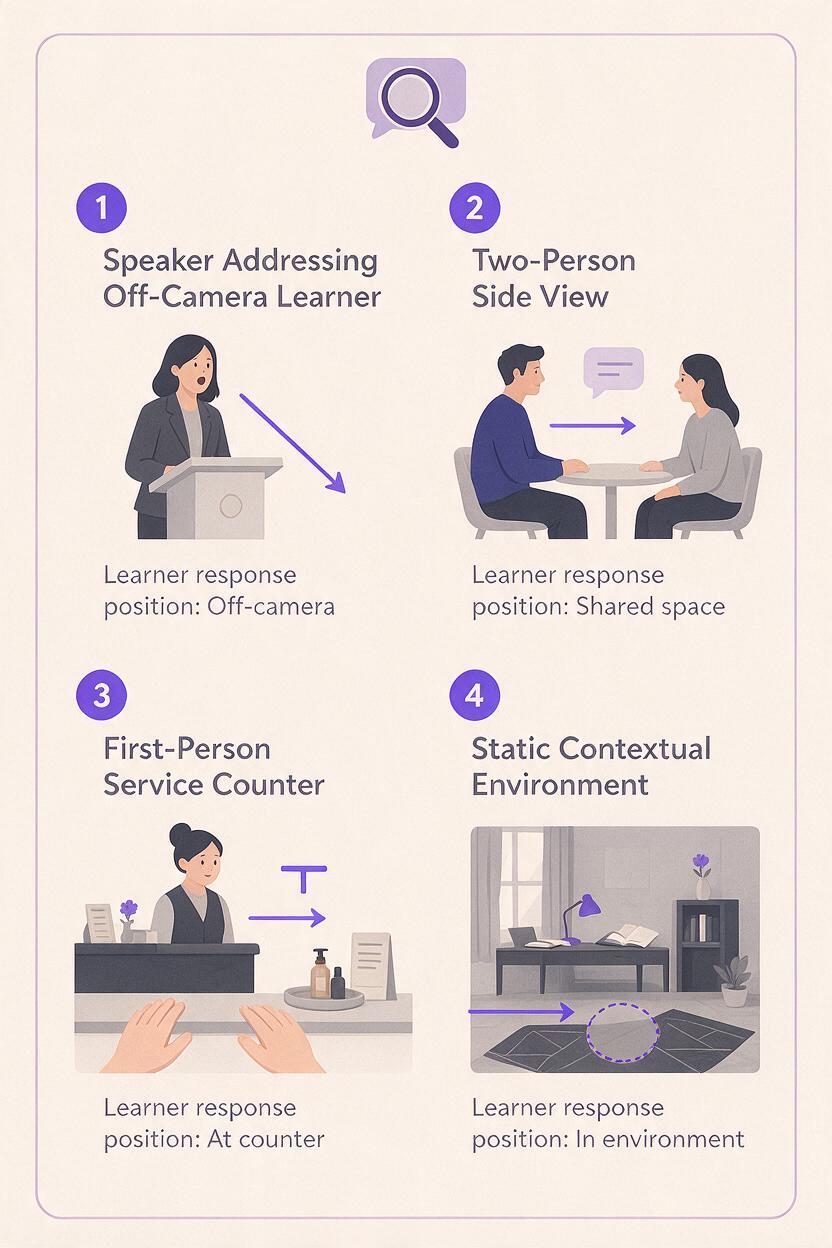
| Visual format | Best use | Main risk |
|---|---|---|
| Speaker facing slightly off-camera | Learner plays the unseen conversation partner | Excessive facial motion during the reply window |
| Two-person side view | Teacher pauses before the second character responds | The generated listener may appear to speak |
| Point-of-view counter scene | Service, travel, healthcare, or workplace practice | Busy objects can distract from the cue |
| Static environmental shot | Audio-led listening and speaking drills | Weak sense of direct conversation |
The most controllable option is usually a single visible speaker addressing an off-camera listener. During the learner’s answer, hold the final frame or extend a neutral reaction shot. This avoids asking the model to generate an exact multi-second silence with perfectly restrained behavior.
Write Vidu prompts for one conversational beat
Use text to video for the visual situation, but keep each generation focused on one observable beat. The prompt should describe the setting, speaker, eye line, restrained movement, camera, and intended endpoint. It should not contain a complete back-and-forth script.
Language-learning role-play scene at a quiet railway information desk. A friendly station employee in a simple uniform faces a traveler positioned just beside the camera. Medium shot at eye level, locked camera. The employee makes one small welcoming hand gesture, then becomes still and maintains attentive eye contact as if waiting for an answer. Natural indoor daylight, uncluttered background, realistic educational training-video style. No camera movement, no crowd crossing the frame, no visible text, no exaggerated gestures, no second speaker.The prompt ends with the waiting behavior because that final posture can become the response-window image. If the output continues moving too much, shorten the generated portion and freeze a stable frame in the editor.
A reusable prompt pattern
Language-learning role-play at [specific location]. A [speaker role and concise appearance] addresses a conversation partner positioned [off-camera position]. [Shot size], eye-level locked camera. The speaker performs [one small action], then becomes still with a neutral, attentive expression as if waiting for a reply. [Simple lighting and background]. Realistic instructional-video style. No visible text, no camera movement, no background interruptions, no exaggerated gestures, no additional speakers.Avoid emotional instructions such as “very animated,” “excited,” or “dramatic.” Those directions can produce constant movement that makes the reply interval feel unnatural.
Separate the spoken cue from the generated picture
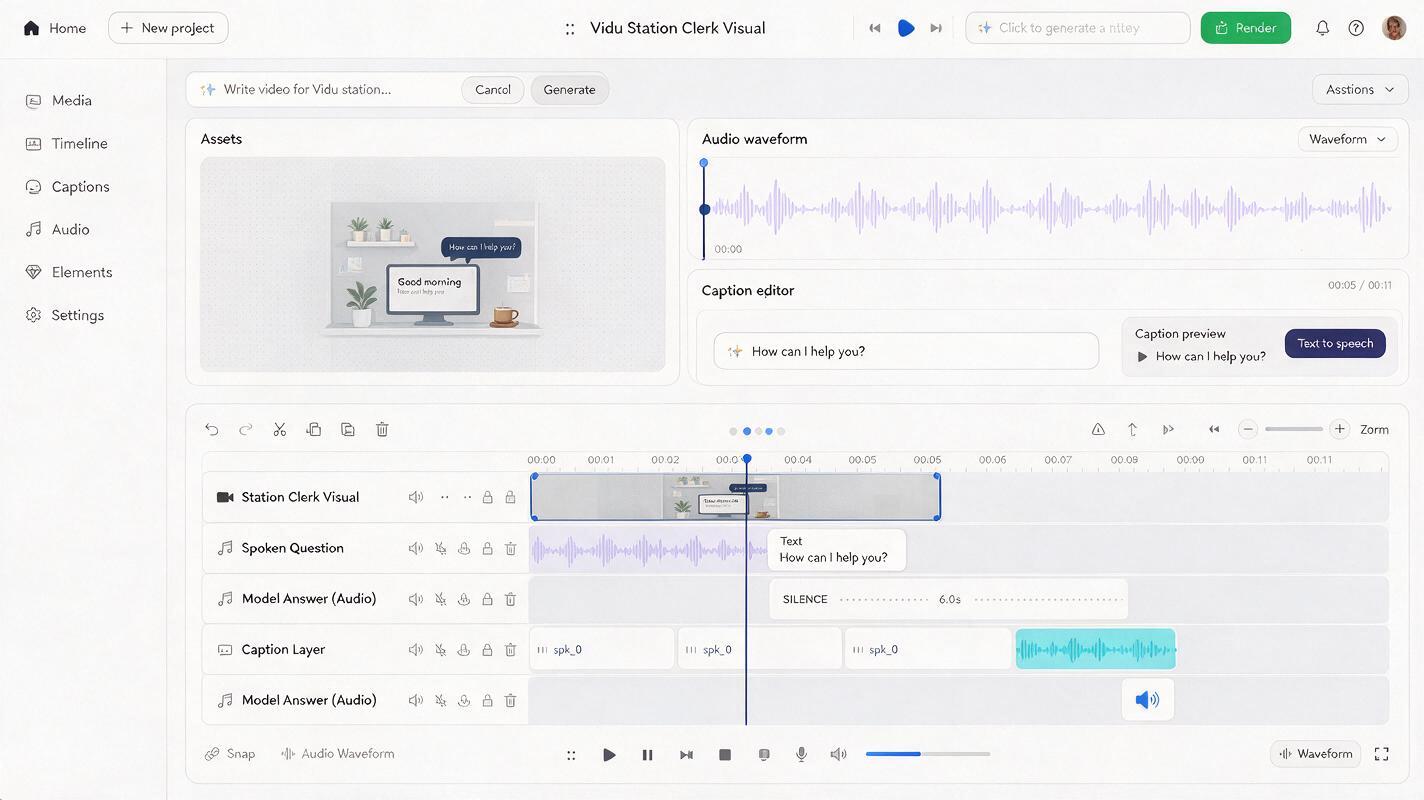
Generate the visual without depending on embedded speech. Then record the teacher, use a licensed actor, or add an ai voiceover that you are permitted to use. Separating voice and picture gives you control over wording, pronunciation, pace, and later corrections.
A practical timeline for one beginner exchange could be:
- One second of visual orientation before the speaker begins.
- Two to three seconds for the spoken question.
- Six to eight seconds for the learner’s answer.
- Two seconds for a model response, replay instruction, or transition.
The precise duration should reflect sentence complexity. “Tea or coffee?” needs less retrieval time than “Could you explain why you missed the appointment?” Test the interval by asking someone unfamiliar with the activity to answer aloud.
During the silent window, add a restrained progress indicator only if learners need support. A shrinking bar or five small dots is less intrusive than a numerical countdown, which may increase pressure. Always provide a pause control when the delivery platform allows it.
Add captions that support rather than reveal
Showing the full target answer immediately turns speaking practice into reading aloud. Instead, reveal support in layers.
- Listening mode: show no cue caption until after the first play.
- Supported mode: caption the question but not the answer.
- Scaffolded mode: provide a sentence starter such as “I’d like…”
- Review mode: display and play one model response after the learner answers.
Keep generated frames free of important text. Add captions in the editor, where spelling, contrast, line breaks, and timing can be checked. This also makes it easier to produce captioned and non-captioned versions from the same source clip.
Build a branching practice set without filming every conversation
A small collection becomes more useful when the clips share a repeatable structure. Keep the same framing and response rhythm while changing the communicative purpose.
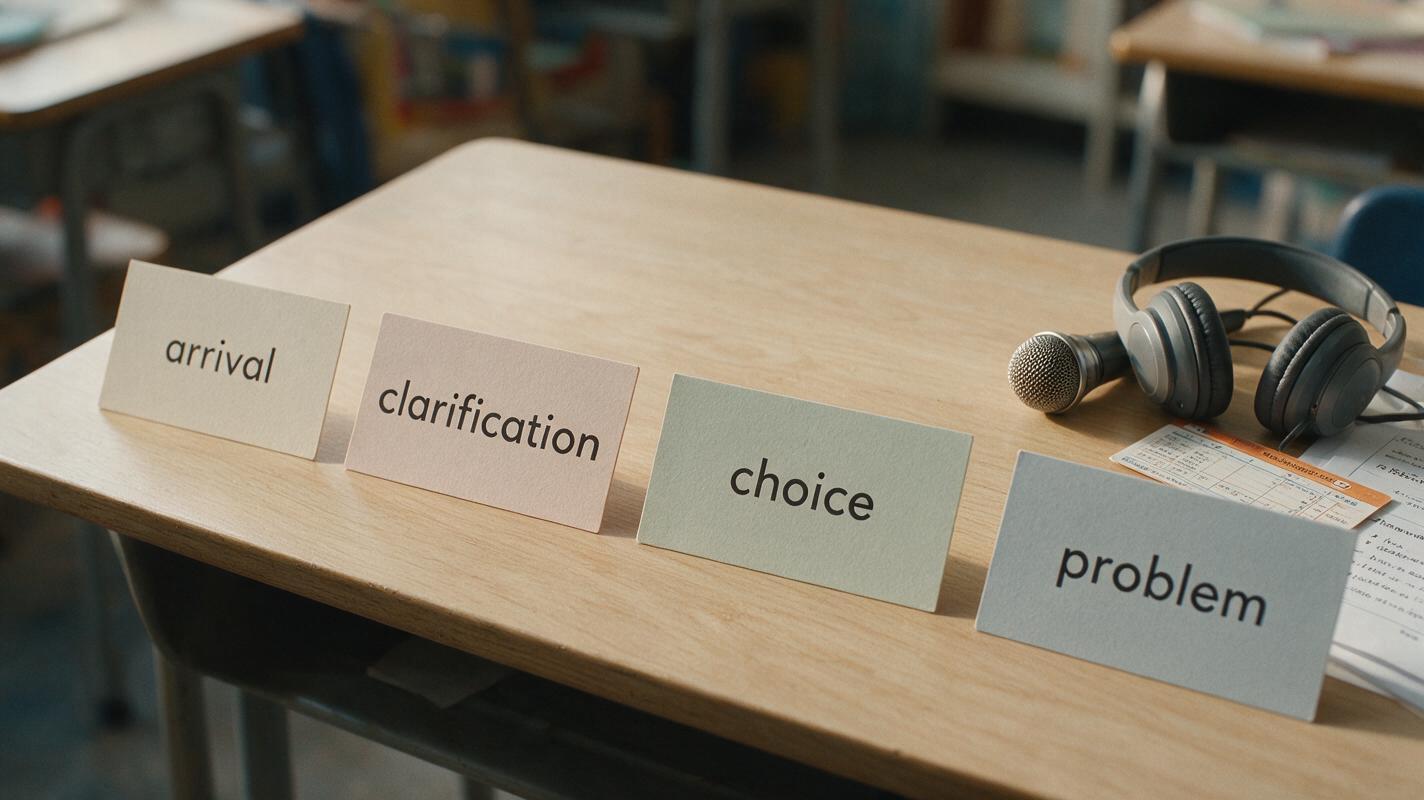
| Clip | Communicative goal | Example cue | Expected response type |
|---|---|---|---|
| Arrival | State an intention | “How can I help you?” | Polite request |
| Clarification | Provide missing information | “What time would you like to leave?” | Time expression |
| Choice | Select an option | “Would you prefer a single or return ticket?” | Short preference |
| Problem | Respond to a complication | “That train is fully booked.” | Alternative request |
This structure can support independent practice, classroom pair work, or branching course activities. A teacher can pause after each cue, invite several answers, and compare them with the model response rather than treating one sentence as the only correct answer.
Correct common failures without regenerating everything
The character appears to talk during the learner’s turn
Cut the clip immediately after the cue and use a still final frame for the answer interval. A subtle ambient sound bed can keep the scene from feeling broken.
The scene contains distracting background action
Replace broad descriptions such as “busy station” with “quiet information desk” and explicitly exclude people crossing the frame. The learning objective is conversational recall, not environmental spectacle.
The speaker looks impatient
Remove instructions involving repeated nodding, tapping, checking a clock, or strong facial reactions. Ask for a neutral attentive expression and minimal movement.
The response window feels too short
Measure it with a real learner rather than estimating while editing. Include comprehension time as well as speaking time, especially for beginners and learners processing captions.
The model answer sounds unnatural
Review it with a proficient speaker and check whether it fits the location, relationship, and language variety being taught. Present alternatives when several responses would be appropriate.
Review the clip as a learning activity
Watch the finished video once without answering. Then replay it and respond aloud under realistic conditions. Check whether the speaker’s gaze, the pause length, and the visual stillness communicate that it is the learner’s turn.
Also verify that:
- The cue matches the stated level and lesson objective.
- The setting provides context without giving away the answer.
- The learner can hear the complete cue before the response timer begins.
- Captions match the audio and remain readable on a phone.
- The model response is plausible rather than falsely presented as the only answer.
- Voices, likenesses, and reference materials are used with permission.
Once the exchange passes this speaking test, test this prompt yourself with another setting such as a hotel desk, clinic reception, workplace check-in, or parent-teacher meeting.
Final checklist
- Define one learner response before designing the scene.
- Generate one conversational beat rather than an entire dialogue.
- Keep the visible speaker’s movement restrained.
- Add speech, silence, and captions as editable layers.
- Measure reply time by answering aloud.
- Use graduated caption support instead of revealing the answer immediately.
- Review linguistic accuracy, accessibility, and permission before publishing.
Keywords
Vidu prompts, language-learning videos, dialogue practice, speaking activities, AI voiceover, text to video, course creator tools