Why AI Food Cinemagraphs Look Choppy (And How to Fix Seamless Loops)
AI-generated food cinemagraphs are a high-engagement asset for restaurant social media, but most tools produce choppy loops, morphing food, and unnatural motion that turns viewers away. This guide breaks down the most common AI food cinemagraph failures and shares actionable fixes using PixVerse for image-to-video generation and Seedream 4.5 for inpainting touch-ups, plus reusable prompt templates for popular menu items. You’ll learn how to create seamless, appetizing looped clips from static menu photos in minutes.
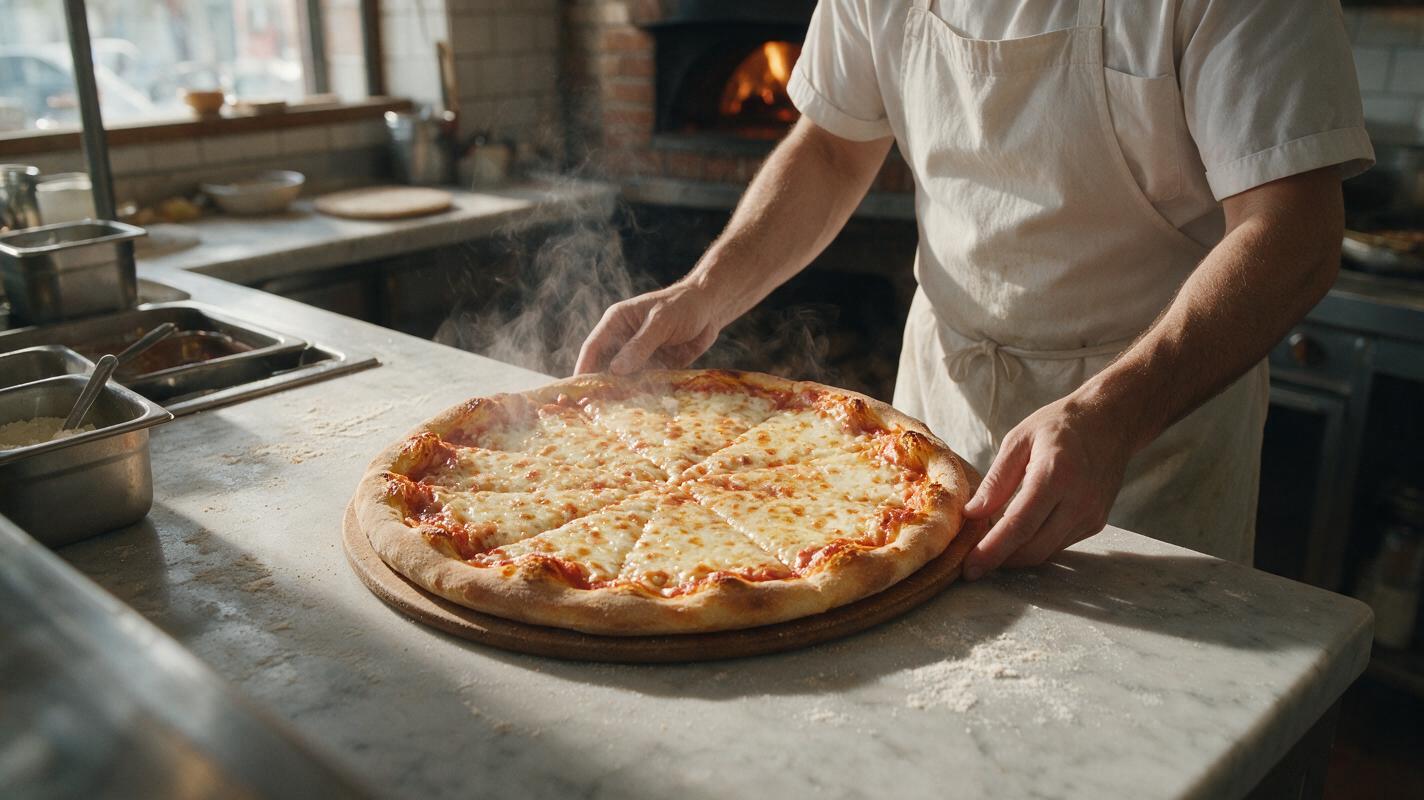
Table of contents
Food cinemagraphs: the high-engagement restaurant social asset
Subtle, looped food cinemagraphs outperform static menu photos on Instagram Reels, TikTok, and Stories by stopping scrollers without requiring sound or full attention—making them one of the most underrated assets for restaurant social media content.
Many restaurants try making them by using an image to video tool to animate existing menu photos, but end up with choppy loops, morphing food, or over-the-top motion that looks fake and unappetizing. The good news is that most of these issues are easy to fix with targeted prompts, motion controls, and a few post-generation tweaks.
Common AI cinemagraph failures (and what causes them)
Most bad AI food cinemagraphs fall into four predictable categories, each with a clear root cause. Identifying which issue you’re facing is the first step to fixing it without wasting generations on random tweaks.
| Failure | Root cause | Quick pre-generation fix |
|---|---|---|
| Choppy loop seam | First and last frame of the clip don’t align | Enable reverse loop mode in your video tool |
| Food morphing | Motion applied to the entire image instead of targeted areas | Use a motion brush to paint only the moving part |
| Unnatural motion | Vague prompts + high motion strength settings | Specify exact motion speed and type in your prompt |
| Background drift | Model animates static background elements by default | Add "all background elements remain completely static" to your prompt |
Pick a base photo that prevents morphing before you generate
The quality of your base photo determines 60% of your final cinemagraph’s success. If your starting image is blurry, cluttered, or has harsh, uneven lighting, the AI will struggle to distinguish between elements that should move and elements that should stay still.
Follow these rules for your base menu photo to minimize morphing and drift:
- High resolution: 1024px or larger on the shortest edge, so the AI can pick up fine details like crumbs, condensation, or cheese texture.
- Even, soft lighting: Avoid harsh shadows or bright highlights that can shift during generation. Natural window light or soft studio light works best.
- Clear focal point: The food should take up 60-70% of the frame, with minimal background clutter (no random utensils, napkins, or decor that can drift).
- No motion blur: Sharp, in-focus food gives the AI a clear reference point to lock onto.
- Simple backgrounds: Solid plates, wooden tables, or plain walls are far easier to keep static than busy patterned tablecloths or crowded dining rooms.
Prompt for subtle, targeted motion (not full video chaos)
The #1 mistake people make when generating AI food cinemagraphs is writing prompts for full food videos instead of subtle, single-motion loops. Cinemagraphs only need one small, slow movement—everything else should stay perfectly still.
Use this reusable prompt structure for PixVerse or any image-to-video tool with motion control:
[Specific menu item], [single subtle motion], [speed of motion], all other elements (food, plate, background, utensils) remain 100% static, no camera movement, [lighting style], photorealistic, 4-second seamless loopTry these ready-to-use prompts for popular restaurant menu items:
Cheeseburger with sesame seed bun on a matte white plate, slow thin steam rising from the top of the beef patty, all other elements (bun, cheddar cheese, lettuce, tomato, plate, wooden table) remain completely static, no camera movement, soft golden hour light, photorealistic, 4-second seamless loopIced vanilla latte in a clear tumbler, tiny slow bubbles rising through the milk, one small drop of condensation sliding down the glass side, all other elements (ice cubes, glass, paper straw, saucer) remain completely static, no camera movement, bright natural light, photorealistic, 3-second seamless loopPepperoni pizza slice on a wooden serving board, slow soft steam rising from melted mozzarella cheese, all other elements (crust, pepperoni slices, board, marble counter) remain completely static, no camera movement, warm restaurant pendant lighting, photorealistic, 4-second seamless loopFor the best results, use the motion brush tool in PixVerse to paint only the area that should move (for example, the space above the burger for steam, or the inside of the latte glass for bubbles). This tells the AI exactly where to apply motion, and leaves the rest of the image untouched, eliminating 90% of food morphing issues.
Test this prompt yourself with your best-selling menu item to see how much cleaner the motion is when you target only one small area.
Fix loop seams with reverse play and frame trimming
Even with a "seamless loop" prompt, most AI-generated clips will have a slight jump between the last frame and the first frame. This happens because image-to-video models generate clips from a single start frame, with no built-in logic to match the end frame back to the beginning.
The easiest, most reliable fix is to use reverse loop mode, available in PixVerse, Runway, and most consumer AI video tools. Instead of playing the clip from start to end and jumping back to the beginning, the tool plays the clip forward, then reverses it, creating a smooth, seamless transition with no visible jump.
For even cleaner loops, take two extra steps:
- Trim the first 0.5 seconds and last 0.5 seconds of the clip. AI models often generate shaky or inconsistent motion at the very start and end of a clip, so trimming these removes the worst artifacts before you create the loop.
- If your tool doesn’t have a built-in reverse loop feature, export the clip, duplicate it, reverse the duplicate, and stitch them together in a free video editor like CapCut.
This simple trick fixes 80% of choppy loop issues, no re-generation required.
Touch up distorted details with inpainting
If you still notice small morphing issues—like a tomato slice that shifts position, a cookie that changes shape, or a fry that bends mid-loop—you don’t have to re-generate the entire clip from scratch.
Instead, export the frame where the distortion is most obvious, and use Seedream 4.5’s inpainting tool to fix the distorted area, matching the original base photo exactly. Once you have a corrected frame, use it as the new base image and re-generate the cinemagraph with the same motion settings. This is far faster than tweaking prompts and hoping for a better result.
For tiny, frame-specific distortions that only appear for a split second, you can also use video inpainting tools to paint over the distorted area and tell the AI to keep that part static for the rest of the clip.
Final cinemagraph quality checklist
Before you post your AI food cinemagraph to social media, run through this quick checklist to make sure it’s polished, realistic, and appetizing:
- Loop is completely seamless: watch it play 3-5 times in a row to check for jumps, glitches, or awkward transitions
- Food doesn’t morph: the plating, shape, color, and portion size of the dish stay identical through the entire loop
- Motion is subtle: the moving element is slow and realistic, not distracting, over-the-top, or cartoonish
- Background is fully static: no tables, utensils, decor, or background elements shift, move, or warp
- Lighting is consistent: no sudden brightening, darkening, or color shifts mid-loop
- Length is 3-5 seconds: perfect for infinite loops on Reels, TikTok, and Instagram Stories
- Resolution is 1080p or higher: looks crisp and professional on mobile screens
Keywords
ai food cinemagraphs, restaurant social media content, image to video, food video loops, ai food video, menu photo animation, pixverse food prompts