Adobe Firefly Can Now Remove Video Backgrounds: How to Replace a Scene Without Regenerating the Whole Clip
Adobe’s September 18 Firefly update points to a bigger change in AI video: creators are starting to edit the shot they already approved instead of regenerating the entire clip every time one thing is wrong.
文章目录
Visual note: The workflow images in this guide are illustrative mockups created for this article. They are not presented as official Firefly outputs or benchmark tests.
Quick answer
Adobe announced a new Remove Background feature for video in Firefly on September 18, 2026. Adobe says the tool automatically detects the subjects in a clip and removes the background across the video, without requiring frame-by-frame masking.
The same September update also added reference-image support for Kling 3.0 Omni inside Firefly and increased prompt length for image and video generation on the web.
For creators, the bigger story is not one Adobe feature.
It is the shift from:
“Something is wrong → generate the whole clip again”
to:
“The performance is right → edit only the part that changed.”
That is an important production trend.
Why full regeneration is expensive even when credits are cheap
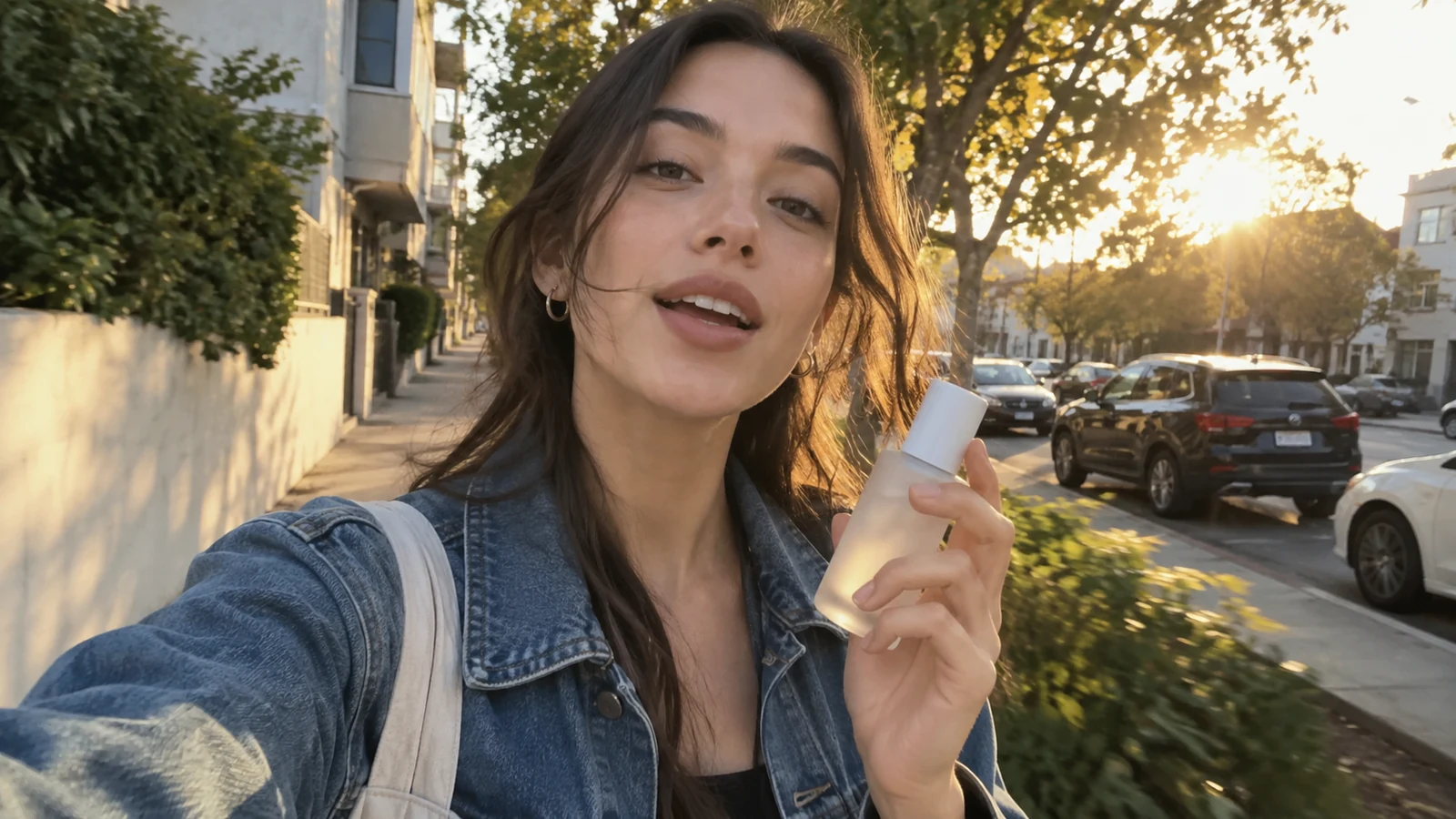
Imagine you have a 7-second UGC shot that finally works:
- the creator smiles at the right moment
- the hand reaches the product naturally
- the hook starts immediately
- the camera drift feels human
- the face stays stable
- the product is readable
But the background is wrong.
Maybe the client wants a cleaner bathroom.
Maybe the campaign needs a U.S., Japan and France version.
Maybe the holiday campaign needs snow instead of summer.
Maybe the apartment reveals a logo you cannot use.
If you regenerate the entire shot, you may fix the background and lose everything else.
The performance is now an asset.
The goal is to protect it.
What video background removal actually gives you
Background removal creates a subject layer that can be composited over a different environment.
In a traditional VFX workflow, this might require:
- chroma key
- rotoscoping
- masks
- tracking
- edge cleanup
- manual frame corrections
Adobe’s new Firefly feature is designed to automate the detection/removal stage across the whole clip.
That does not mean a believable composite is now one click.
The cutout is only the beginning.
The new background still needs to agree with the original subject on:
- camera height
- perspective
- lens feeling
- light direction
- color temperature
- depth of field
- contact shadows
- reflections
- environmental motion
The difference between “AI cutout” and “finished shot” lives in those details.
Step 1 — Lock the approved take first
Before removing anything, decide whether the source performance is worth saving.
Keep the take if:
- face identity is strong
- hands work
- timing works
- camera motion is usable
- product interaction is correct
- lip sync or dialogue timing is already good
- the only real problem is the environment
Do not spend time preserving a weak performance just because the background tool exists.
If the actor’s gesture, expression or timing is wrong, regenerate or reshoot the source.
Step 2 — Remove the background
Adobe describes the new Firefly workflow as automatic subject detection across the clip, avoiding frame-by-frame masking.
That is especially useful for:
- talking-head ads
- UGC-style creators
- product presenters
- fashion clips
- simple walking shots
- reaction videos
- localized ad variants
It becomes harder when the subject:
- passes behind foreground objects
- interacts heavily with furniture
- has hair whipping across a complex background
- casts a large moving shadow on the environment
- appears in glass or mirrors
- is lit by rapidly changing colored sources
Those cases are not impossible, but they require more post-production thinking.
Step 3 — Build the replacement background as a production plate
Do not use the first pretty background you generate.
Treat the new background like a plate on a real shoot.
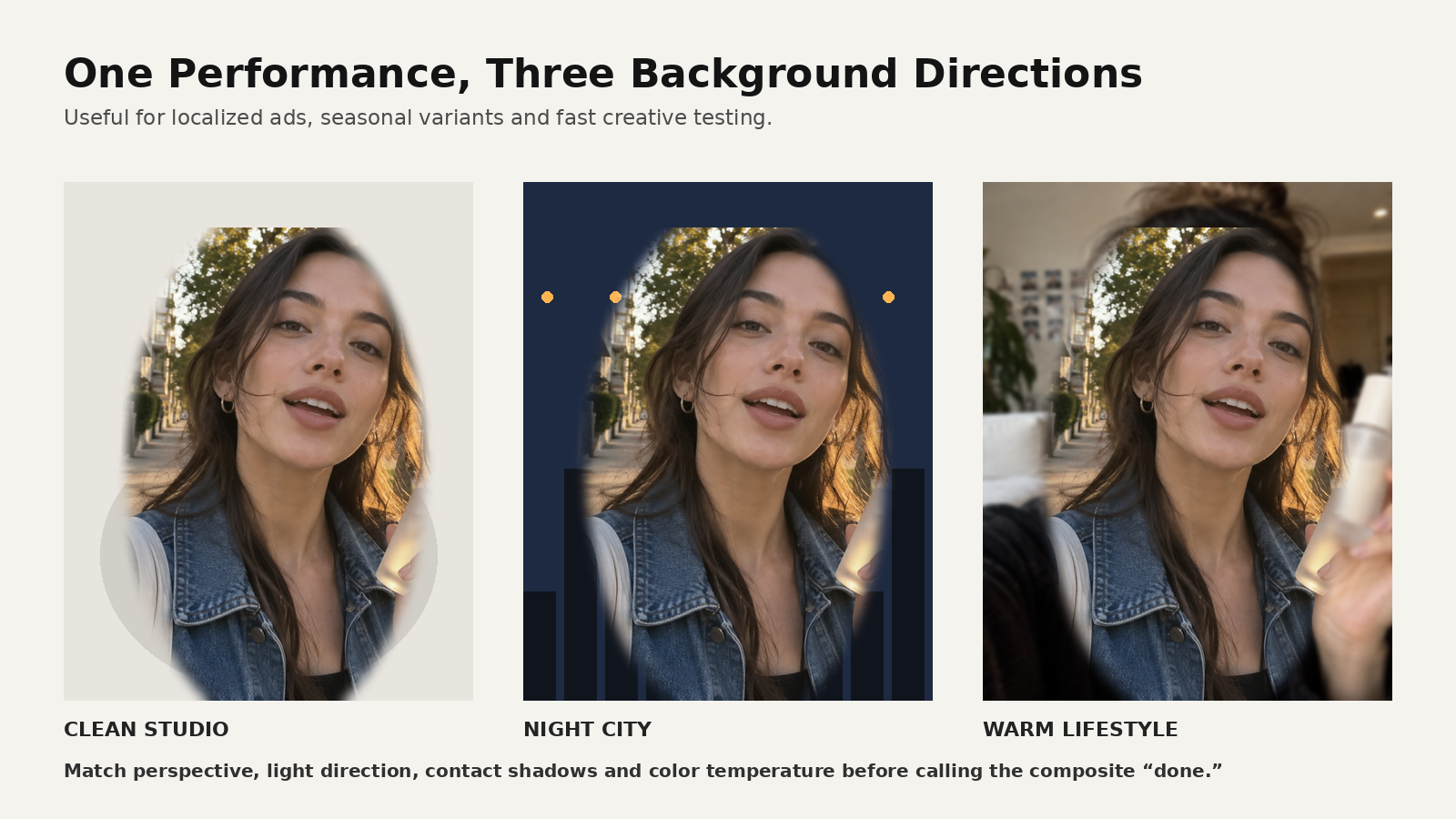
For the same creator performance, you might test:
Clean studio
Good for:
- ecommerce
- product launch
- app promotion
- educational creator clips
Prompt:
Minimal warm-grey studio background for a vertical creator video.
Soft tonal gradient, floor-to-wall transition, no visible brand elements.
Camera height approximately eye level.
Neutral 35mm–50mm photographic perspective.
Soft key light direction from camera left.
Leave enough negative space on camera right for captions.
Night city
Good for:
- fashion
- music
- nightlife
- tech
- launch campaigns
Prompt:
Urban night background plate for a vertical creator ad.
Camera at eye level on a city sidewalk.
Deep blue ambient light, small warm practical lights in the distance,
subtle wet-pavement reflections, shallow depth of field.
No readable signs or real logos.
Light direction should allow a warm rim from camera right.
Lived-in apartment
Good for:
- UGC
- skincare
- wellness
- home products
- creator reviews
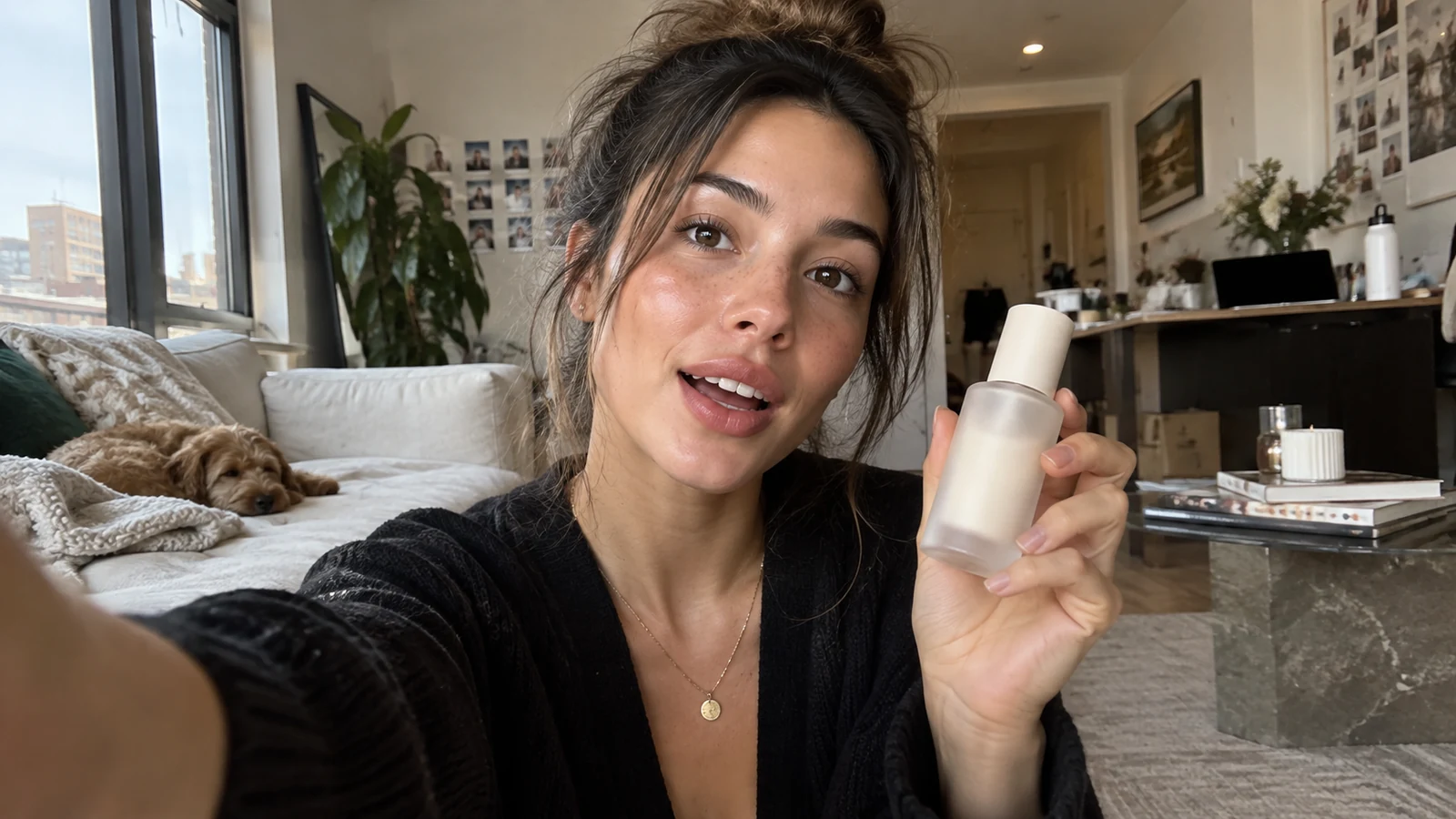
Prompt:
Real lived-in apartment background for a creator video.
Natural window light, sofa, books, small plant, ordinary household clutter,
soft depth of field, believable scale, not a luxury showroom.
Camera height and focal perspective suitable for a front-facing phone video.
Step 4 — Match perspective before you match color
A background can have the correct mood and still feel fake because the camera geometry is wrong.
Look at:
- horizon height
- vanishing lines
- subject scale
- lens compression
- camera tilt
- depth of field
If the source feels like a wide phone camera and the background feels like a compressed 100mm photograph, the composite will never fully settle.
A useful background prompt includes camera behavior:
Background plate only.
Eye-level camera at approximately 1.6 meters.
Natural phone-camera perspective, not telephoto compression.
Vertical 9:16 framing.
Keep architecture scale believable for a person standing 1.5 meters from camera.
Step 5 — Match light direction and exposure
This is the most common reason a background replacement feels pasted on.
If the original subject has warm sunlight from camera right, the new environment should explain that light.
Ask:
- where is the key light coming from?
- is there a rim?
- are face shadows hard or soft?
- is the background brighter or darker than the subject?
- what color is the ambient fill?
You can sometimes fix a close mismatch with relighting or color work.
A large mismatch should be solved by changing the plate.
Step 6 — Restore contact, reflections and environmental logic
The subject needs to belong to the scene.
Useful finishing details:
- soft contact shadow
- reflected color from nearby surfaces
- slight ambient light wrap around hair
- appropriate floor reflection
- environmental grain/noise
- matching motion blur
- haze or atmosphere
- occlusion where necessary
A creator standing on a “new floor” with no shadow is one of the fastest ways to reveal the composite.
The full workflow
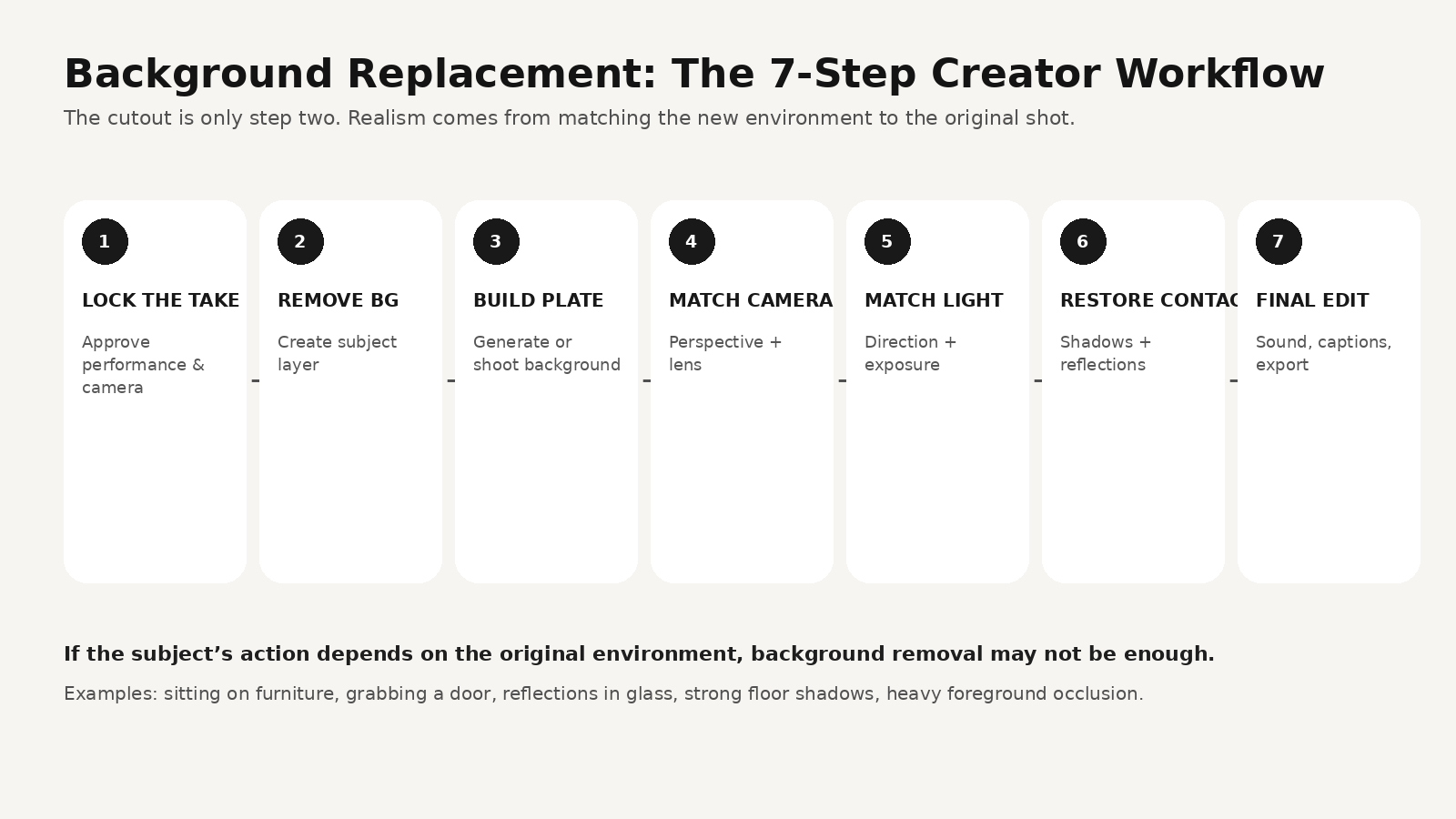
A practical seven-step pipeline is:
- Lock the take — approve performance and camera.
- Remove background — create the subject layer.
- Build the plate — generate or shoot the new environment.
- Match camera — perspective and lens.
- Match light — direction, temperature, exposure.
- Restore contact — shadow, reflection, light wrap.
- Finish the edit — sound, captions, pacing, export.
The key principle:
Do not regenerate what is already approved.
When background removal is better than regeneration
Localized ads
One creator performance can live in several markets.
Change:
- storefront style
- apartment details
- weather
- local color palette
- on-screen language
Keep:
- spokesperson
- gesture
- product demo
- camera timing
Seasonal variants
Turn one evergreen ad into:
- holiday
- summer
- back-to-school
- launch night
- sale week
Client revisions
Client says:
“We love the performance. Can the background be cleaner?”
That should not require rebuilding the actor.
Fast creative testing
Test three environments against the same hook.
Now you are measuring the environment variable rather than three completely different generations.
When you should NOT remove the background
The smallest edit is not always the correct edit.
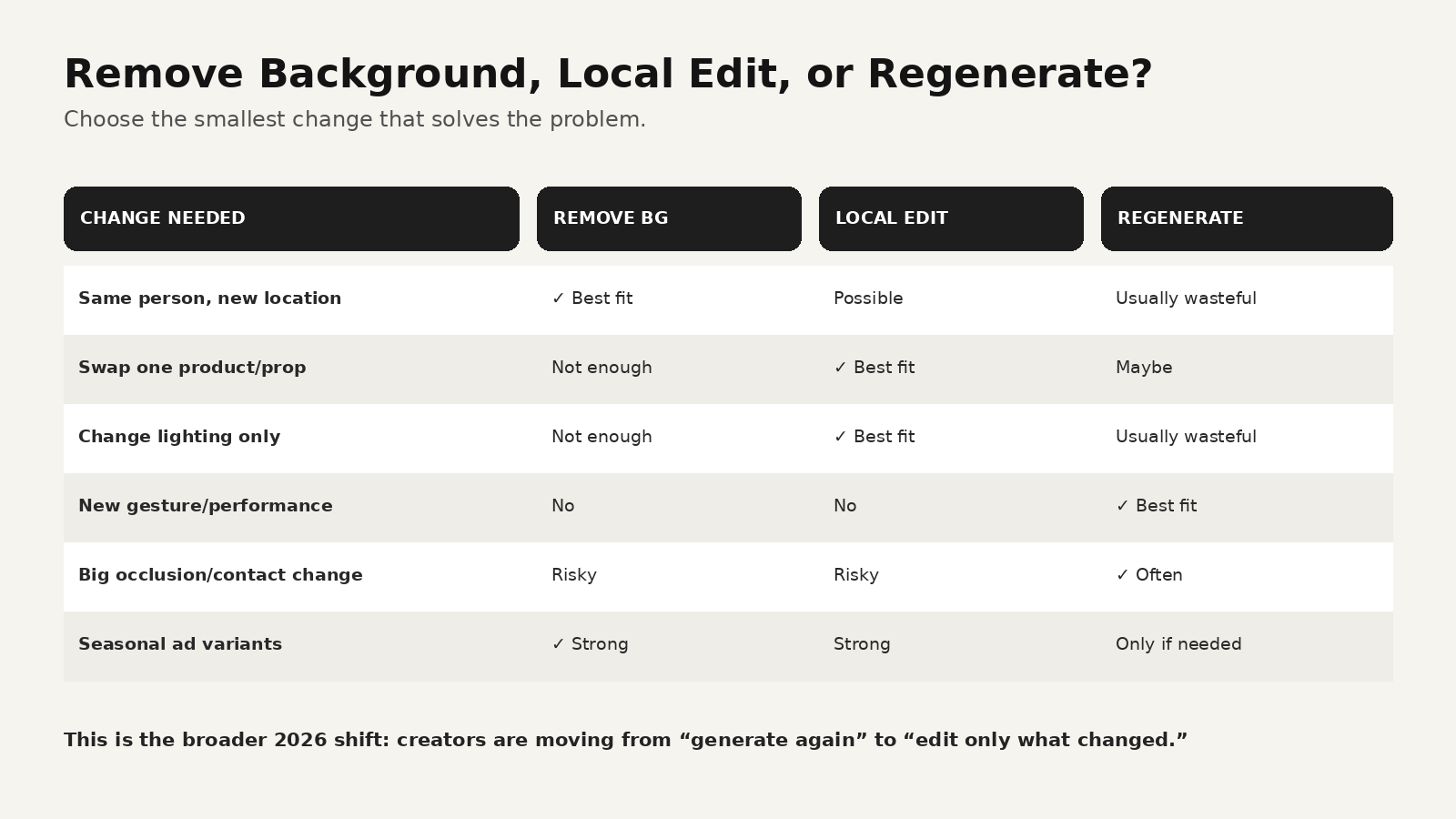
Regenerate the shot when you need:
- a different gesture
- a new facial reaction
- new timing
- a different camera path
- strong new interaction with the environment
- major foreground occlusion
- a new seated/standing relationship
- a replacement object with very different size and physics
Example:
A creator originally leans against a kitchen island.
You replace the background with a beach.
Now their body is “leaning on” invisible furniture.
That is not a background problem.
That is a performance problem.
The bigger 2026 trend: local AI video editing
Adobe’s September update is part of a broader move toward targeted AI video post-production.
The creator workflow is becoming more like conventional post-production:
generate → approve → edit → version
rather than:
generate → dislike one thing → generate everything again
That is a healthier production model.
How MagicBoat fits into this workflow
MagicBoat’s current product page positions the platform around the larger film/video pipeline:
- idea and script
- storyboard
- visual generation
- reusable characters and project assets
- multi-style / multi-model generation
- voiceover and lip sync
- music
- shot editing
- sequencing
- subtitles
- final video
A practical hybrid workflow can be:
1. Build the source shot in MagicBoat
Use the project to lock:
- character
- product
- script
- hook
- shot structure
- camera intention
2. Approve the performance before versioning
Do not start five market versions before you have one strong master.
3. Use a background-removal or local-edit tool for targeted changes
If only the environment changes, preserve the performance.
4. Bring the variants back into the final editing workflow
Review:
- color continuity
- subtitles
- music
- CTA
- regional copy
- aspect ratio
- pacing
MagicBoat is strongest here as the place where the whole creative project stays organized, rather than treating each generative step as an isolated clip.
Try the broader workflow at https://www.magicboat.net/.
A 15-second product-ad example
Shot 1 — Hook, 0–3s
Creator walks outside holding a small skincare bottle.
Keep the approved outdoor version as the master.
Shot 2 — Product detail, 3–6s
Close product insert.
This shot can stay identical across all versions.
Shot 3 — Benefit, 6–10s
Creator speaks to camera.
Generate or film once.
Shot 4 — Variant environment, 10–13s
Create three versions:
- warm apartment
- night city
- clean studio
Shot 5 — CTA, 13–15s
Same creator and product. Localize copy only.
Now the production team can test the environment without changing the hook or performance.
That is a much cleaner experiment.
Common mistakes
Mistake 1: Treating background removal as finished compositing
Fix: match camera, light, shadow and environmental texture.
Mistake 2: Replacing the background even though the performance depends on it
Fix: regenerate when body contact or occlusion changes.
Mistake 3: Generating backgrounds with no camera specification
Fix: specify height, lens feeling, perspective and framing.
Mistake 4: Matching “style” but not light
Fix: describe the key-light direction and color temperature.
Mistake 5: Versioning too early
Fix: approve one strong master take first.
FAQ
Can Adobe Firefly remove the background from a video?
Adobe announced on September 18, 2026 that Firefly can automatically detect subjects in a clip and remove the background across the clip without frame-by-frame masking.
Is video background removal the same as replacing an object?
No. Background removal isolates the main subject/environment relationship. Object replacement is a more local edit inside the shot.
Does background removal preserve camera motion?
The source subject motion remains part of the source clip. A believable replacement still needs a background that matches the source camera perspective and motion.
Why does a replacement background look fake?
Usually because camera perspective, light direction, shadows, depth of field, grain or environmental interaction do not match.
Should I remove the background or regenerate the whole AI video?
Remove the background when the performance and camera are already approved and only the environment needs to change. Regenerate when the action, timing, camera or physical interaction must change.
Can I use MagicBoat with this workflow?
Yes as part of the larger production pipeline: script, storyboard, source-shot generation, recurring visual assets, voice, music and final editing. Use the most appropriate specialized tool for the background-removal step, and verify current model/tool availability before production.
Sources
- Adobe Community — What’s new in Adobe Firefly, September 2026 (September 18, 2026): https://community.adobe.com/announcements-402/what-s-new-in-adobe-firefly-september-2026-1642552
- MagicBoat — Official product page: https://www.magicboat.net/
Keywords
Adobe Firefly remove video background, AI video background remover, remove background from video AI, replace video background AI, edit AI video without regenerating, AI video editing, local AI video editing, video compositing AI, creator ad workflow, MagicBoat AI